This tutorial will help you capture events triggered by a Yay! Forms embedded form on your website using Google Tag Manager (GTM). You’ll learn how to listen for form events from the Yay! Forms iframe, push those events into the GTM dataLayer, and then use variables and triggers to send the captured data to tools like Google Analytics 4 (GA4) and Meta Pixel.
Tracking Yay! Forms embedded forms with GTM
Use embedded Yay! Forms forms for audience engagement and lead generation. You can easily track form views, starts, answers, and submissions as conversions and interactions using Google Tag Manager (GTM) and this Yay! Forms event listener code.
Example GTM Data Layer object
Here is an example of an object sent to the GTM dataLayer when a question is answered:
{
  "event": "YFAnswer",
  "gtm": {
    "uniqueEventId": 1026,
    "start": 1718243777463
  },
  "data": {
    "responseId": "666a4f5ad3d586edd79fee54",
    "fieldId": "661071840811e305370cadb7",
    "fieldTitle": "<p>Name</p>",
    "content": "Rafael",
    "variables": {score: 6},
    "hiddenFields": {src: "lp01"},
    "tracking": {
      utm_source: "facebook",
      utm_medium: "cpc",
      utm_campaign: "summer_sale",
      utm_content: "beachwear",
      utm_term: "ad1"
    },
    "questionList": [
      {
        "fieldId": "661071840811e305370cadb7",
        "fieldTitle": "<p>Name</p>",
        "content": "Rafael"
      },
      {
        "fieldId": "661071860811e305370cadb8",
        "fieldTitle": "<p>Email</p>",
        "content": "test@yayforms.com"
      },
      {
        "fieldId": "661071860811e305370cadb9",
        "fieldTitle": "<p>Phone</p>",
        "content": "+5511988888888"
      }
    ]
  }
}
Step-by-step guide
Step 1: Create a Custom HTML Tag in GTM
Start by creating a custom HTML tag in GTM where you can conveniently paste the listener code. This tag will listen for events from the Yay! Forms iframe and send them to the dataLayer on the main page.
Step 2: Implement the Event Listener Code
Paste the following event listener code into the custom HTML tag you created:
<script>
var eventMethod = window.addEventListener ? "addEventListener" : "attachEvent";
var eventer = window[eventMethod];
var messageEvent = eventMethod == "attachEvent" ? "onmessage" : "message";

eventer(messageEvent, function(e) {
  var key = e.message ? "message" : "data";
  var data = e[key];
  var validEventTypes = ["YFView", "YFStart", "YFAnswer", "YFSubmit"];

  if (validEventTypes.includes(data.type)) {
    window.dataLayer = window.dataLayer || [];
    window.dataLayer.push({
      'event': data.type,
      'data': data.eventData
    });
  }
}, false);
</script>
This code listens for messages from the Yay! Forms iframe and sends relevant events to the dataLayer.
Step 3: Configure Data Layer Variables
To capture form details such as response ID, field ID, field title, content, and question list, you need to configure dataLayer variables in GTM.
- Go to Variables in GTM: In your GTM workspace, navigate to the “Variables” section.
- Click New: Click the “New” button to create a new variable.
- Choose the Data Layer Variable Type: Select “Data Layer Variable” as the variable type.
- Configure Each Variable: Create the following variables with their respective Data Layer Variable Names:
| Variable name | Data Layer Variable Name |
|---|---|
| responseId | data.responseId |
| fieldId | data.fieldId |
| fieldTitle | data.fieldTitle |
| content | data.content |
| questionList | data.questionList |
Step 4: Configure Custom Variables Using Custom JavaScript
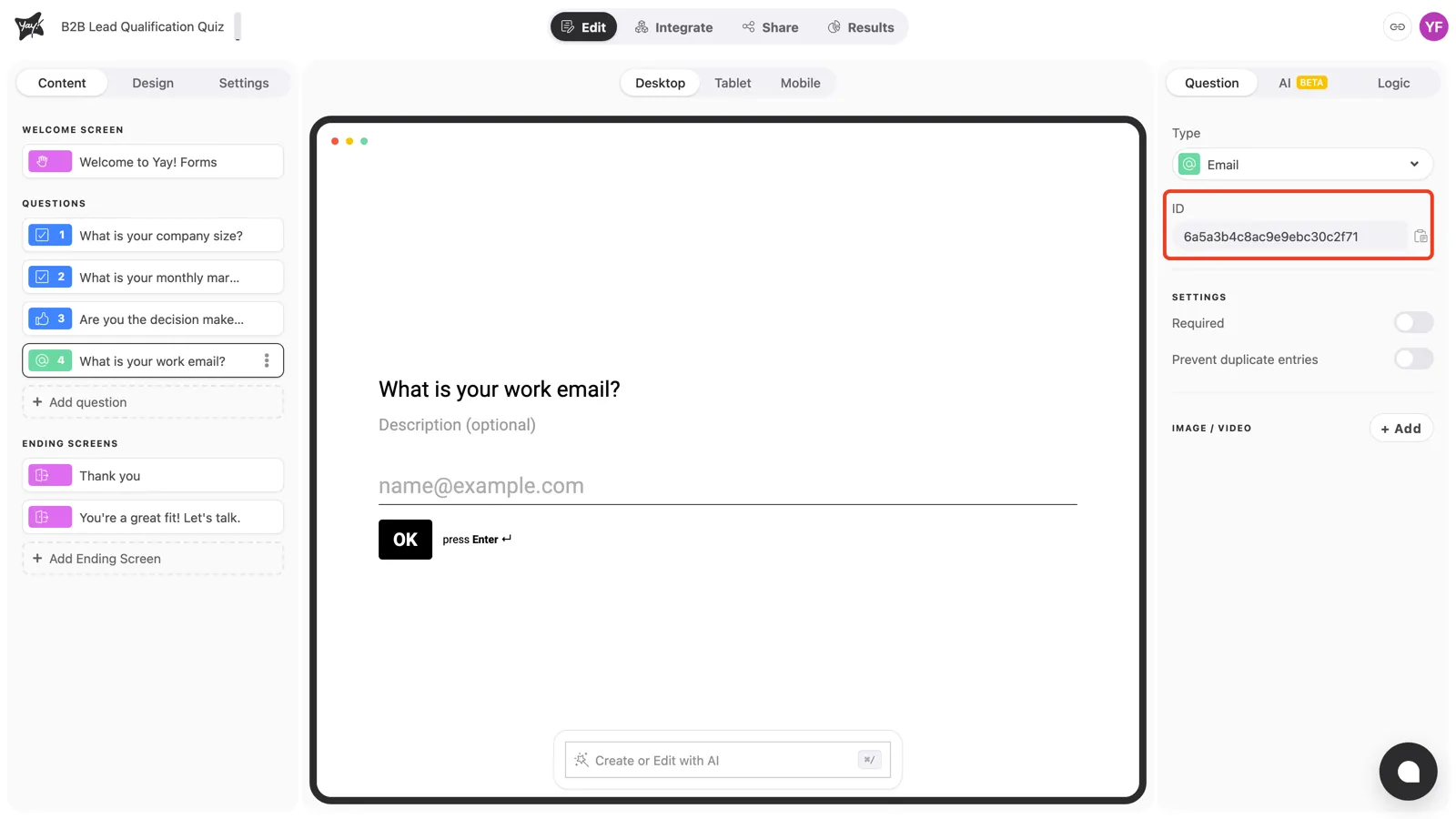
To capture specific user data, such as name, email, and phone, use custom JavaScript variables that iterate over the questionList array to find the correct values.
Example custom JavaScript code:
function() {
  var questionList = {{questionList}};
  var filtered = questionList.filter(function(question) {
    return question.fieldId === 'field_id';
  });
  return filtered.length > 0 ? filtered[0].content : '';
}
Detailed configuration in GTM
- Create a Data Layer Variable for
questionList:- Variable Name:
questionList - Data Layer Variable Name:
data.questionList
- Variable Name:
- Go to Variables in GTM: In your GTM workspace, navigate to the “Variables” section.
- Click New: Click the “New” button to create a new variable.
- Choose the Variable Type: Select “Custom JavaScript”.
- Configure the Custom JavaScript Variable for Each Field. See the examples below:
Variable name:
- Variable Name:
name - Variable Type:
Custom JavaScript - Variable Code:
function() {
  var questionList = {{questionList}};
  var filtered = questionList.filter(function(question) {
    return question.fieldId === '661071860811e305370cadb7';
  });
  return filtered.length > 0 ? filtered[0].content : '';
}
Variable email:
- Variable Name:
email - Variable Type:
Custom JavaScript - Variable Code:
function() {
  var questionList = {{questionList}};
  var filtered = questionList.filter(function(question) {
    return question.fieldId === '661071860811e305370cadb8';
  });
  return filtered.length > 0 ? filtered[0].content : '';
}
Variable phone:
- Variable Name:
phone - Variable Type:
Custom JavaScript - Variable Code:
function() {
  var questionList = {{questionList}};
  var filtered = questionList.filter(function(question) {
    return question.fieldId === '661071860811e305370cadb9';
  });
  return filtered.length > 0 ? filtered[0].content : '';
}Step 5: Create Custom Event Triggers
To enable your marketing tags/pixels to fire, you need to create custom event triggers using the event names:
- YFView: For when the form is viewed.
- YFStart: For when the form is started.
- YFAnswer: For when a question is answered.
- YFSubmit: For successful form submissions.
- Go to Triggers in GTM: In your GTM workspace, navigate to the “Triggers” section.
- Click New: Click the “New” button to create a new trigger.
- Choose the Trigger Type: Select “Custom Event” as the trigger type.
- Configure Each Trigger: Create the following triggers with their respective event names:
| Trigger Name | Event Name |
|---|---|
| YFStart | YFStart |
| YFView | YFView |
| YFAnswer | YFAnswer |
| YFSubmit | YFSubmit |
Step 6: Include Triggers and Parameters in Your Event Tags
You can now include triggers and parameters in your event tags for Google Analytics 4 (GA4) and Meta Pixel.
Example for Google Analytics 4 (GA4)
- Create a new tag: Choose “Tag Configuration” > “Google Analytics: GA4 Event”.
- Configure event parameters:
- Event Name:
{{event}} - Event Parameters:
- response_id:
{{responseId}} - name:
{{name}} - email:
{{email}} - phone:
{{phone}}
- response_id:
- Event Name:
- Add a trigger: Select the custom event triggers you created for
YFView,YFStart,YFAnswer, andYFSubmit.
Example for Meta Pixel
-
Create a new tag: Choose “Tag Configuration” > “Custom HTML”.
-
Paste the Meta Pixel event code:
<script> fbq('trackCustom', '{{event}}', { response_id: '{{responseId}}', name: '{{name}}', email: '{{email}}', phone: '{{phone}}' }); </script> -
Add a trigger: Select the custom event triggers you created for
YFView,YFStart,YFAnswer, andYFSubmit. We recommend using theYFAnswerevent since the user may not always complete the form.
Conclusion
This guide explained how to listen for Yay! Forms embedded-form events, push them into the GTM dataLayer, and then use GTM variables, custom events, and triggers to send consistent event names and form data into your analytics and marketing tags.