Logic is what turns a static form into a conversation that adapts to each respondent: skip questions that don’t apply, add up a score, and send each person to the ending made for them. This article explains how the pieces fit together (variables, rules, conditions, and actions) and exactly when each one runs. Once these concepts click, quizzes, lead scoring, and personalized paths all become variations of the same recipe.
The building blocks
| Concept | What it is |
|---|---|
| Rule | An “IF this, THEN that” attached to a question. Runs when that question is answered. |
| Condition | The “IF” part: a test on an answer, a variable, a hidden field, or a UTM parameter. |
| Action | The “THEN” part: jump somewhere (Go to) or change a variable (Add, Subtract, Multiply, Divide, Assign value to variable). |
| Variable | A named value that persists across the whole form, like score. See How to create and use variables. |
| Default path | Where the respondent goes when no rule matches (By default / Otherwise). |
When rules run (read this first)
The three facts below explain almost every “why did my logic do that?” moment:
- Rules belong to a question, and they run the moment that question is answered. A rule on question 3 can read answers from questions 1 to 3, but it knows nothing about question 4 yet.
- Rules are evaluated top to bottom, and the first match wins. When a rule’s conditions are true, its actions run and the rules below it (the Else chain) are ignored. Order your rules from most specific to most general.
- If no rule matches, the Otherwise path runs. That’s the “go to the next question” fallback at the bottom of the panel, and you can point it anywhere.
Add your first rule
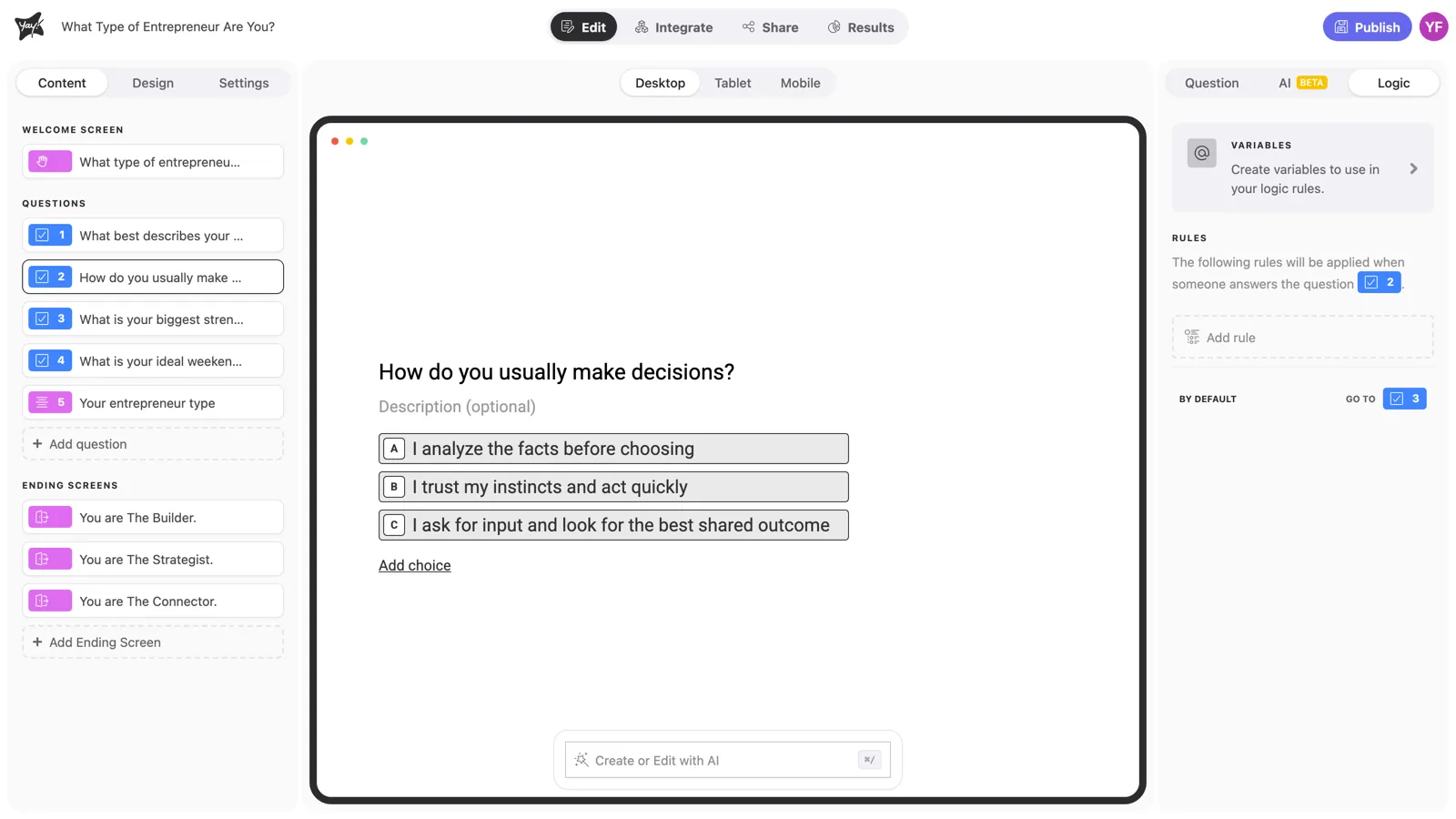
Select the question that should trigger the logic and open the Logic tab in the right panel. You’ll see two areas: Variables at the top and Rules below, with the default path at the bottom.
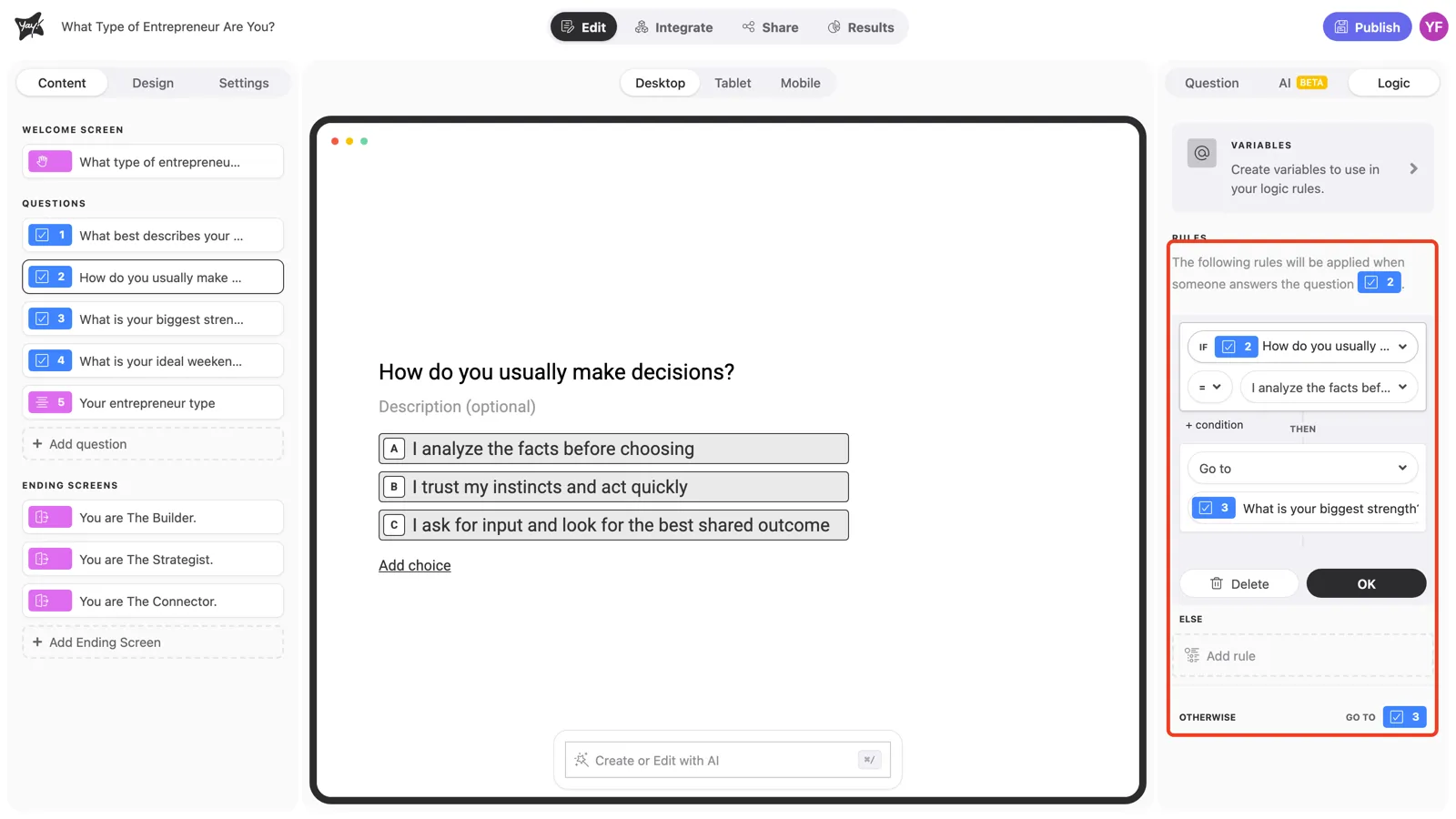
Click Add rule. The rule editor shows every part in place: the IF block with one condition, the THEN block with one action, Else for chained rules, and Otherwise at the end.
Conditions: what you can test
Click the field selector in the IF block to choose what the condition looks at:
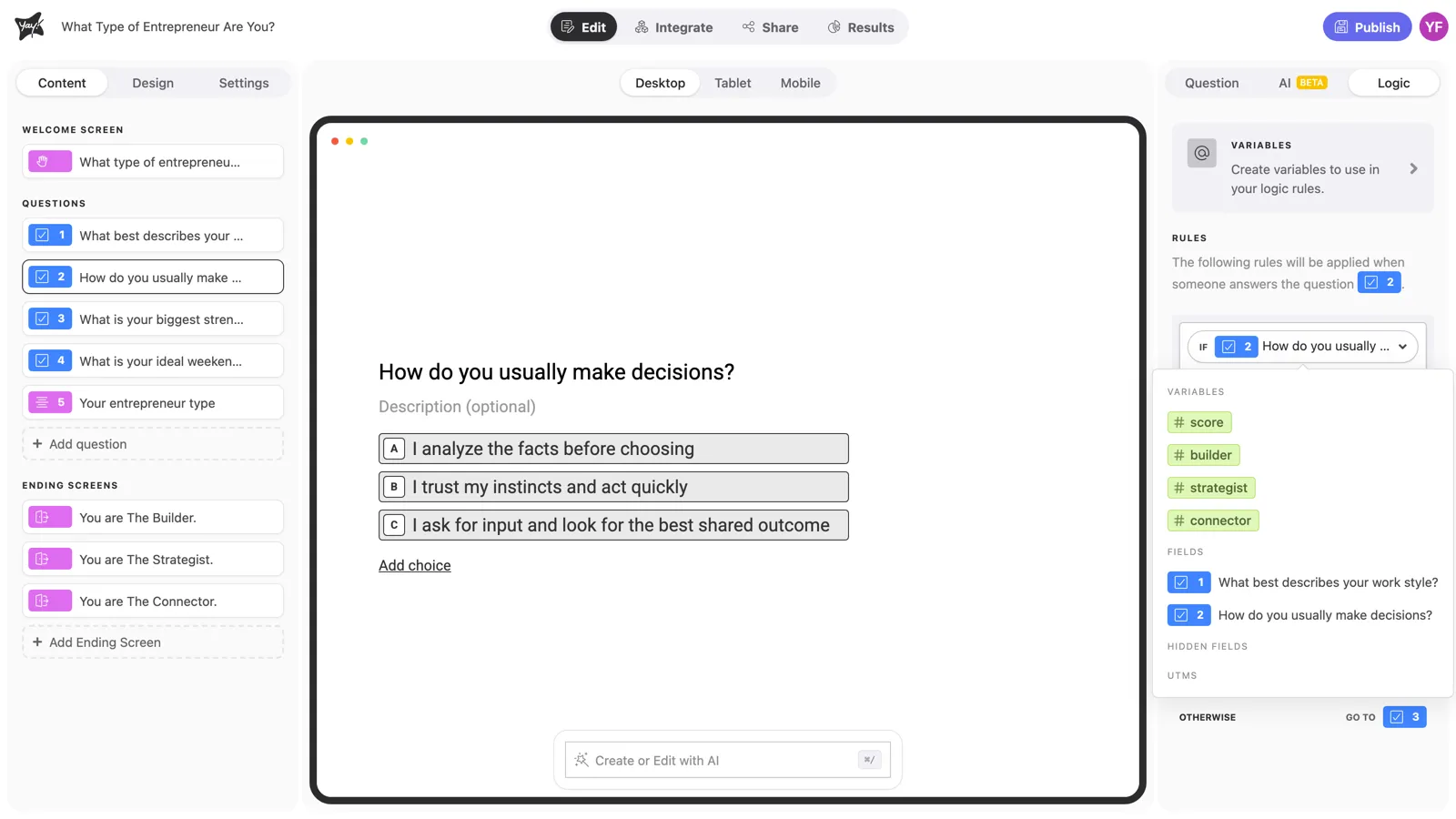
- Fields: the answer to the current question or any question before it.
- Variables: values like
scoreor any variable you created. - Hidden fields and UTM parameters: data passed in the form URL, like the campaign that brought the respondent. See How to use the Mention feature.
The operator between the field and the value depends on what you’re testing:
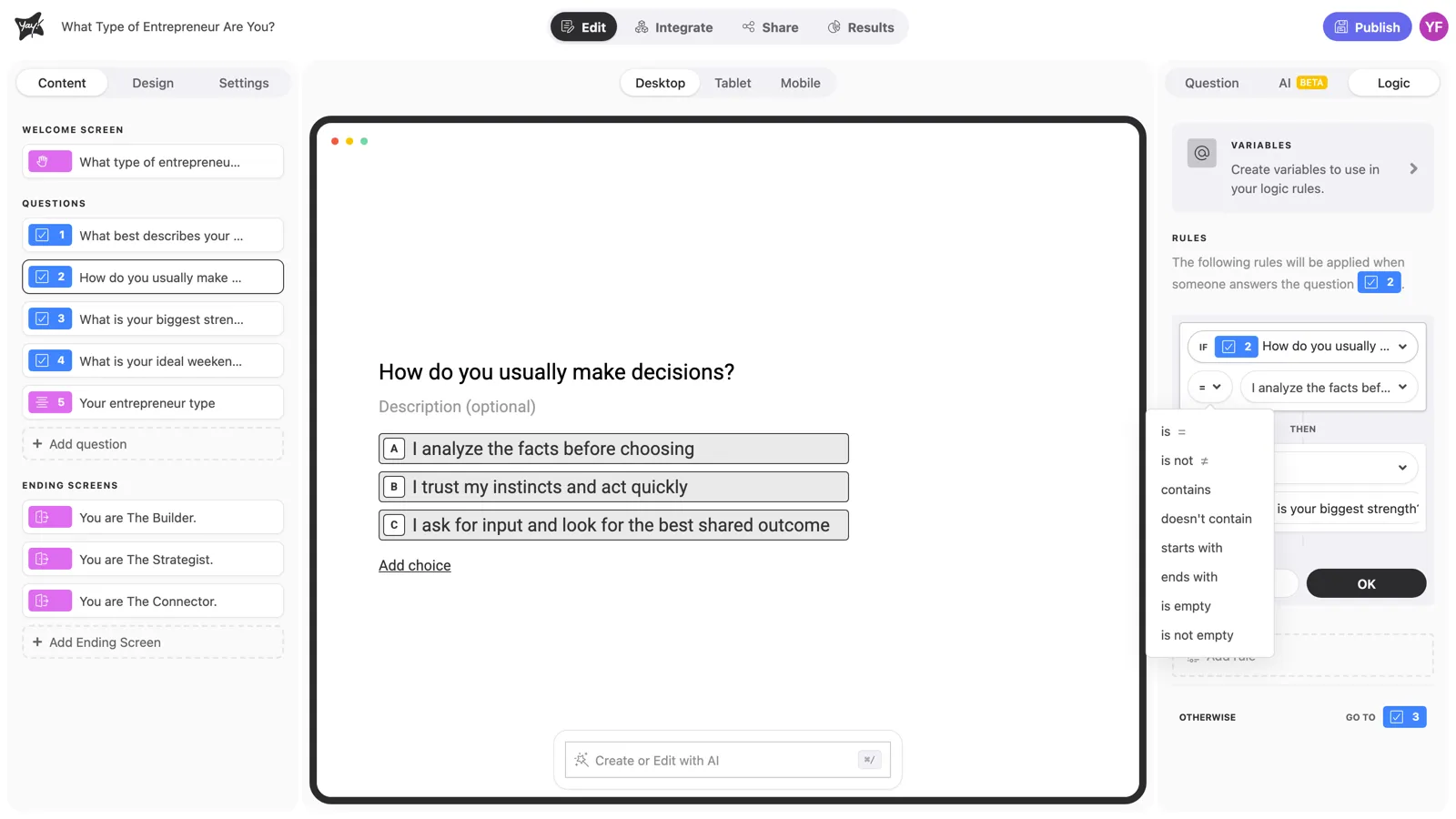
| Testing… | Operators |
|---|---|
| Text and choices | is, is not, contains, doesn’t contain, starts with, ends with, is empty, is not empty |
| Numbers and variables | is, is not, is greater than, is less than, is greater than or equal to, is less than or equal to, is the greatest one, is the least one |
Is the greatest one and is the least one compare a variable against all your other variables. They’re the engine behind profile discovery quizzes, where the highest-scoring profile wins.
To combine tests, click + condition and pick AND (all must be true) or OR (any can be true). A rule like “company size is 500+ OR company size is 201–500” matches either answer:
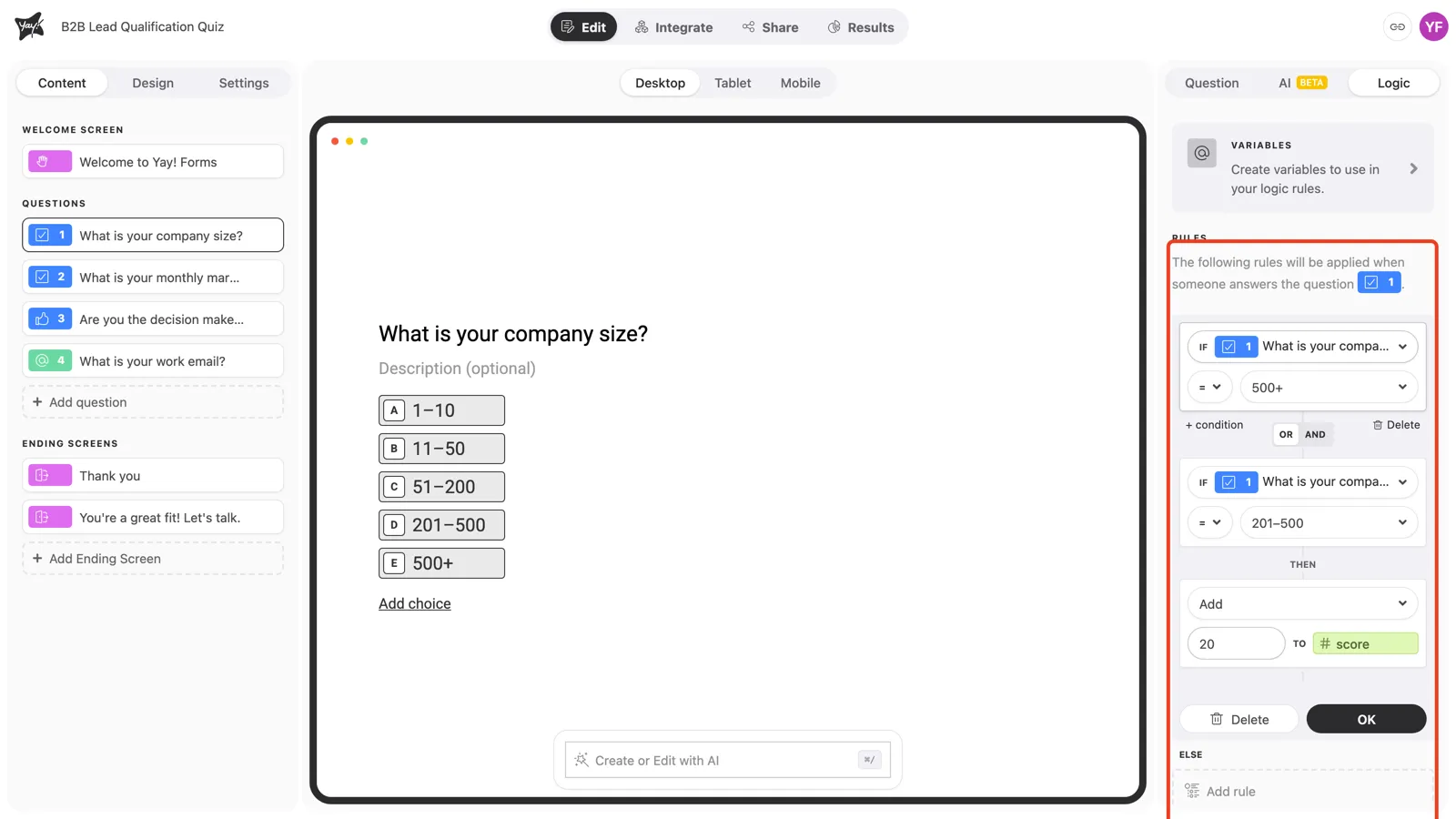
Actions: what happens on a match
Click the action selector in the THEN block to see what a rule can do:
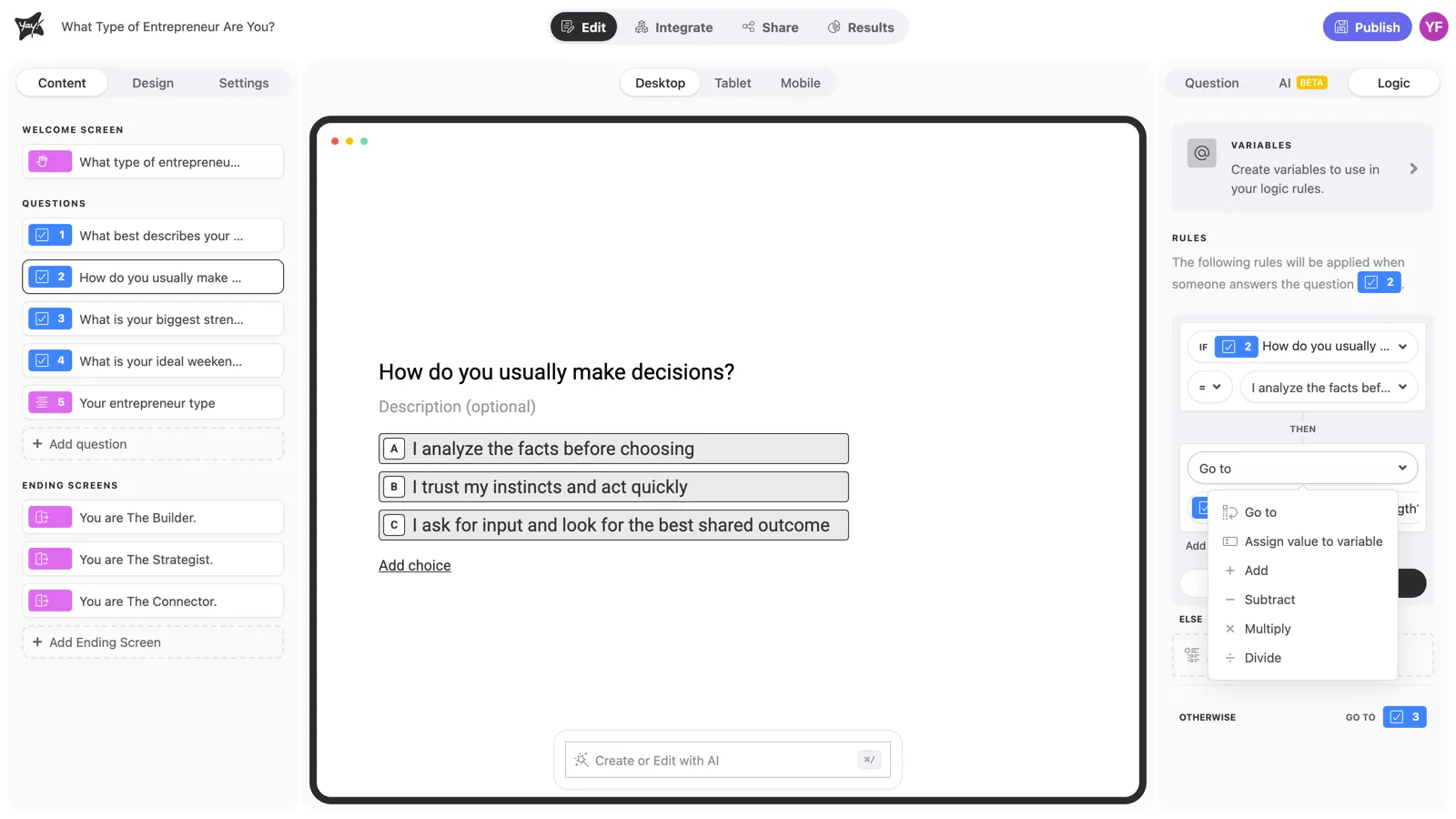
| Action | What it does | Typical use |
|---|---|---|
| Go to | Jumps to any question, Statement, or ending screen | Skip irrelevant questions; route to the right ending |
| Add / Subtract | Adds to or subtracts from a number variable | Scoring points, counting answers |
| Multiply / Divide | Multiplies or divides a number variable | Weighted calculations |
| Assign value to variable | Overwrites the variable with a new value, regardless of what it held | Setting a category or flag (“plan = Pro”) |
One rule can run several actions: click Add action. Adding 20 points and jumping to another section in the same rule is a common combination.
Chaining rules with Else
Click Add rule inside the Else block to handle the next case. Because the first matching rule wins, an Else chain reads exactly like it runs: “if A, do this; else if B, do that; else if C…”. Here’s a profile quiz question where each answer feeds a different variable:
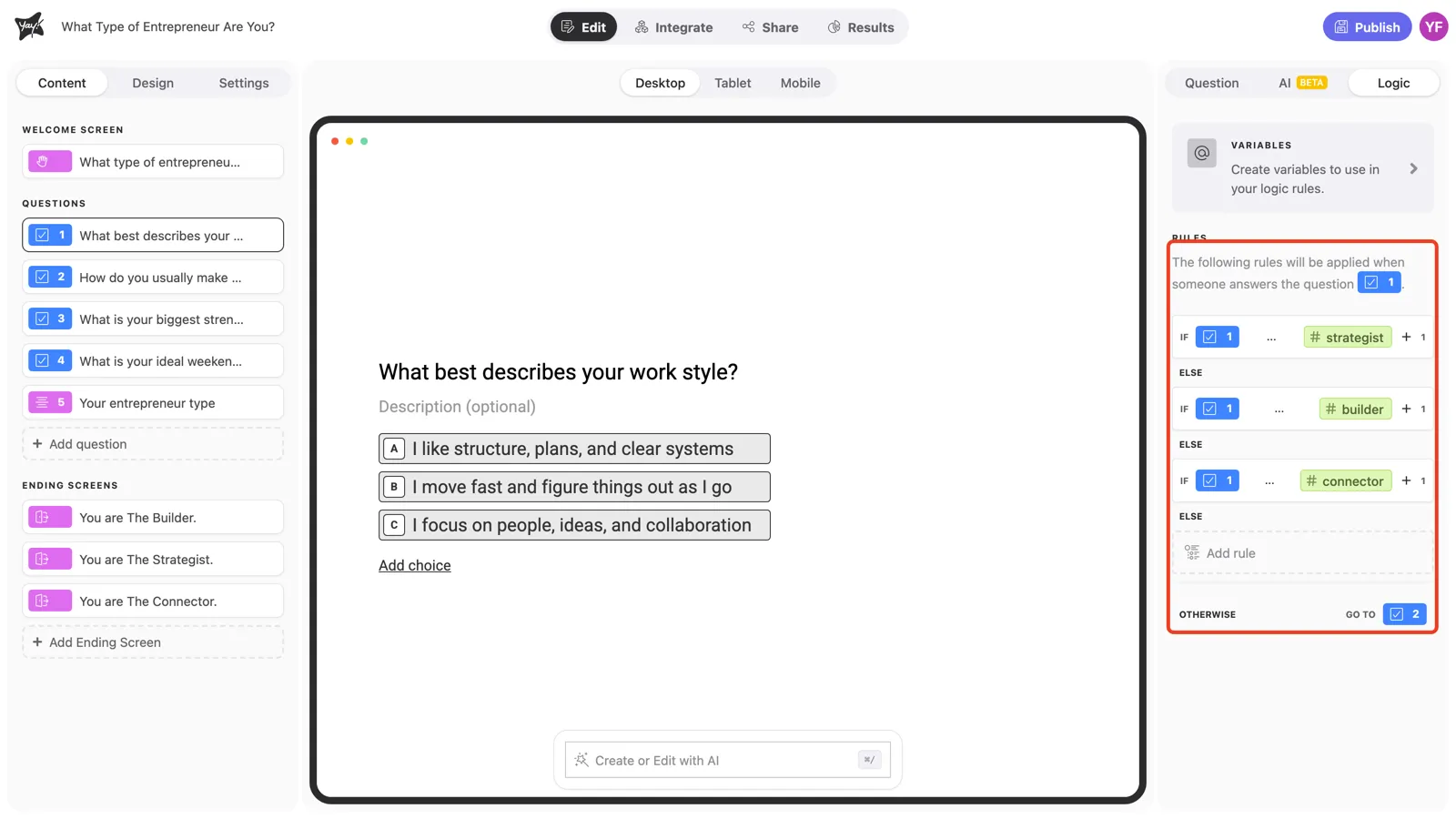
The Otherwise path
Otherwise defines where respondents go when nothing above matched. By default it points to the next question, and you can aim it at any question or ending screen. Every question with rules has one, so there’s never a dead end. You can see it at the bottom of the rule editor in the screenshots above.
What logic can build
The same five blocks combine into every classic use case, and each one has its own step-by-step tutorial:
- Scored quiz: right answers add points; the total decides the result screen.
- Lead scoring and qualification: answers about budget, size, and role add weighted points; qualified leads land on a booking page.
- Profile discovery quiz: each answer feeds a profile variable; is the greatest one picks the winner.
Conclusion
You’ve learned the five building blocks (rules, conditions, actions, variables, and the default path), the three facts about when rules run, and how the first matching rule short-circuits the rest. From here, pick the tutorial that matches what you’re building.
Related articles: