This guide shows how to connect Claude, ChatGPT or another AI assistant to Yay! Forms through the Model Context Protocol (MCP), the open standard that lets AI assistants work directly with external apps. Once authorized, the assistant can read your forms, responses and stats, or build, edit, duplicate and publish forms from your chat. This feature is currently in Beta.
Prerequisites
- A Yay! Forms workspace on a paid plan or an active 7-day free trial (either your own workspace or one you were invited to).
- Claude, ChatGPT or another AI assistant that supports remote MCP connectors.
1. Open AI assistants in your account
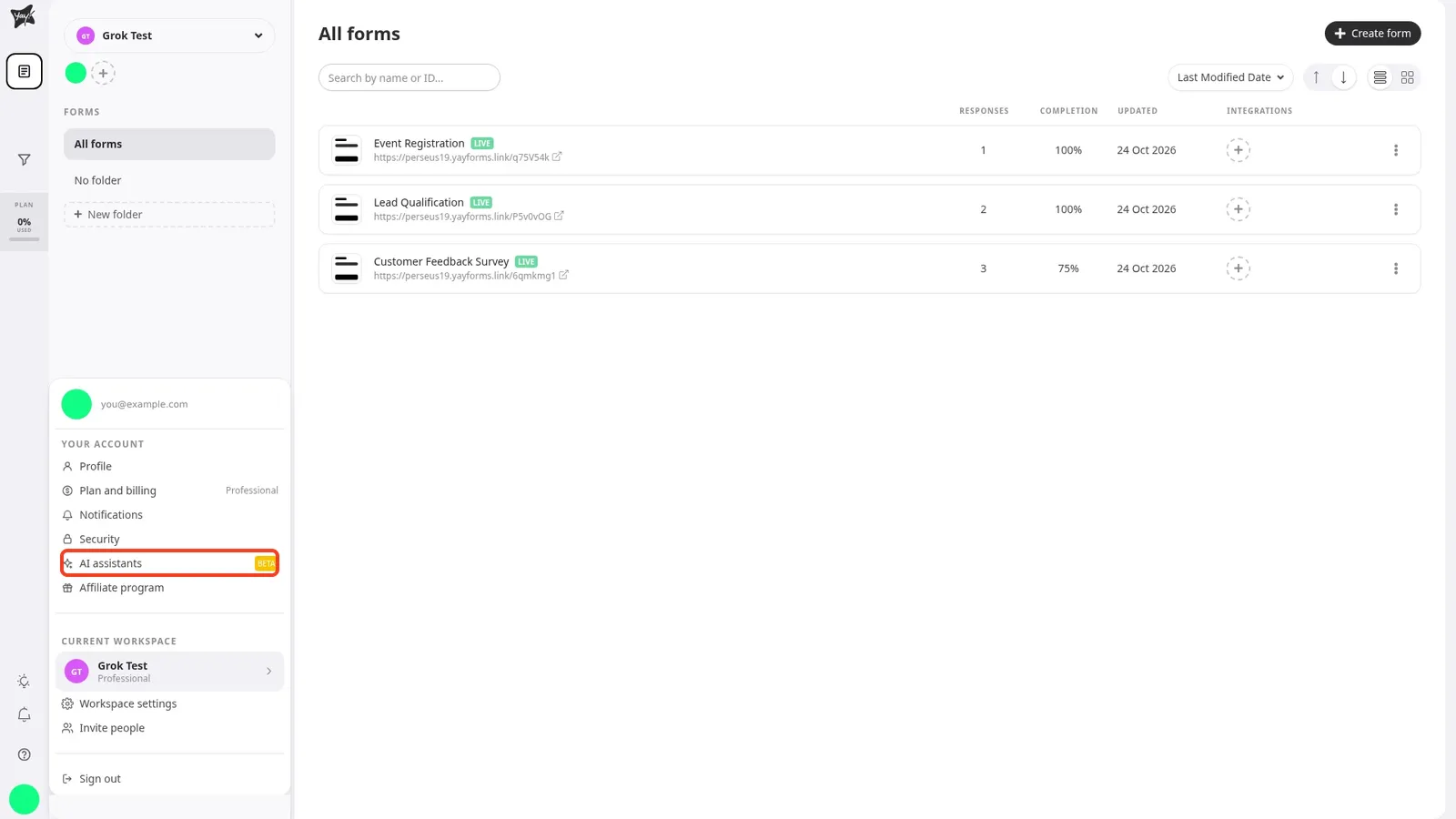
Click your avatar in the bottom-left corner of the side menu (or in the top bar on your phone). Under Your account, select AI assistants (marked Beta).
2. Copy the MCP server address and add the connector
In the Connect an AI assistant card, click the copy button next to the server address https://mcp.yayforms.com/mcp.
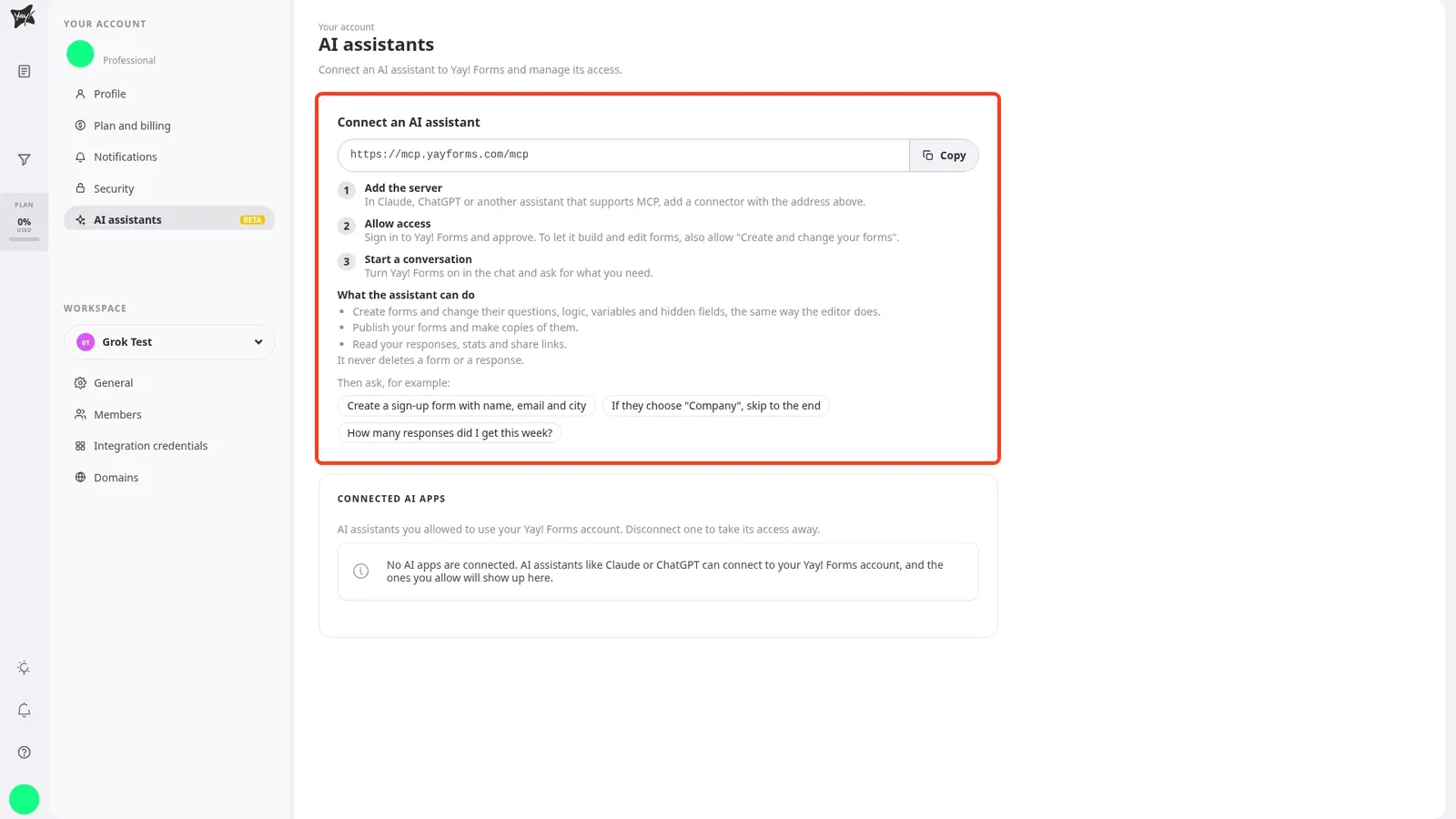
Follow the three steps shown on the card:
- Add the server: in Claude, ChatGPT or another assistant that supports MCP, add a connector using
https://mcp.yayforms.com/mcp. - Allow access: sign in to Yay! Forms when the authorization window opens and approve the request.
- Start a conversation: turn Yay! Forms on in the chat and ask for what you need.
3. Approve permissions on the Allow access screen
When your assistant starts the connection, Yay! Forms opens the Allow access screen listing the permissions requested by that app:
- Access your Yay! Forms account on your behalf. Lets the assistant list your workspaces and forms, read form structure and logic, check responses, completion and drop-off stats, and fetch share links.
- Create and change your forms (questions, logic, variables and hidden fields), publish them and make copies of them. Lets the assistant create forms, add, edit, reorder or remove questions and logic rules, manage variables, hidden fields and UTM parameters, duplicate forms and publish changes.
Check the email shown next to Signed in as. If you need a different Yay! Forms account, click Use another account to sign in without expiring the request, then click Allow access (or Deny to cancel).
4. Manage or disconnect an AI app
Back on Your account → AI assistants, the Connected AI apps card lists the assistants you authorized. When an app is connected, its row shows permission icons (an eye for reading, a pencil for changing forms), the connection date, when it was last active and the Disconnect button.
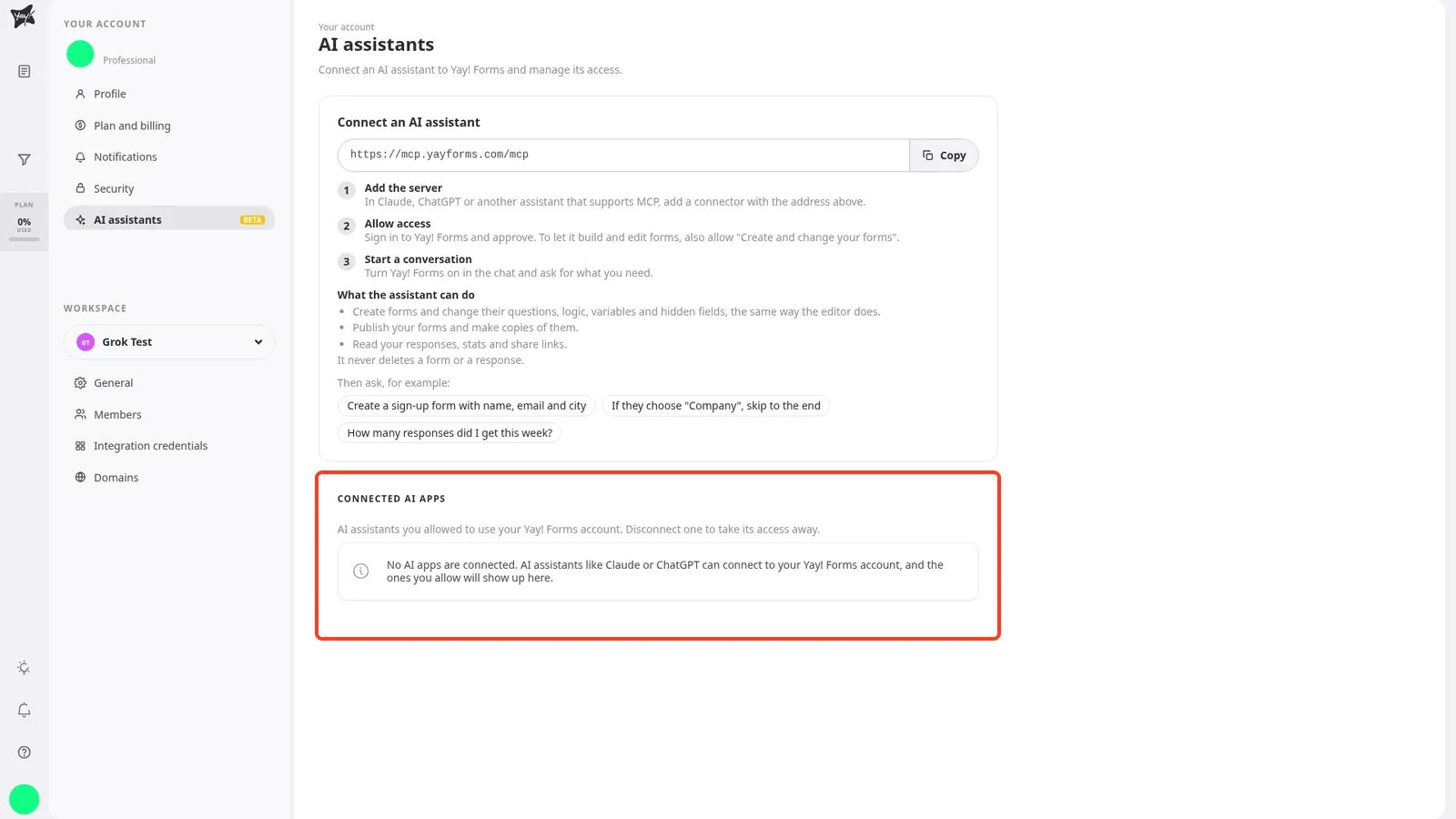
To revoke access, click Disconnect next to the app and confirm. The assistant loses access to your Yay! Forms account right away; to use it again, connect it again in your assistant.
What the assistant can and cannot do
- Works in draft like the editor: new forms start unpublished, and changes to questions, logic rules and variables stay unpublished until you ask the assistant to publish (or click Publish in the editor). Hidden fields and UTM parameters save directly, matching the app.
- Asks before removing items in use: before deleting a question, logic rule, variable, hidden field or UTM parameter that is referenced elsewhere, the assistant checks where it is used and asks you to confirm.
- Never deletes forms or responses: the assistant cannot delete a form or a submitted response, close an open form, or change themes, native integrations, workspace members or billing.
- Follows workspace access and plan status: the assistant works in your own workspaces and in workspaces you were invited to, applying the same plan checks as the editor. If a workspace owner’s 7-day trial has expired without an active paid plan, reading and editing forms in that workspace remain blocked until the plan is active.
Good to know
- Example prompts: once connected, you can ask things such as “Create a sign-up form with name, email and city”, “If they choose ‘Company’, skip to the end”, or “How many responses did I get this week?”
- MCP vs. API tokens: use AI assistants when you want to work interactively from a chat client via OAuth. For custom scripts or backend services, generate a personal token instead, as shown in How to generate a Yay! Forms API token.
Conclusion
With Yay! Forms connected over MCP, you can inspect responses and drop-off numbers or draft, adjust and publish forms directly from your AI assistant, while keeping control over permissions in Your account → AI assistants.
Related articles: