An input mask forces answers into an exact format, like a document number, a ZIP code, or a license plate. The respondent can’t type it wrong, and your data arrives clean, with no “almost right” variations to fix later.
Add a mask to a Short text question
Select your Short text question and find Field mask in the right panel’s Settings. Type the mask pattern in the field. The helper text below it summarizes the syntax.
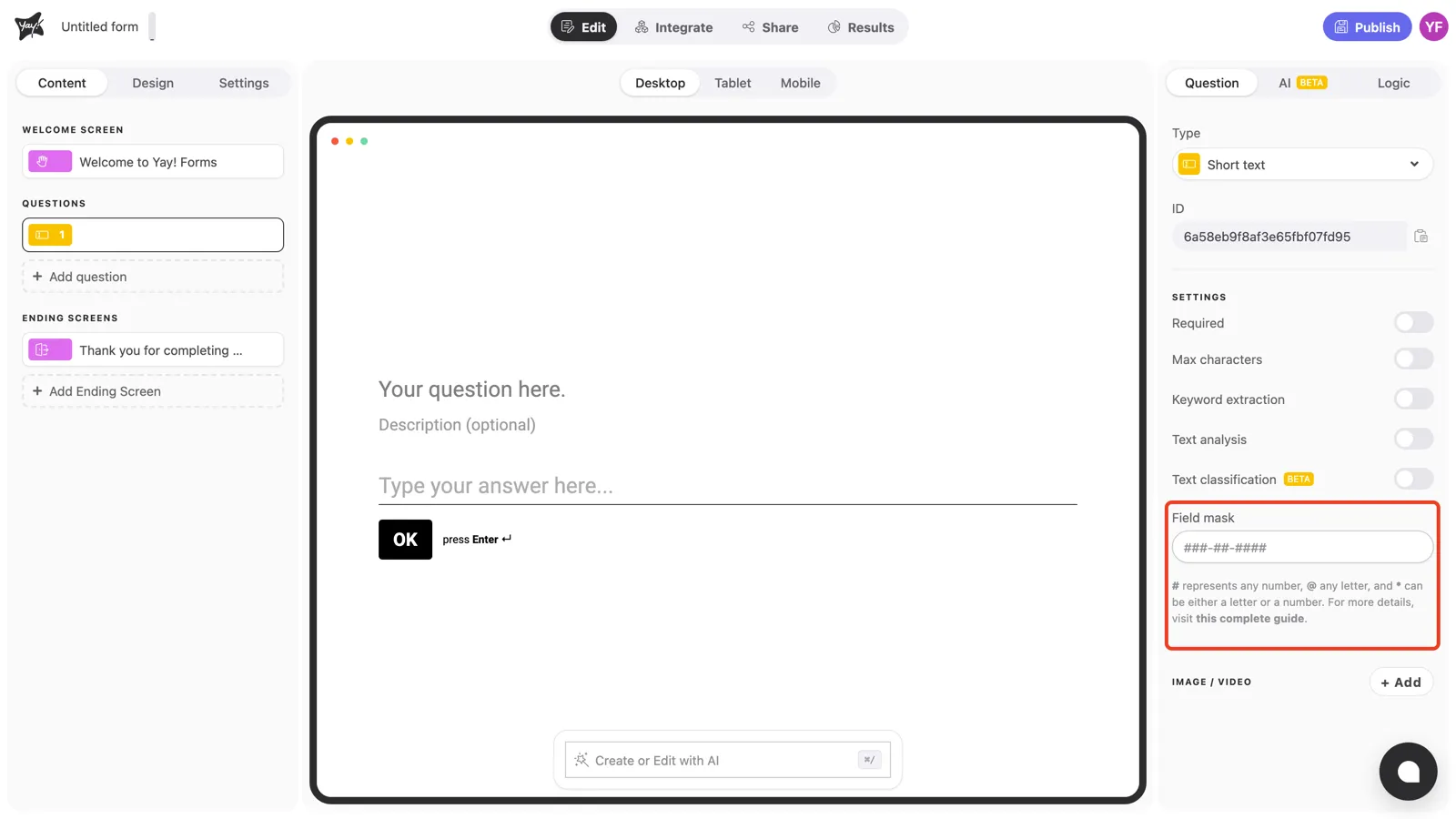
How the mask works
Each symbol in the mask controls what the respondent can type in that position:
| Symbol | Accepts |
|---|---|
# | any number |
@ | any letter |
* | a number or a letter |
Any other character (dots, dashes, slashes…) is fixed: it appears automatically as the respondent types, exactly where you put it.
For example, with the mask ##-123-@@-*, a valid answer looks like 45-123-AB-X: two numbers, the fixed “123”, two letters, and one final number or letter.
Common mask examples
| Format | Mask |
|---|---|
| CPF (Brazil) | ###.###.###-## |
| CNPJ (Brazil) | ##.###.###/####-## |
| RG (Brazil) | ##.###.###-* |
| CEP (Brazilian ZIP) | #####-### |
Conclusion
You’ve learned how to add an input mask to a Short text question, what the #, @, and * symbols accept, and how fixed characters fill themselves in.
Related articles: