A scored quiz adds up points as the respondent answers and uses the total to decide what happens at the end: knowledge tests, certification simulators, “how ready are you” assessments. This tutorial builds one with the built-in score variable and three logic rules. If the concepts of rules and variables are new to you, skim How to add logic to your form first.
The example below is a lead qualification quiz, but the mechanics are identical for any scored quiz: only the questions and point values change.
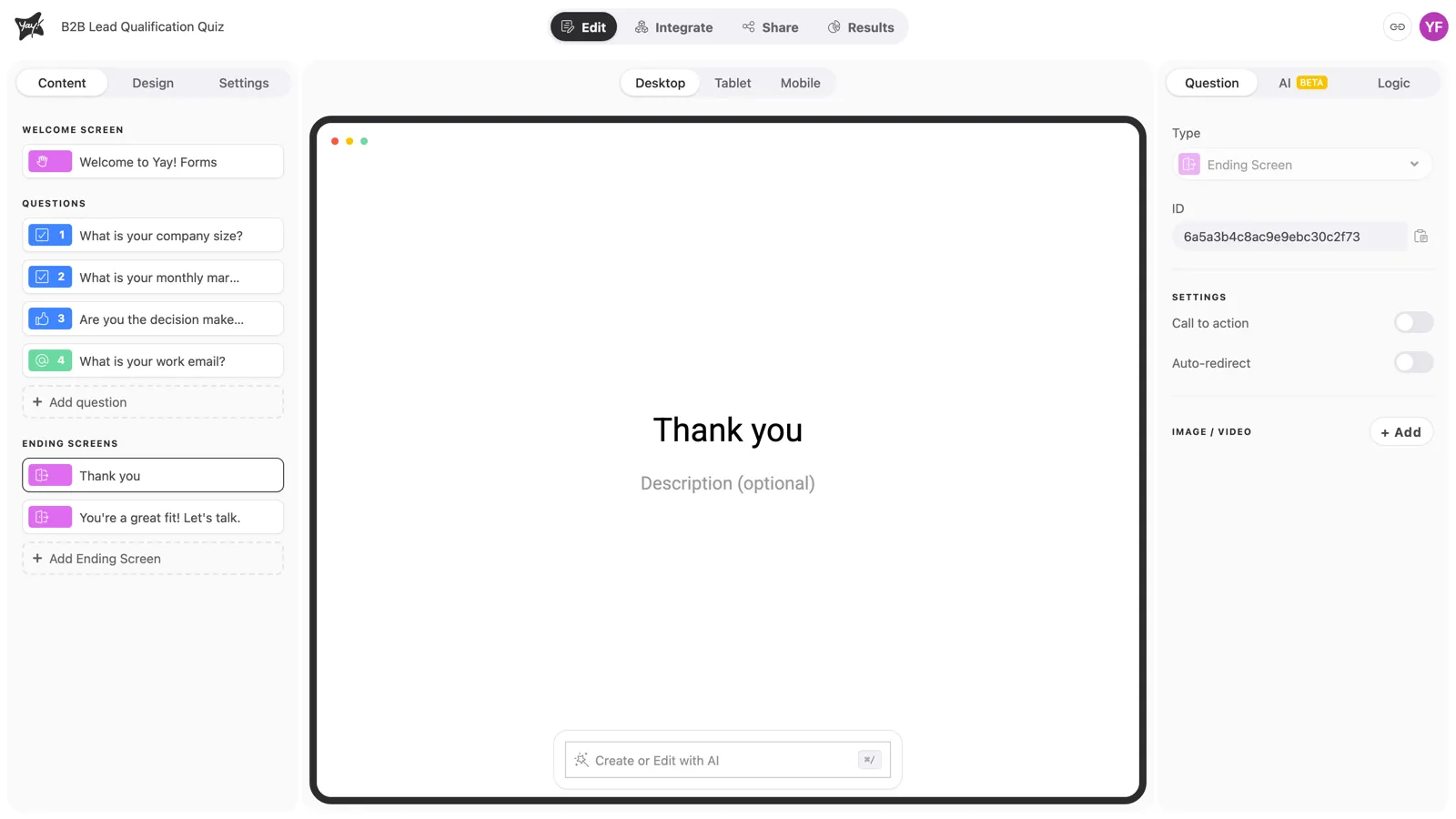
Step 1: Plan the points
Before touching logic, decide on paper: how many points each answer is worth and what the score thresholds mean. In our example, company size is worth up to 20, budget up to 25, and being the decision maker 20, and anything above 30 counts as qualified. Weighting answers differently is exactly why scored quizzes beat simple right/wrong counts.
Step 2: Add points on each question
Select each scoring question, open its Logic tab, and add a rule: IF the answer matches the option worth points, THEN Add the points TO score. Use OR conditions when several answers award the same points, and chain extra rules under Else when different answers award different amounts.
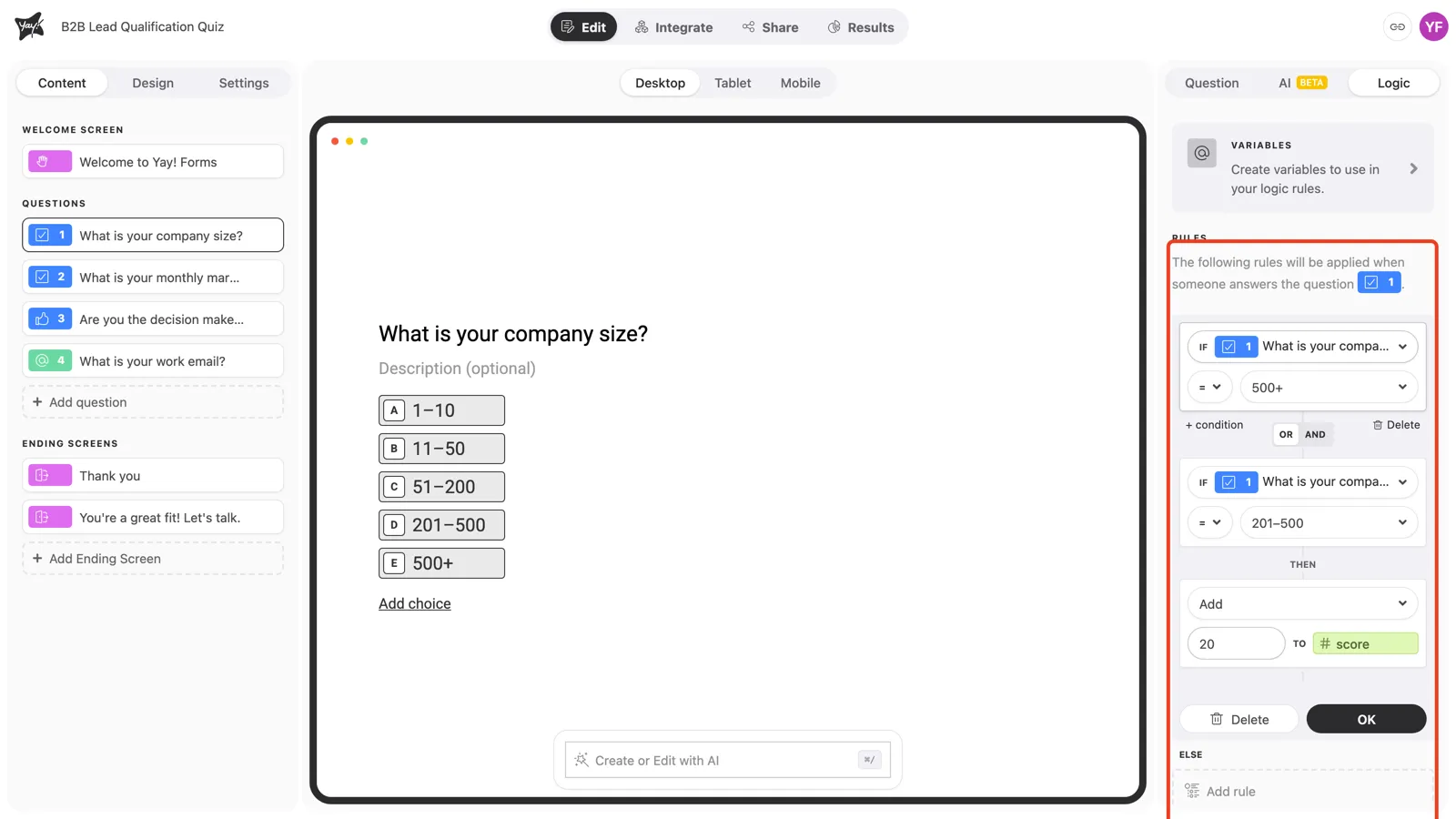
Step 3: Route by the total on the last question
On the last question (one that doesn’t add points itself), add the routing rule: IF score is greater than your threshold, THEN Go to the high-score ending. The Otherwise path at the bottom catches everyone else.
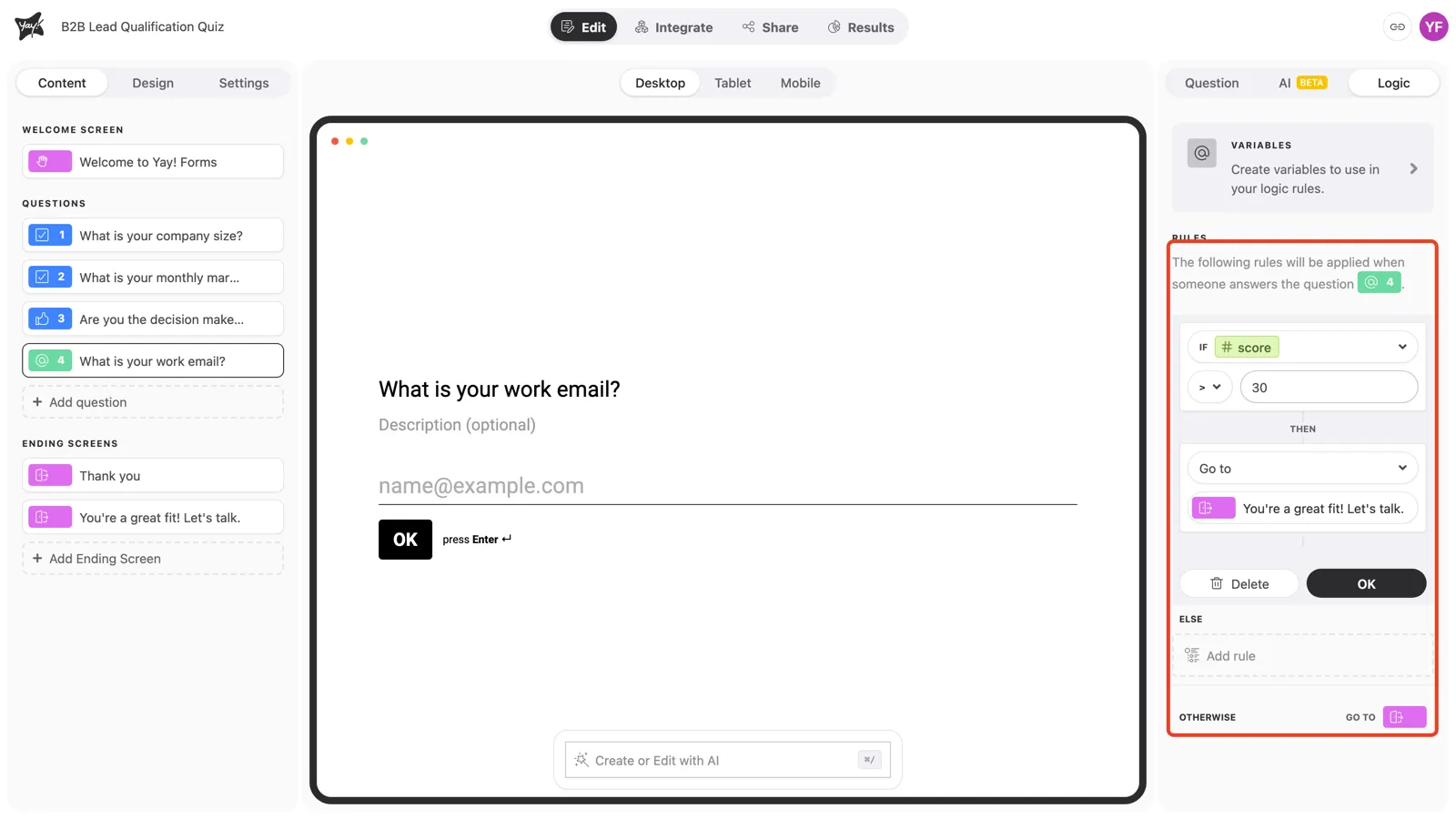
For more than two outcomes, chain rules under Else: “score above 50 goes to Excellent, else above 30 goes to Good, otherwise Keep practicing”. The first match wins, so start from the highest threshold.
Step 4: Show the result
On each ending screen, type @score in the title or description to show the total: “You scored @score points!”. You can also create multiple ending screens per range, or let AI write a personalized ending from the score (the ending’s AI tab takes a prompt that can reference variables).
Conclusion
You’ve learned the scored-quiz recipe: plan the weights, add points with rules on each question, route by the total on a question after all the scoring, and show the result with @score.
Related articles: