Not every lead deserves the same follow-up. A lead scoring form asks a few qualifying questions, turns the answers into a number, and treats each respondent accordingly: high scores go straight to your calendar, everyone else gets a polite thank-you and enters the nurture list. This tutorial builds the whole flow with the built-in score variable and three rules.
If rules and variables are new to you, read How to add logic to your form first.
The example
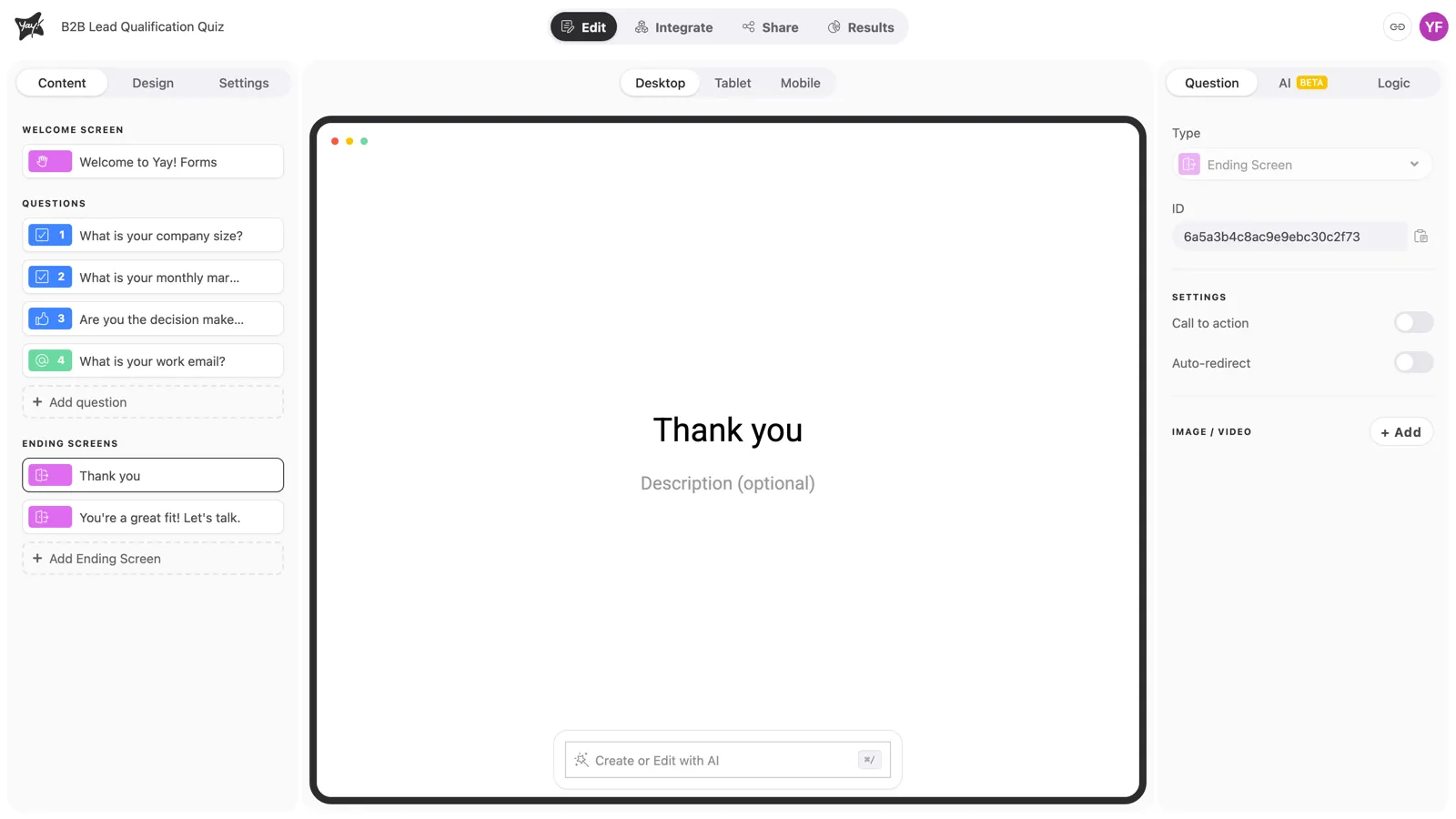
A B2B quiz with four questions: company size, monthly marketing budget, whether the respondent is the decision maker, and their work email. Three of them award points; the last one routes.
Step 1: Decide the weights
Write down what makes a lead valuable for you and give each signal a weight. Ours:
| Signal | Points |
|---|---|
| Company size 201–500 or 500+ | +20 |
| Budget $20,001+ | +25 |
| Is the decision maker | +20 |
Maximum score 65; anything above 30 is a qualified lead (at least two strong signals). Choose thresholds you can defend, and adjust them as real leads come in.
Step 2: Add the scoring rules
On each qualifying question, open the Logic tab and add the rule. For company size, one rule with two OR conditions covers both large-company answers:
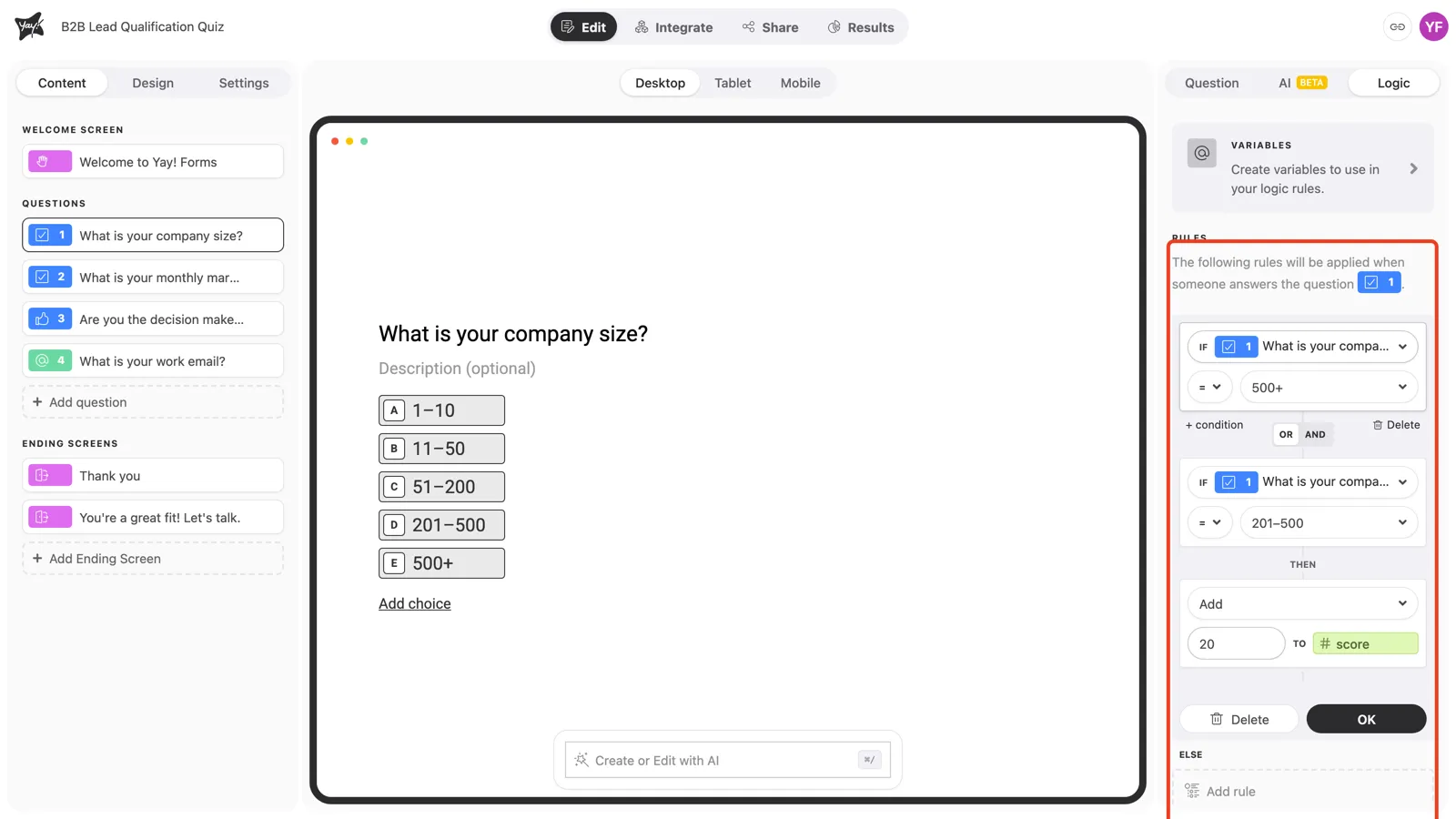
Repeat for the budget and decision-maker questions with their own points. Different weights per answer of the same question also work: chain rules with Else (“$20,001+ adds 25, else $5,001–$20,000 adds 10”).
Step 3: Route on the last question
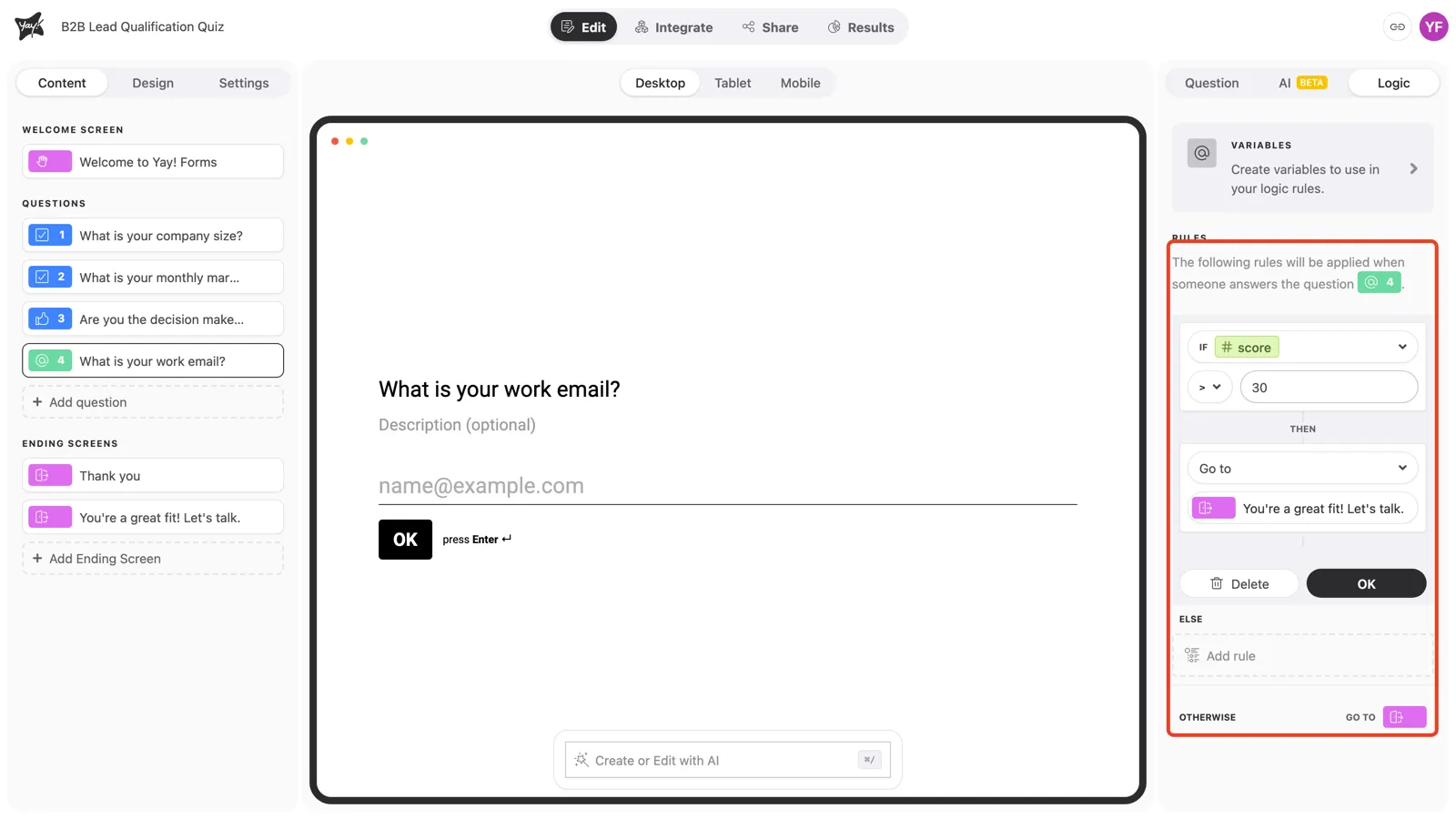
The email question comes last and doesn’t score, so it’s the right place to read the total. Add the rule: IF score is greater than 30, THEN Go to the qualified ending. The Otherwise path sends everyone else to the standard thank-you.
Step 4: Make each ending earn its keep
The qualified ending is prime real estate: use its call-to-action button to link your scheduling page (“Book your demo”), or Auto-redirect straight to it, passing @score and the email as URL parameters for your CRM.
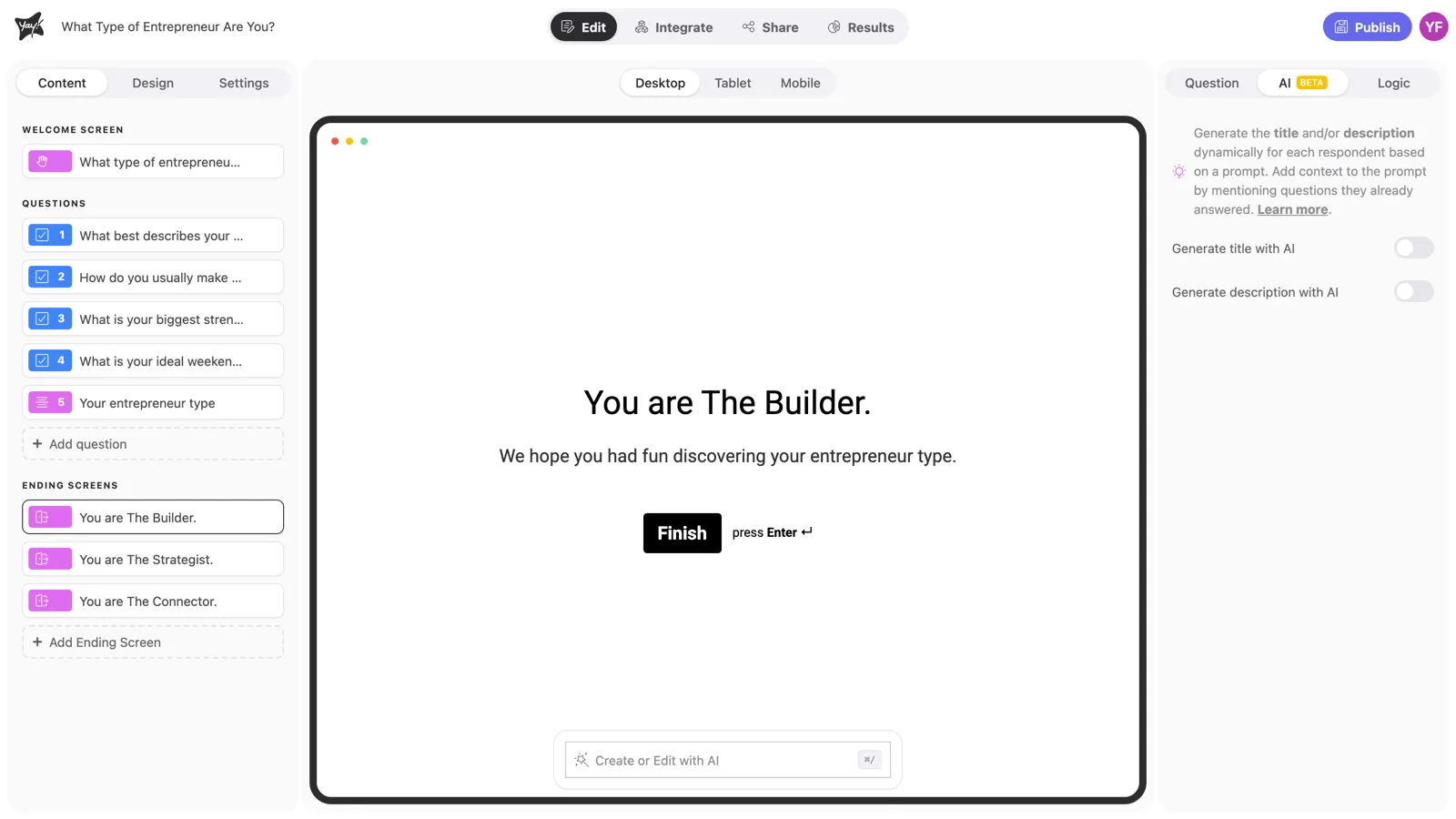
Instead of writing several endings by hand, you can also let AI personalize a single one: the ending’s AI tab generates the title and description per respondent from a prompt that can reference answers and the score.
Conclusion
You’ve built lead scoring end to end: weighted rules on the qualifying questions, a threshold rule on the final question, and endings that treat qualified leads differently.
Related articles: