This article will help you create a form or quiz in Yay! Forms using AI assistance, from starting in your account to customizing the design and publishing the final result.
Create a form or quiz with AI assistance
-
Log in to your Yay! Forms account: Visit the Yay! Forms website and log in using your account credentials. If you don’t have an account yet, sign up to get started.
-
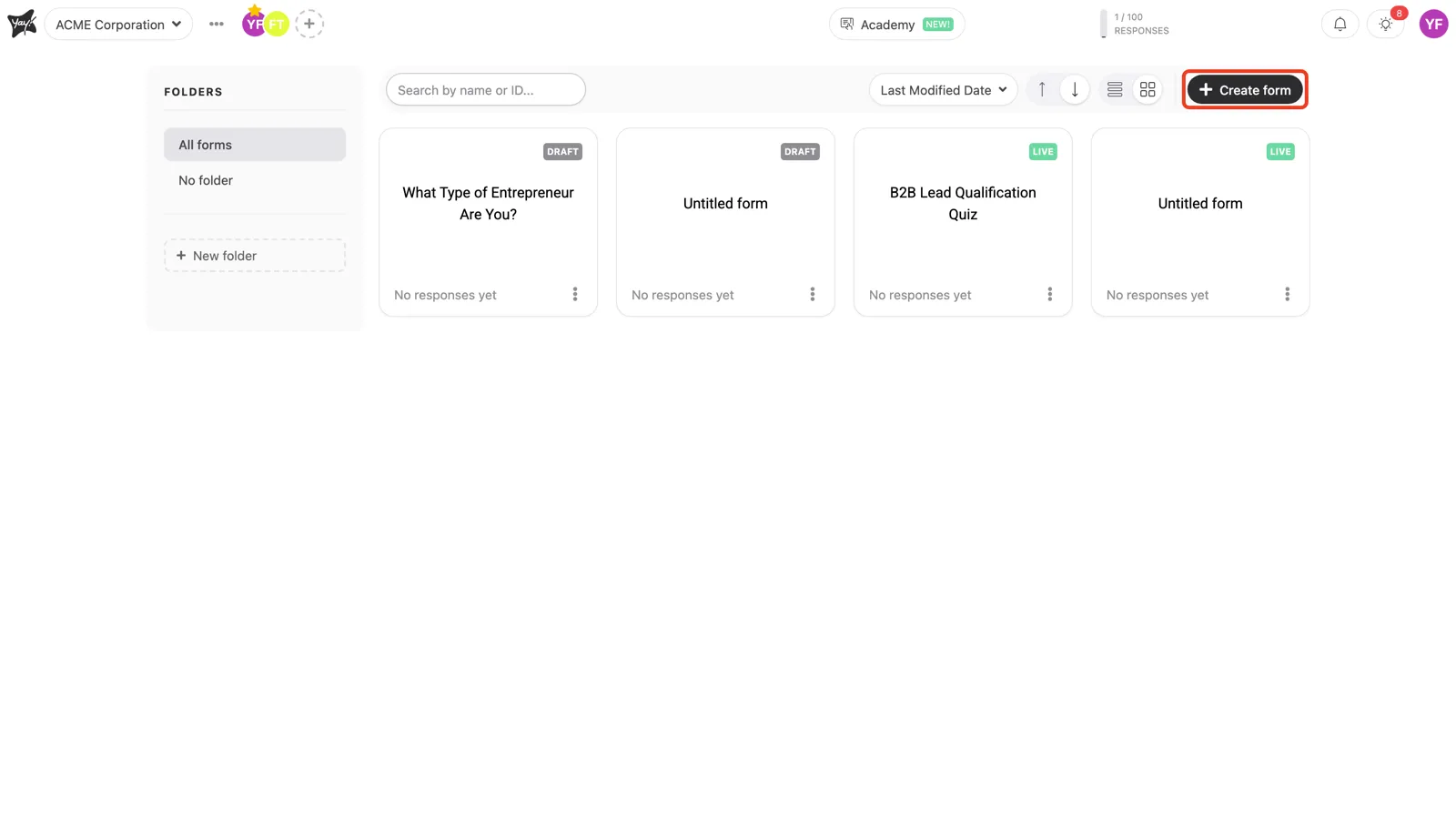
Access the AI Form Builder: In the dashboard, click “Create form”.
-
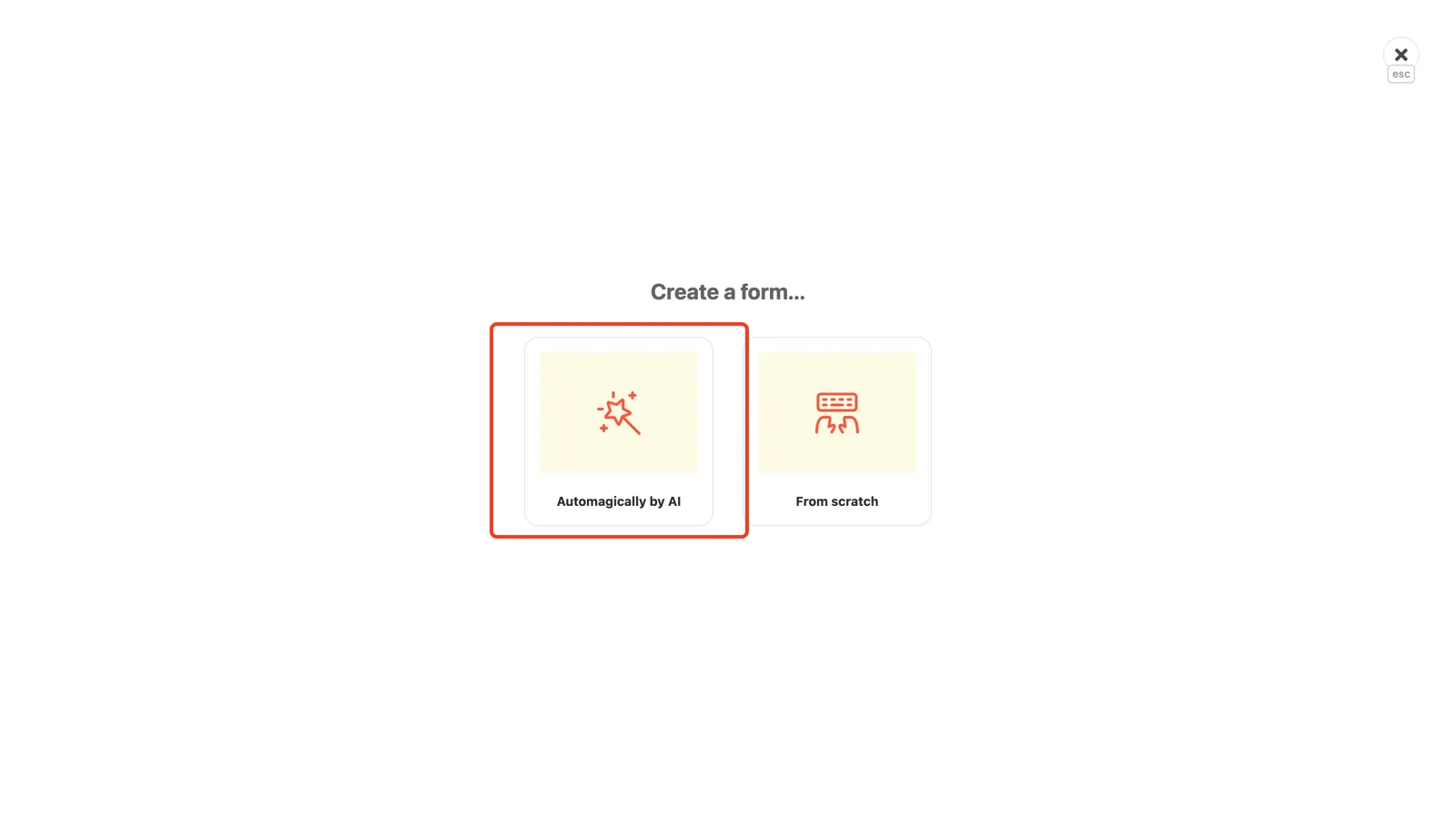
Choose Automagically by AI.
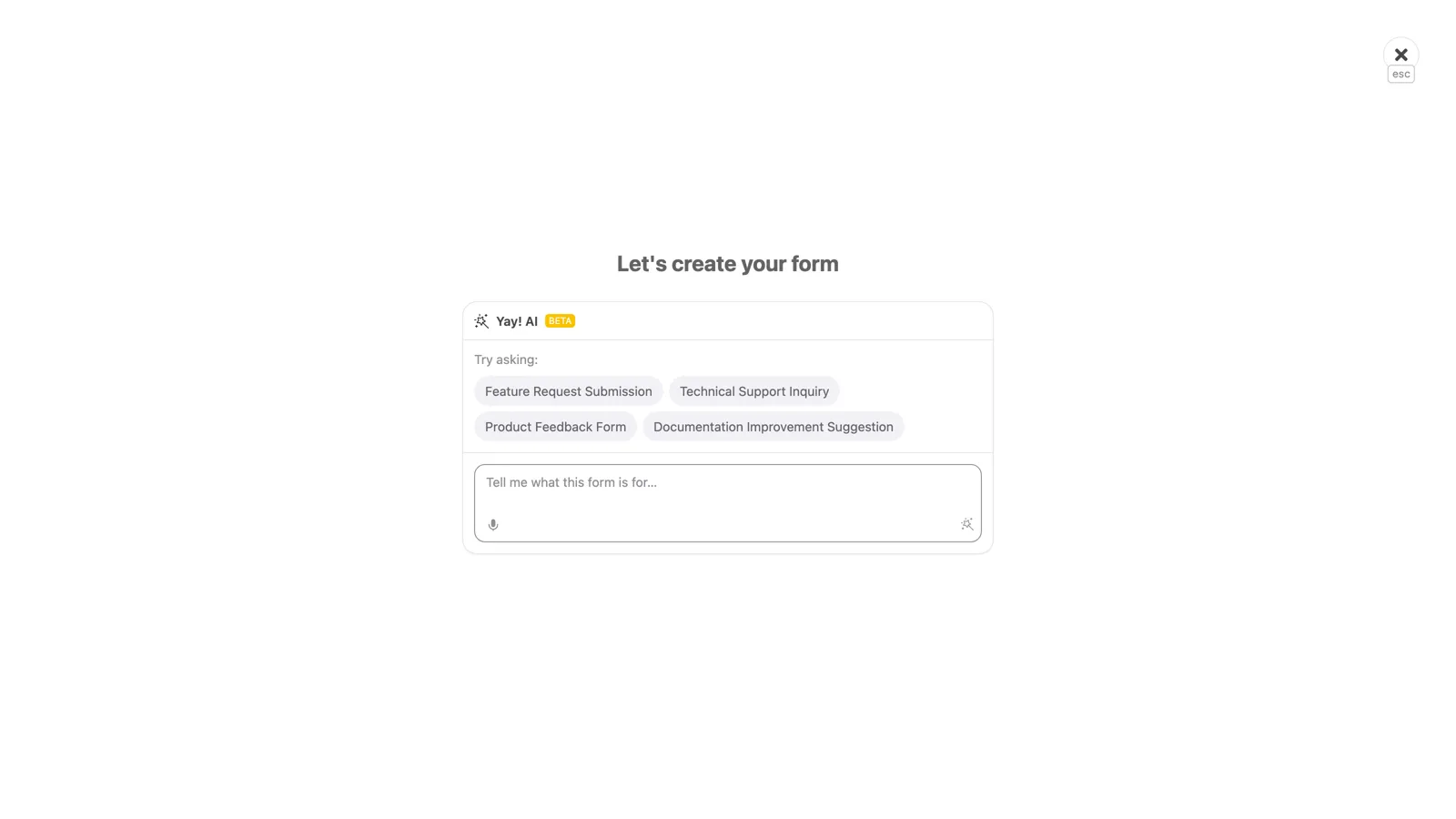
- Describe the purpose: type what your form or quiz is for in the Tell me what this form is for… field (or pick one of the suggestions) and submit. The AI generates the complete form for you.
- Customize the design: Select the “Design” tab to access customization options.
- Review and optimize your form or quiz: Preview your form or quiz to ensure it appears as desired.
- Save and publish your form or quiz:
- Click “Publish” to save and publish your form or quiz.
- Choose your preferred sharing method (for example, link, embed code) and distribute your form or quiz to your audience.
Conclusion
You learned how to use Yay! Forms’ AI-assisted builder to create a form or quiz, adjust its design, review the result, and publish it for sharing with your audience.