The Email question type collects email addresses, the single most valuable field in most lead-generation forms. It expects a valid address format (the answer box even hints name@example.com), which keeps typos and junk out of your list.
In this article you’ll learn how to add an Email question, edit its text, and configure its settings.
Add an Email question
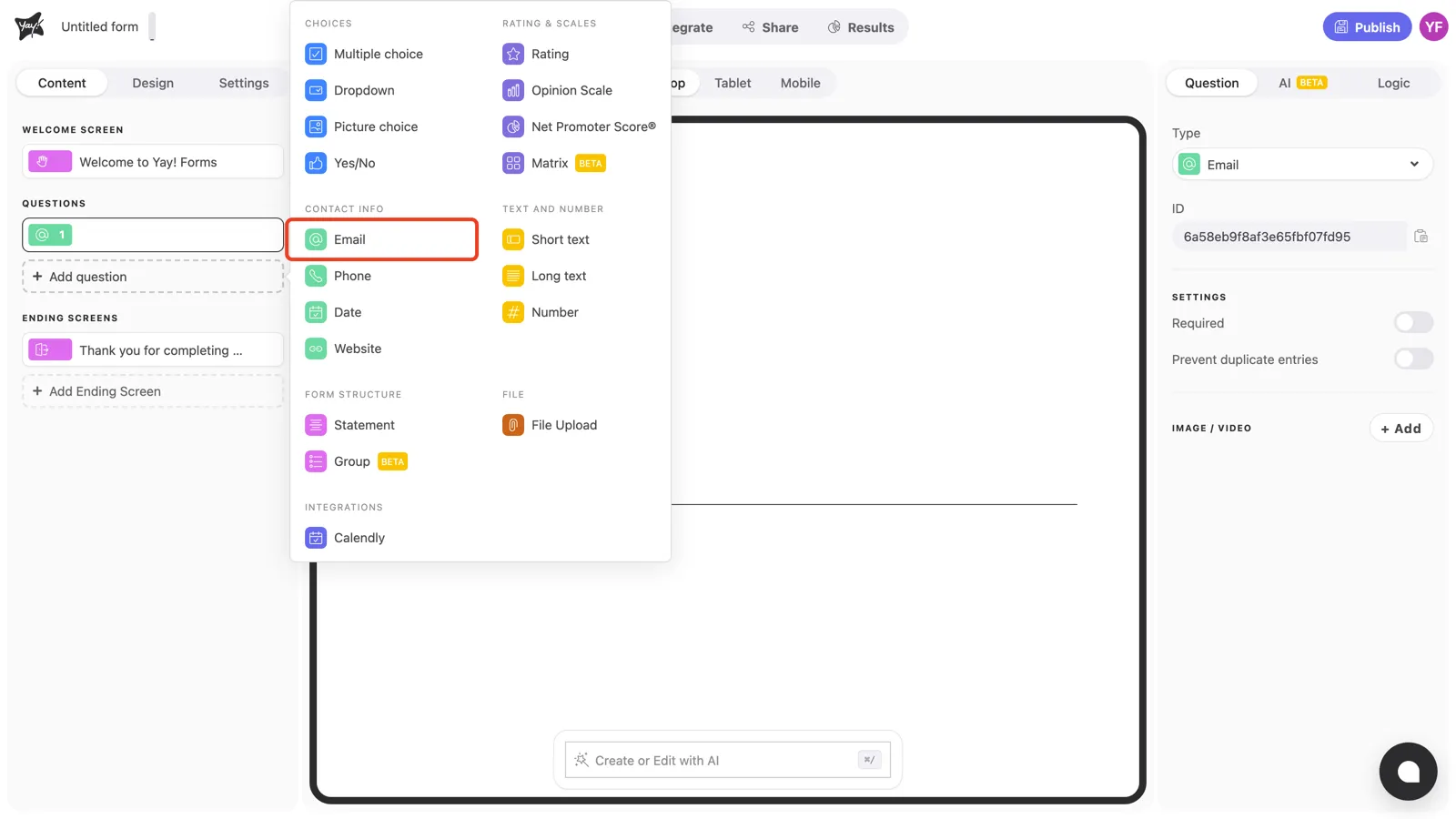
Click + Add question in the left sidebar and pick Email under Contact info.
Write the question and description
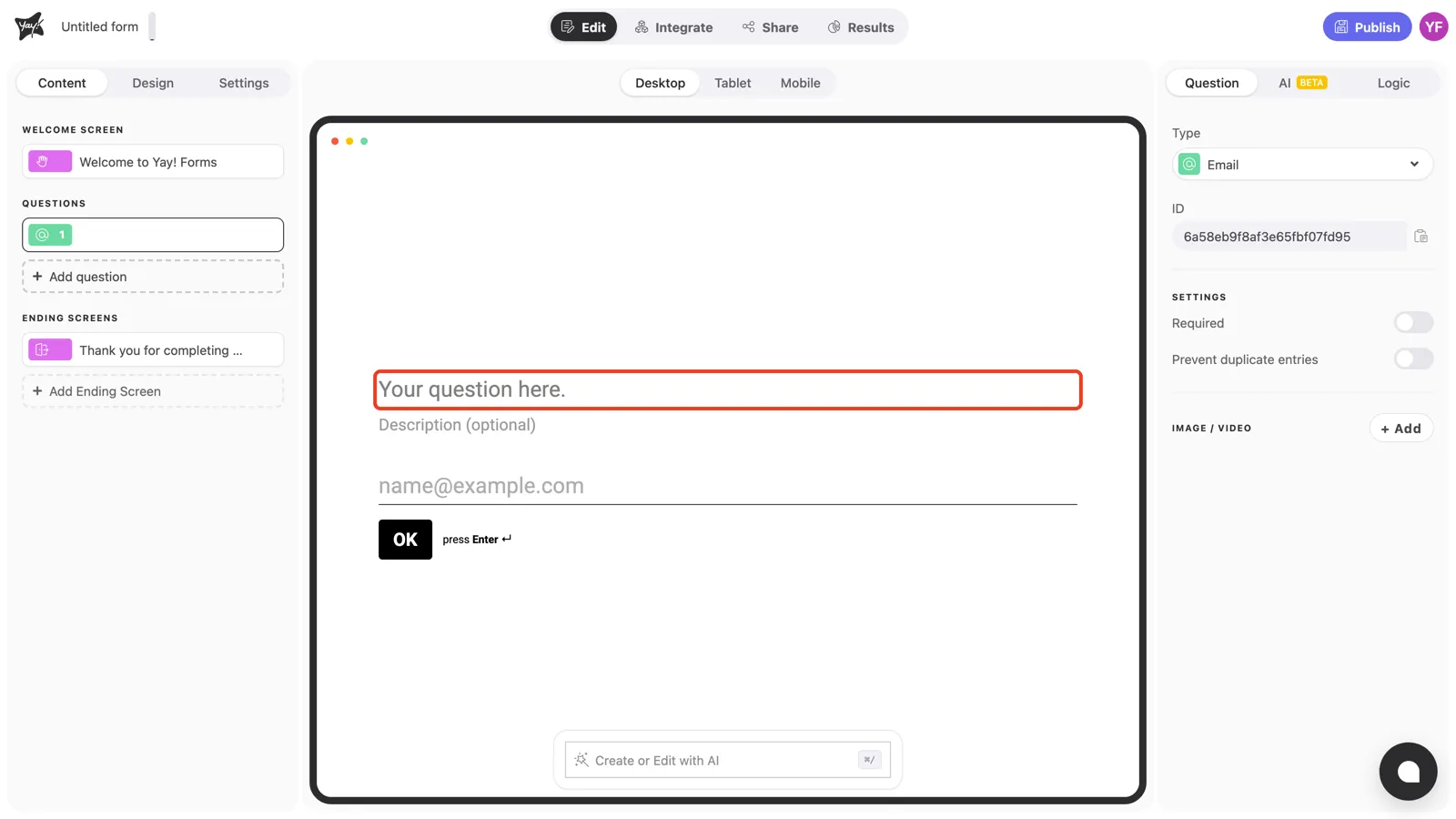
Click “Your question here.” in the canvas and type your question, for example “What’s your work email?”.
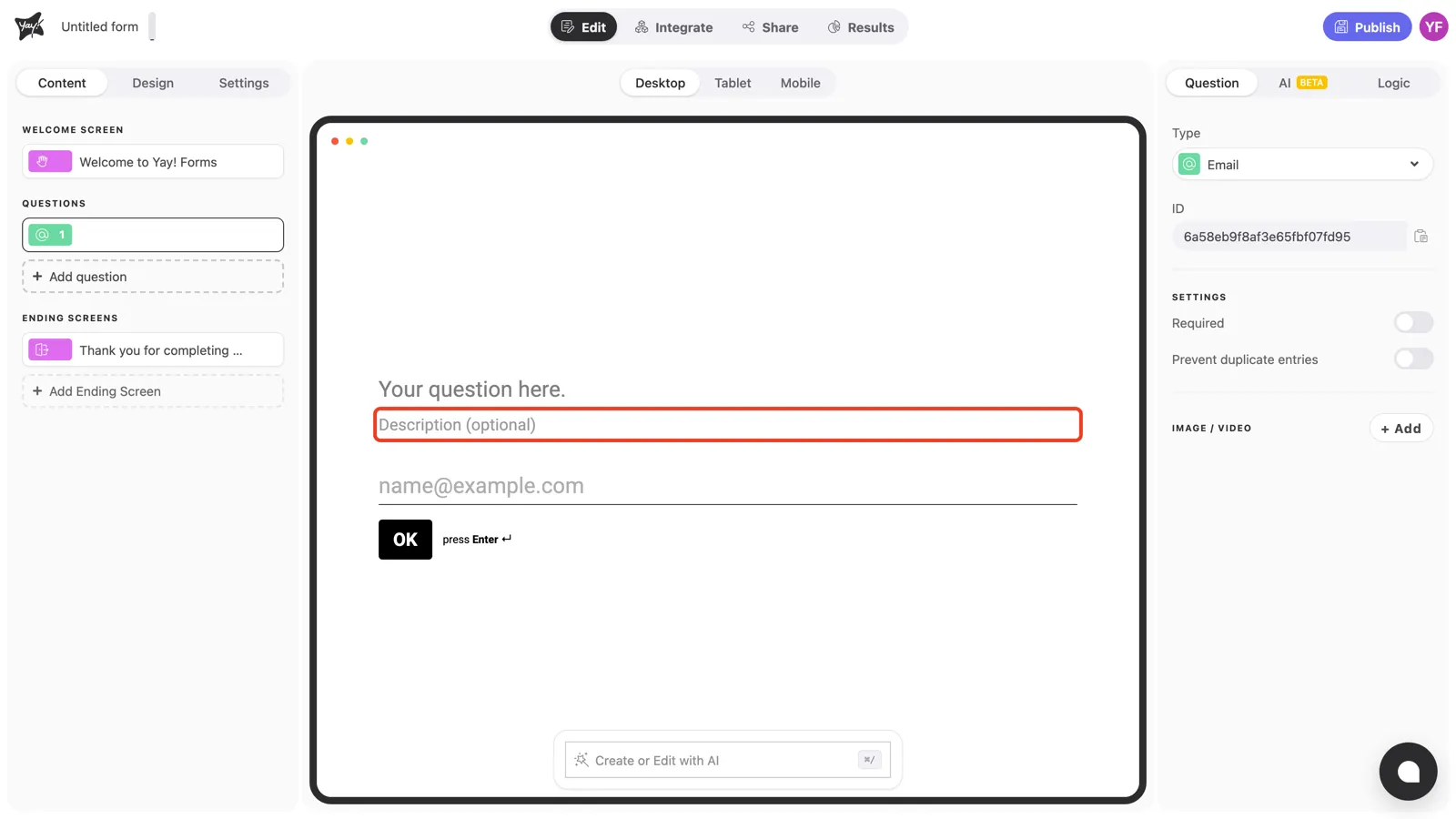
The optional description field is a good place to say what the respondent gets in exchange. “We’ll send the report to this address” converts better than a bare question.
Question settings
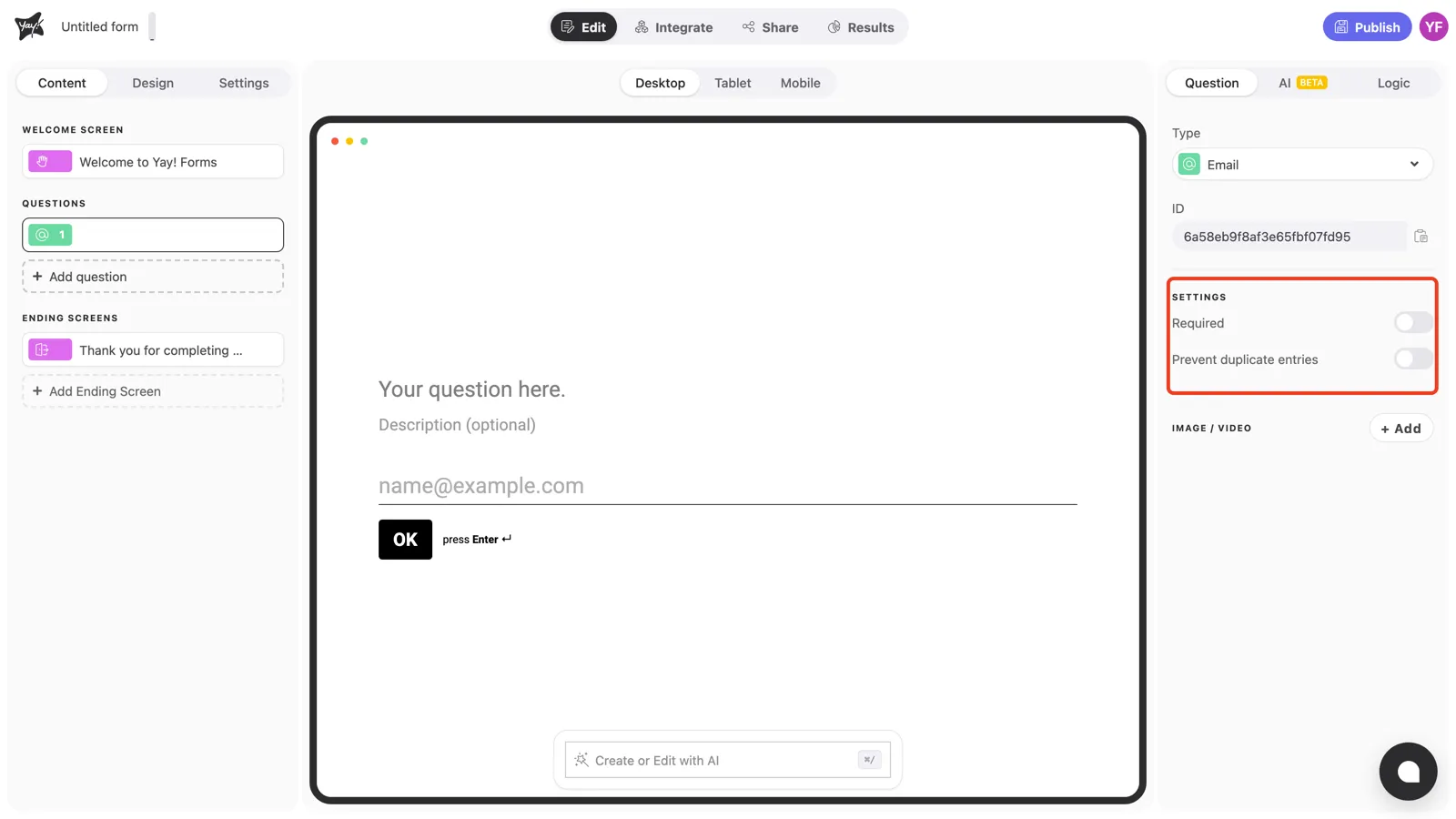
With the question selected, the Settings section in the right panel controls how the question behaves.
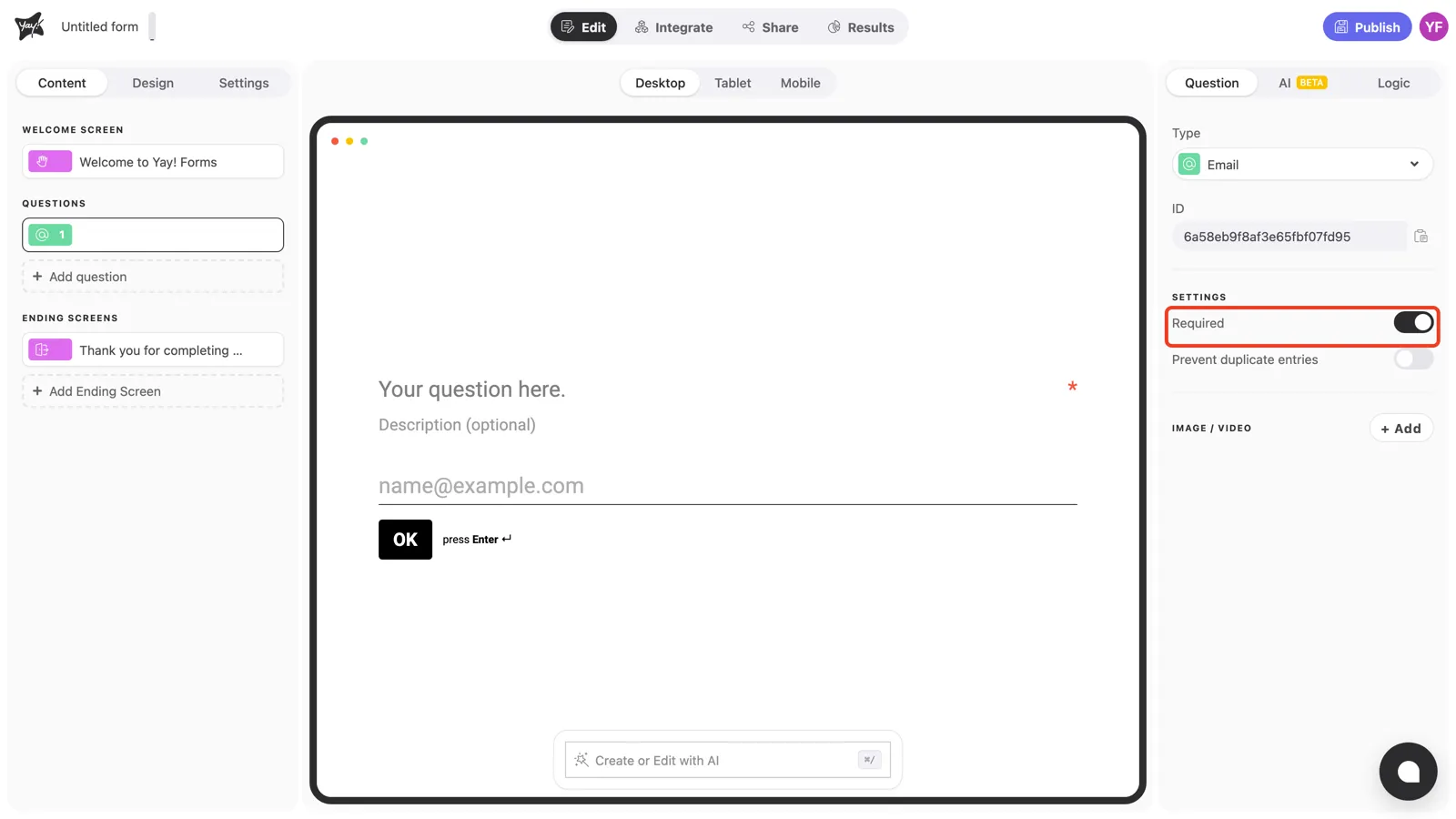
Required
Turn on Required to prevent respondents from skipping the question. An asterisk appears at the end of the question line, and the form won’t advance until an email is entered.
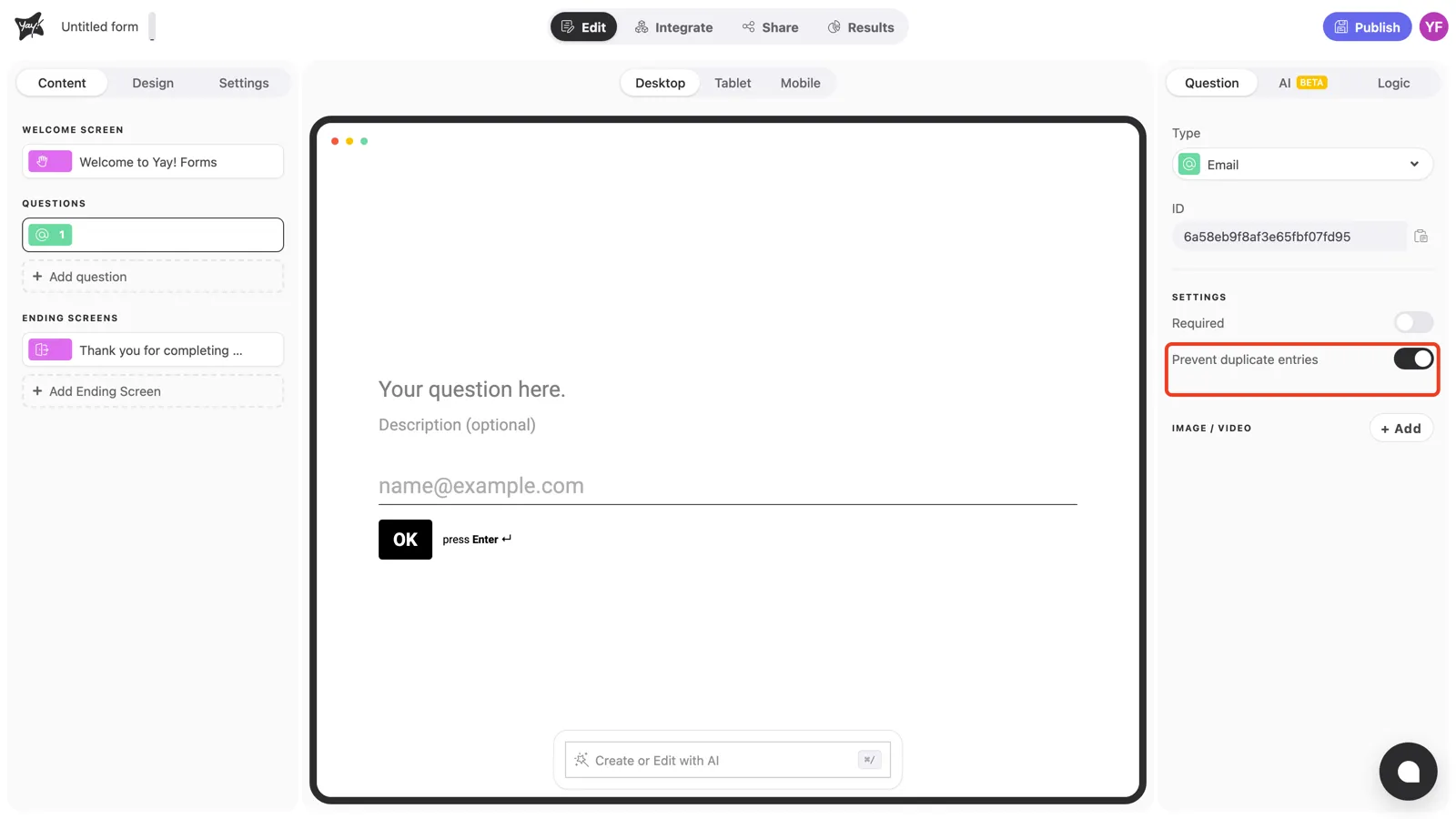
Prevent duplicate entries
Turn on Prevent duplicate entries to stop the same email address from being submitted more than once. Useful for giveaways, registrations, and any form where one response per person matters.
Conclusion
You’ve learned how to add an Email question, edit its text, require an answer, and block duplicate submissions.
Related articles: