This article explains how the Send incomplete responses feature works, why it is useful, and how to enable it so your integrations can receive partially completed form data automatically when a user stops answering before finishing.
What the Send incomplete responses feature does
The Send incomplete responses feature ensures that if a user who is filling out the form stops answering for longer than an inactivity period you define, the system automatically sends the data already completed to your integrations.
Why this is useful
Why is this useful?
Normally, responses are only sent when the user completes and submits the form. However, if someone abandons the form halfway through the process, that information would be lost. With this feature enabled, even if the form is not completed, you will still receive the data captured up to that point.
How to enable the option
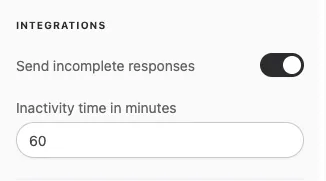
To enable this option, go to the settings tab of your form and enable the “Send incomplete responses” option, as shown in the image below:
Configuring the inactivity time
Just below, you will find the “inactivity time in minutes” field, which defines how long the form can stay inactive—with no new answers—before the data is automatically sent to your integration. The countdown resets every time the respondent answers, so the partial response is sent only after they stop answering for that period. This time is customizable.
Separating partial and completed responses
With this option enabled, every active integration receives both the partial send and the completed submission. To route each kind to its own destination, use a trigger condition on each integration:
- On the integration that should receive only completed responses, set the Trigger condition to
ISCOMPLETED(). - Create a second integration (for example, a webhook pointing to another column of your CRM) with the condition
ISNOTCOMPLETED(), which matches only partial responses.
Each response is delivered at most once per integration. If a respondent abandons the form past the inactivity time and later returns to finish it, both integrations run, one for the partial send and one for the completed submission, with the same response ID in both payloads.
Conclusion
By enabling Send incomplete responses and setting an inactivity time in minutes, you ensure your integrations can still receive the data a user entered even if they stop answering before submitting the form. Add ISCOMPLETED() or ISNOTCOMPLETED() trigger conditions when you need partial and completed responses in different places.