The Date question type collects a date in separate month, day, and year fields, so there’s no free-text guessing and no “March-ish”. Use it for birth dates, event dates, deadlines, or any answer you’ll want to sort or filter by later.
In this article you’ll learn how to add a Date question, edit its text, and configure the date format.
Add a Date question
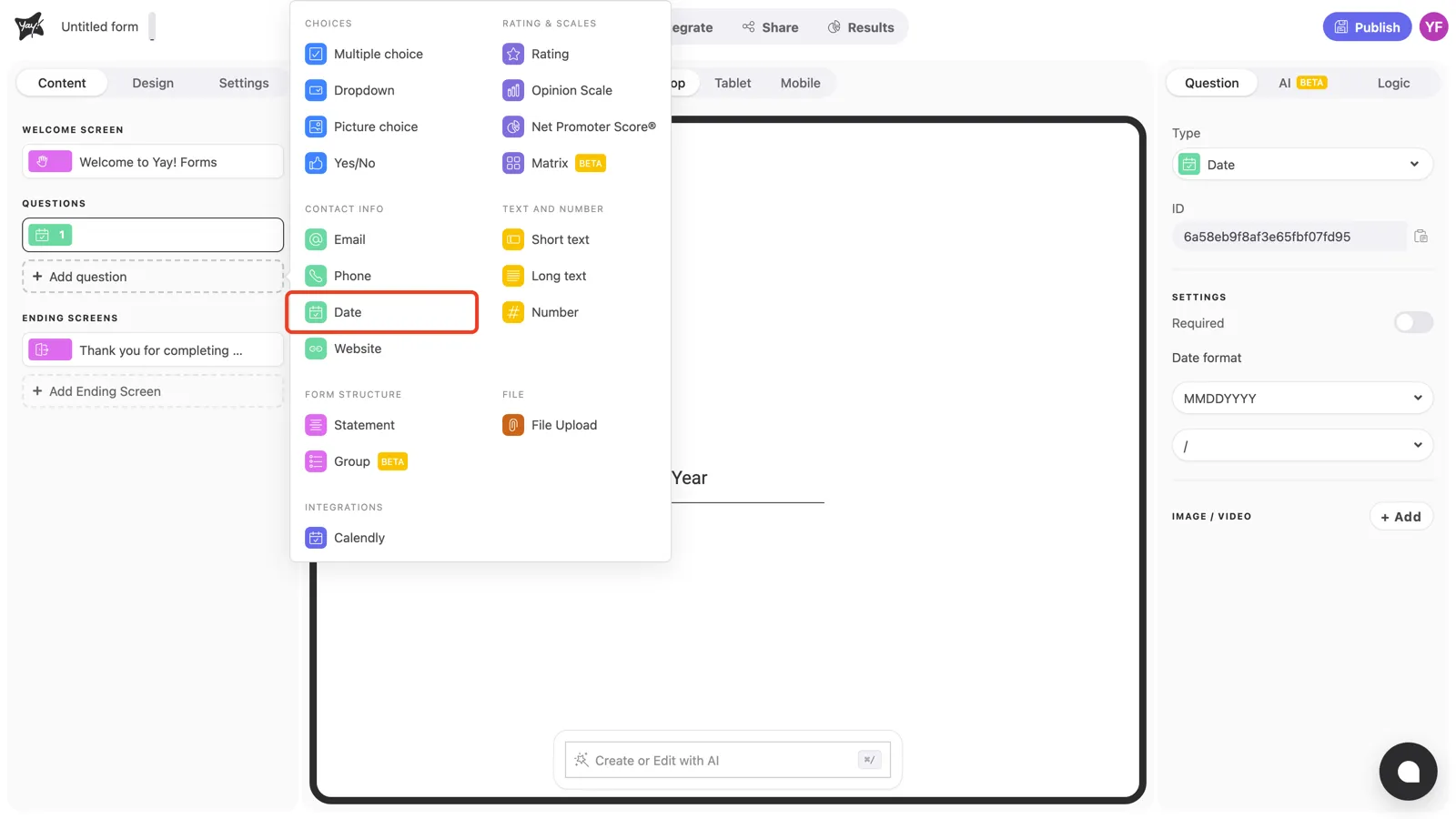
Click + Add question in the left sidebar and pick Date under Contact info.
Write the question and description
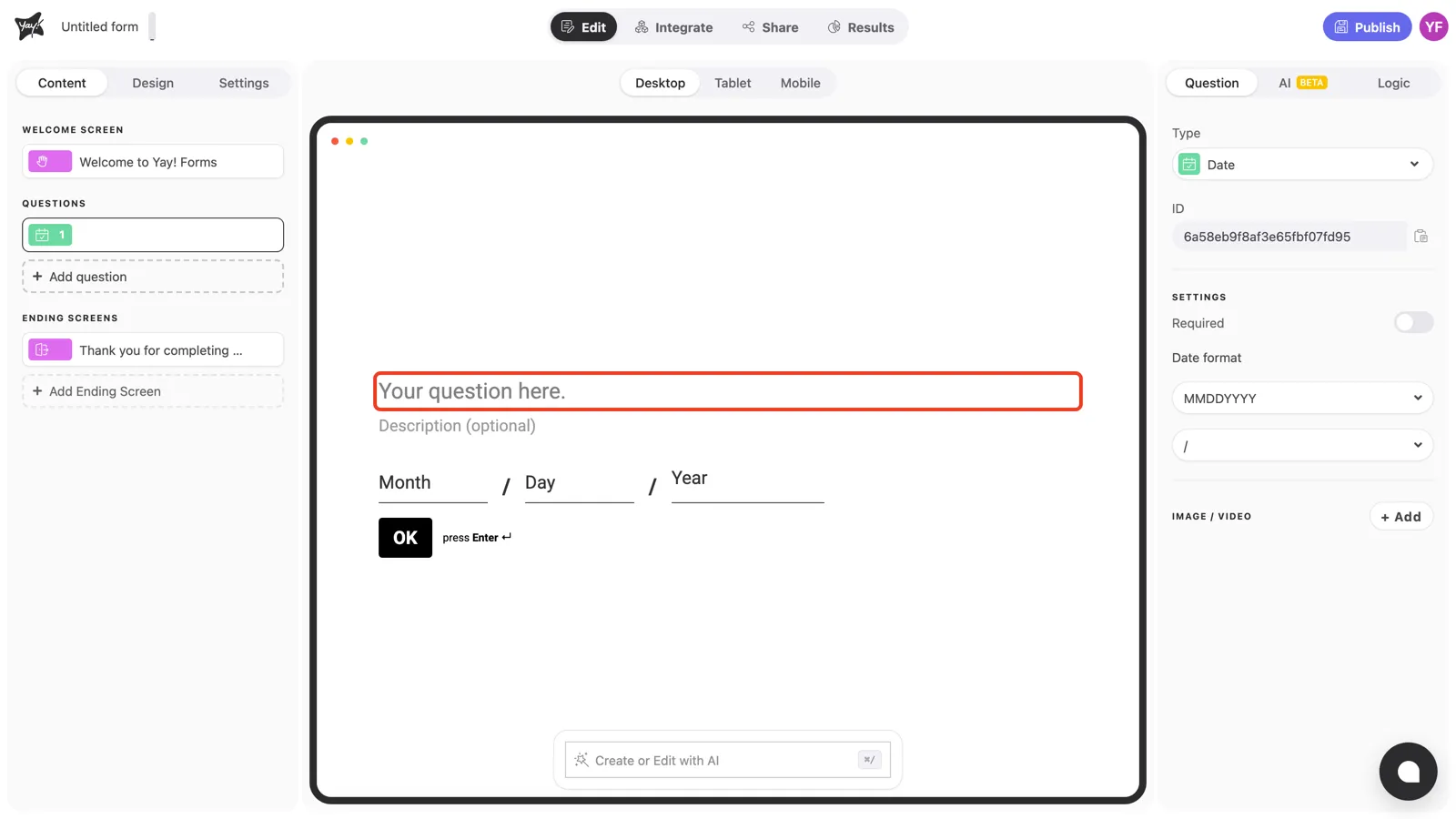
Click “Your question here.” in the canvas and type your question. The canvas shows how respondents will answer: separate Month / Day / Year fields.
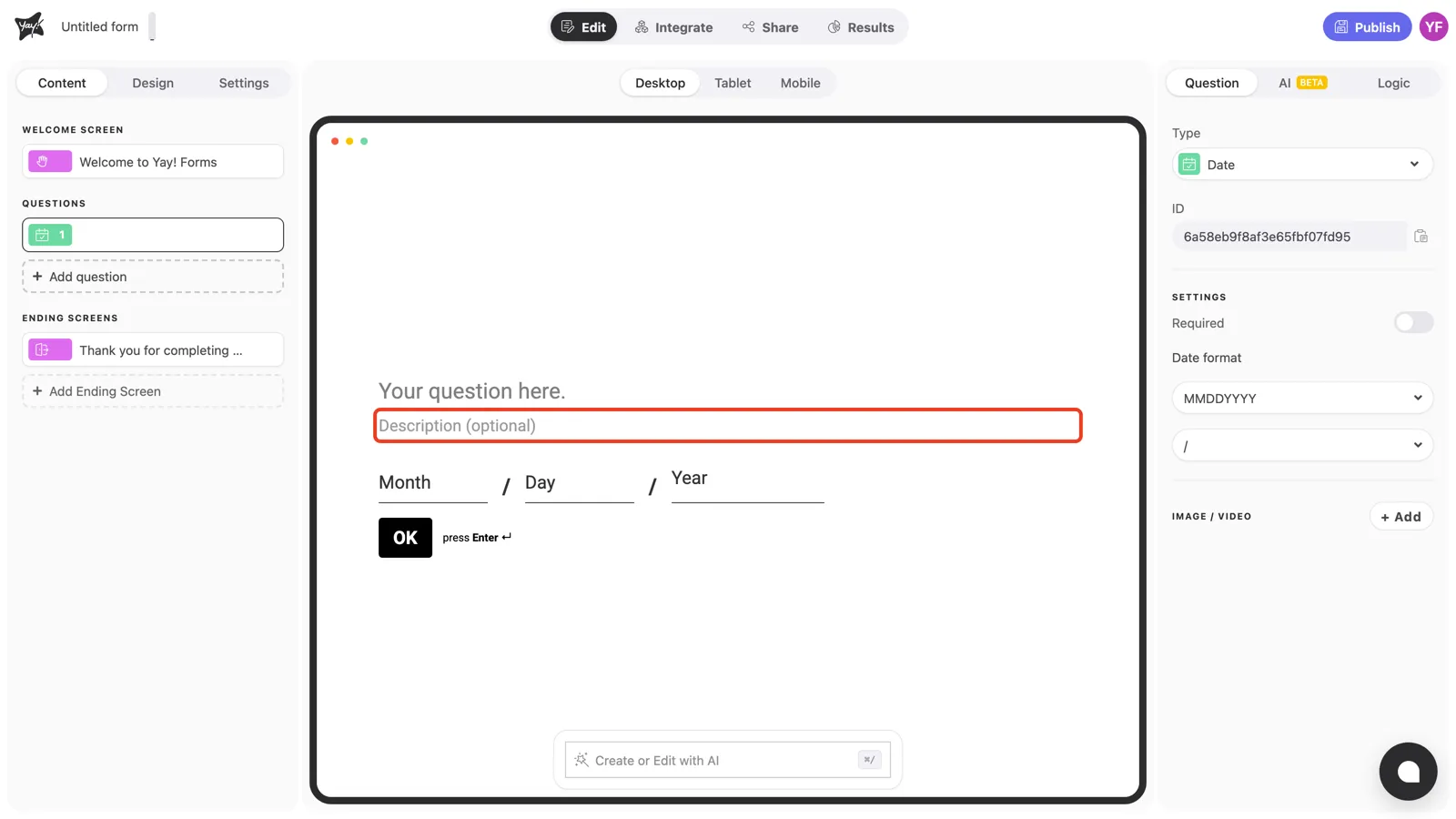
Use the optional description to clarify which date you’re asking for: “the date the issue first appeared”, “your preferred delivery date”.
Question settings
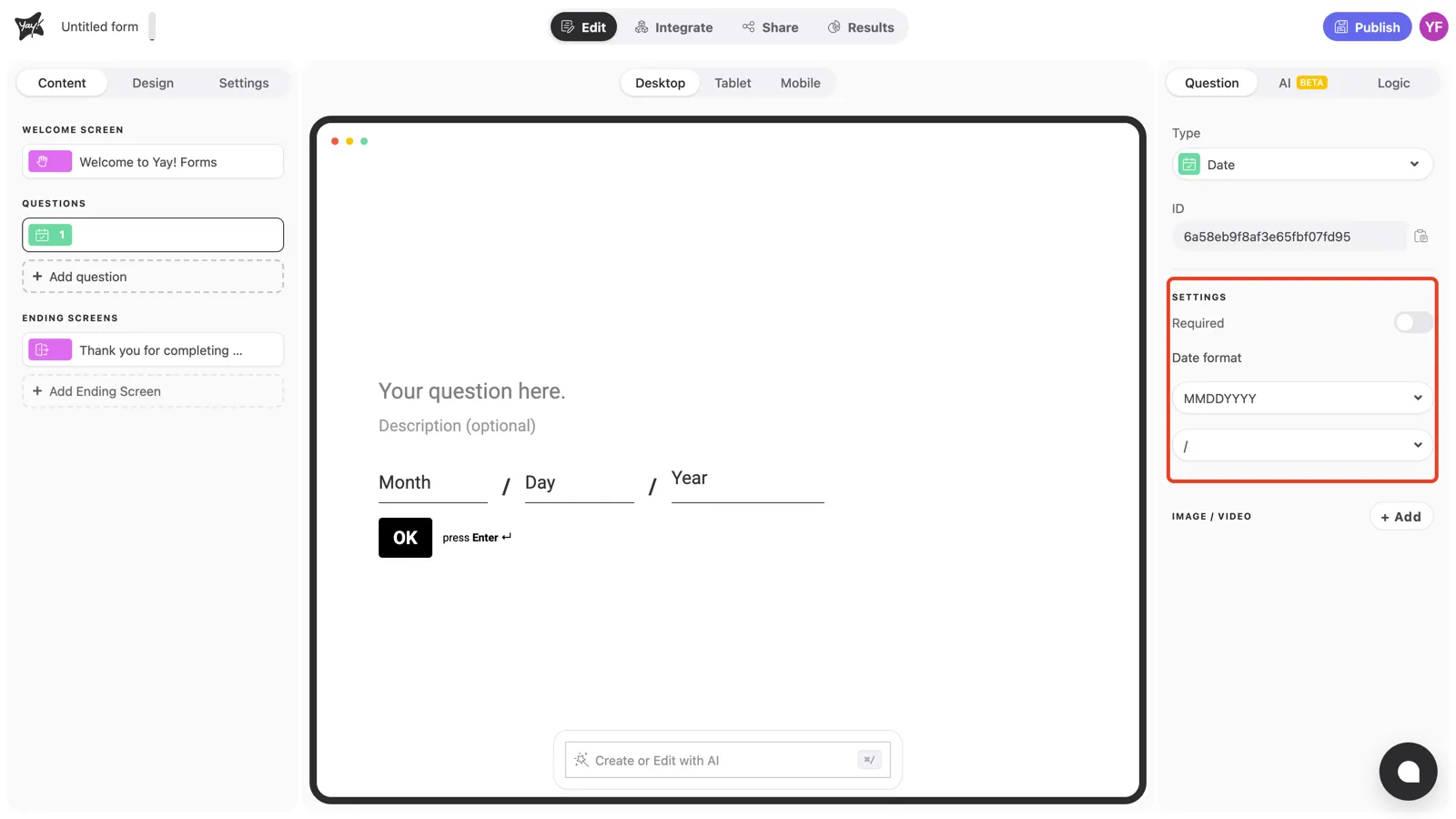
With the question selected, the Settings section in the right panel controls how the question behaves.
Required
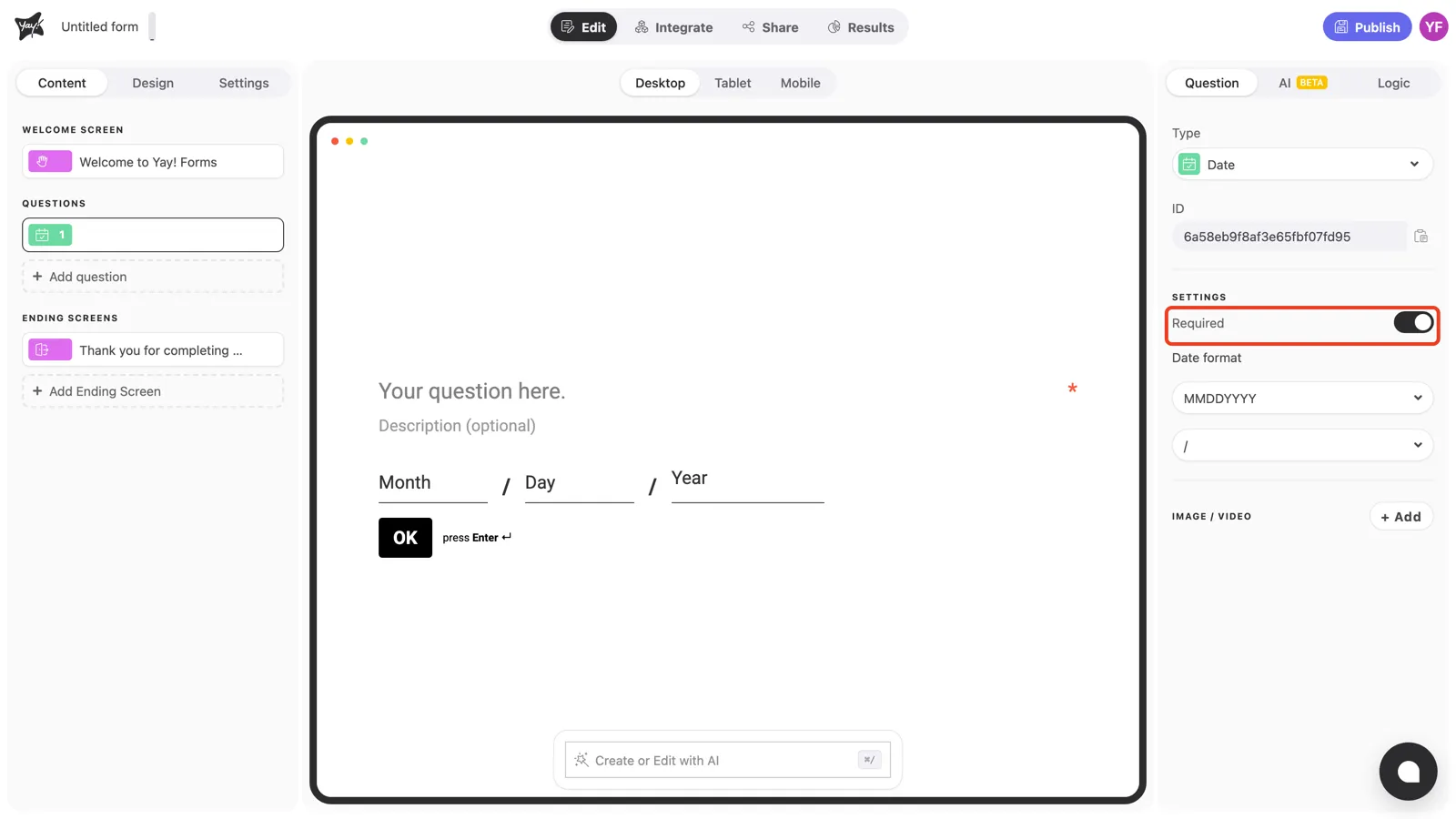
Turn on Required to prevent respondents from skipping the question. An asterisk appears at the end of the question line, and the form won’t advance until a date is entered.
Date format
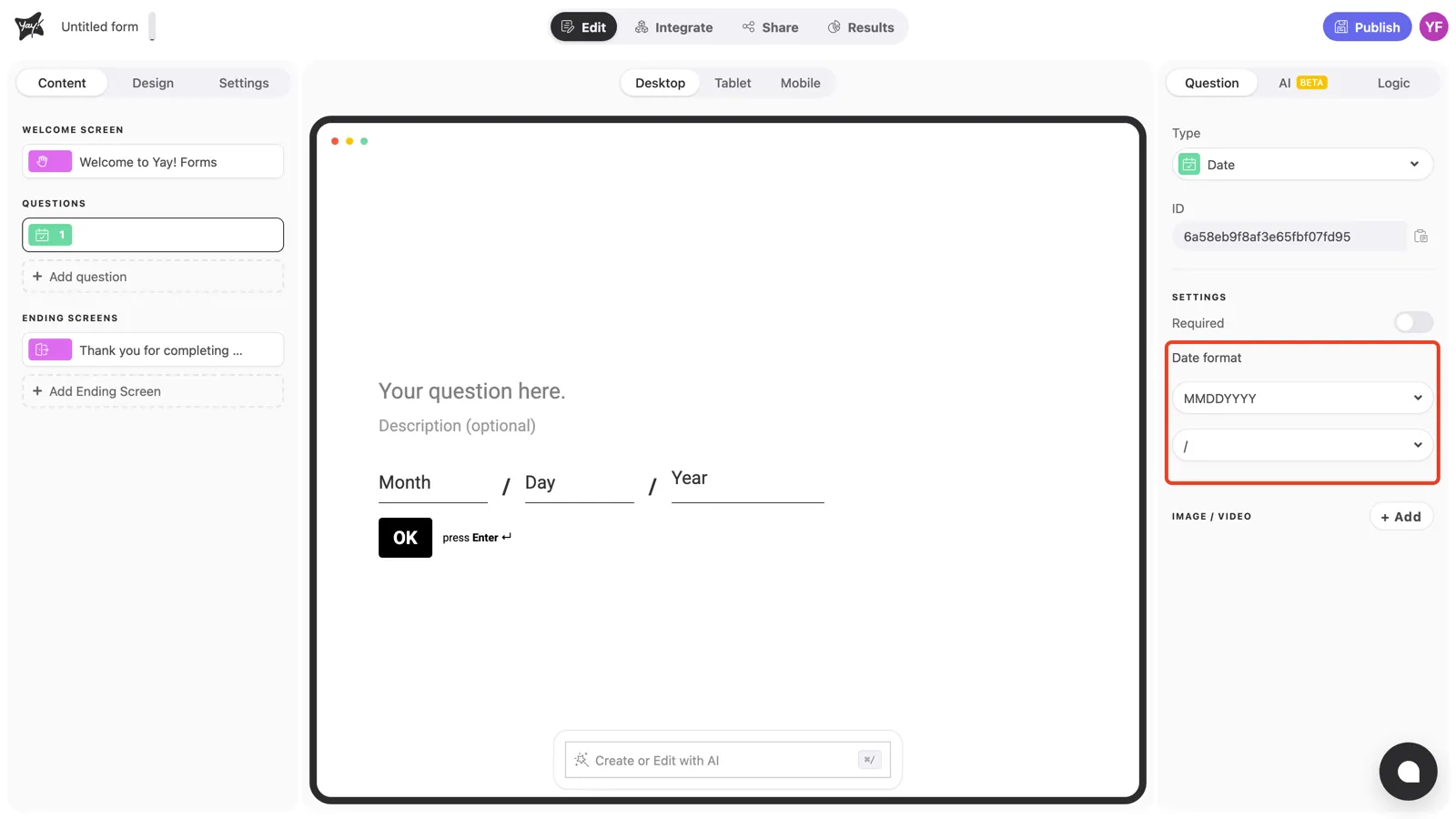
Under Date format, pick the field order your audience expects (like MMDDYYYY or DDMMYYYY) and the separator shown between the fields (such as /). The canvas updates instantly so you can preview exactly what respondents will see. For a Brazilian audience, DDMMYYYY with / is the natural choice.
Conclusion
You’ve learned how to add a Date question, require an answer, and match the date format and separator to your audience.
Related articles: