The Calendly question embeds your Calendly scheduling page inside the form, so respondents can pick a time and book a meeting without leaving it. Use it for demo requests, sales calls, interviews, or any flow where the natural next step is a meeting.
In this article you’ll learn how to add the question, connect your event link, and prefill the booking form with answers the respondent already gave.
Add a Calendly question
Click + Add question in the left sidebar and pick Calendly under Integrations.
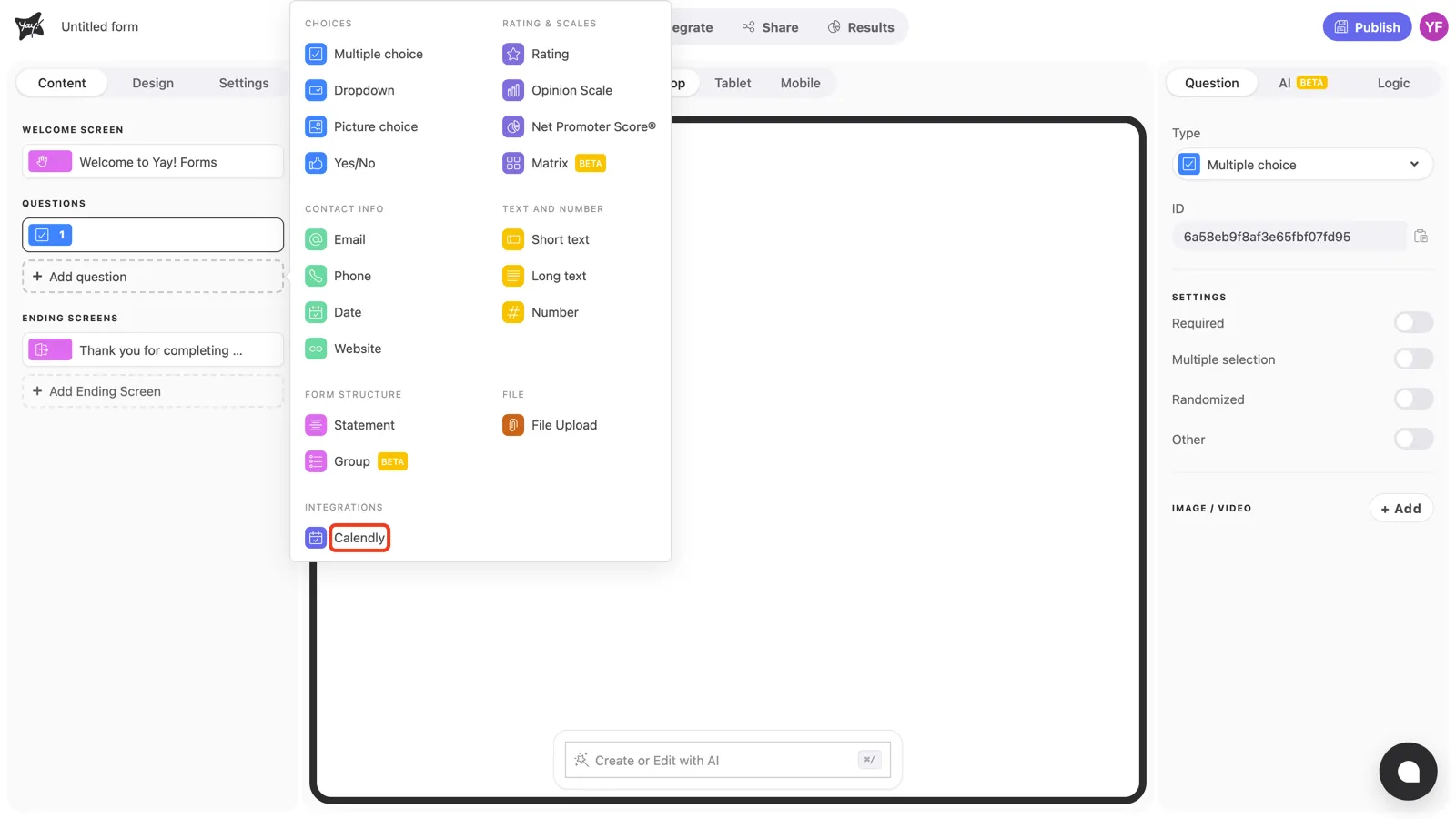
Until a valid link is entered, the canvas shows a placeholder: “The calendar will appear as soon as a valid Calendly URL is provided.”
Connect your Calendly event
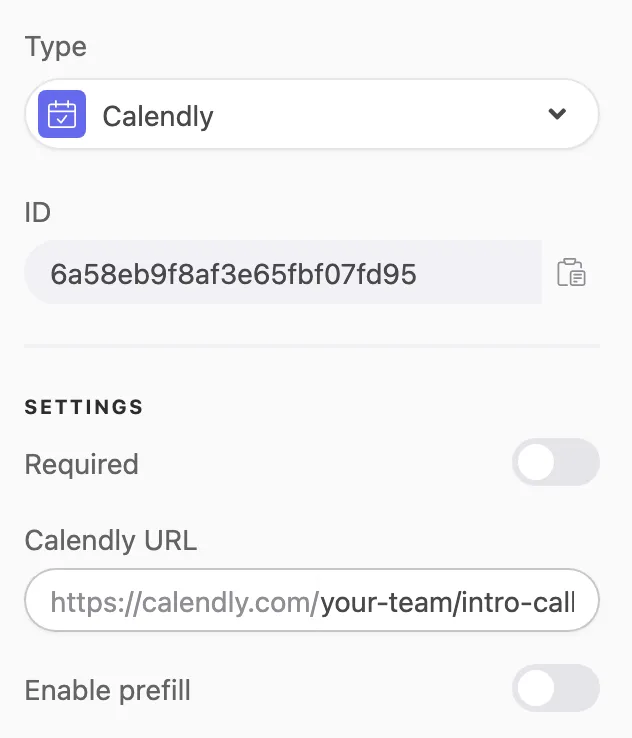
With the question selected, paste your event link in the Calendly URL field in the right panel. The https://calendly.com/ part is fixed; type or paste the rest in the format your-user/your-event, as in https://calendly.com/your-team/intro-call.
To find the link, open the event type in your Calendly account and copy its public link. There’s no account connection involved: Yay! Forms only needs the event’s public link.
Prefill the booking with earlier answers
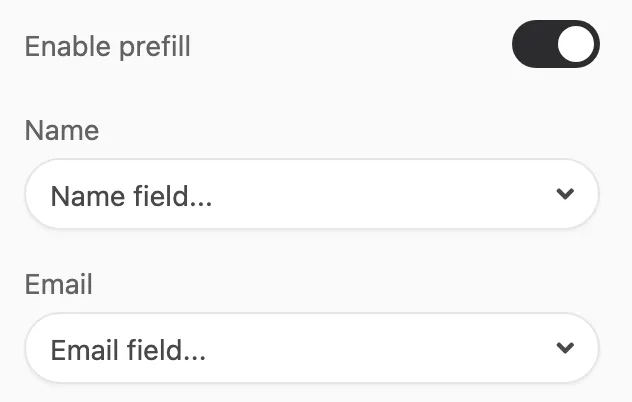
Calendly’s booking form asks for the guest’s name and email. If your form already collected them, turn on Enable prefill and use the Name and Email dropdowns to pick which question feeds each field. The dropdowns list the questions placed before the Calendly question, plus hidden fields and variables. Fewer fields to retype means fewer people dropping off at the final step.
If your Calendly event has custom questions, click + Add to map up to 10 Custom Field entries, in the same order as the custom questions in Calendly.
What the respondent sees
When the respondent reaches the question, the Calendly widget loads inside the form. They pick a day and time, then fill in Calendly’s booking form; with prefill on, the name and email arrive already filled.
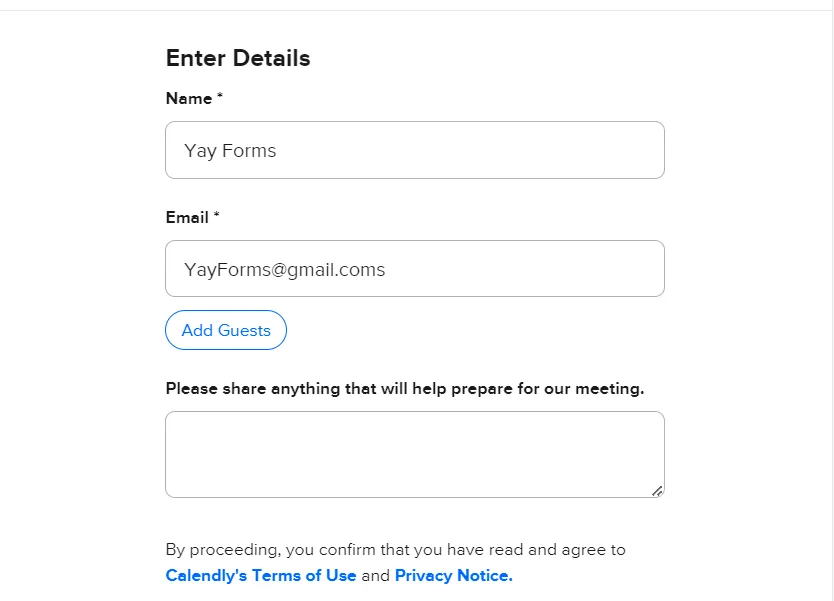
Calendly displays the widget in the guest’s language automatically, following their browser settings. After the booking is confirmed, the form advances on its own, and the response stores a link to the booking confirmation.
Conclusion
You’ve learned how to add a Calendly question, connect your event’s public link, and prefill name, email, and custom questions with earlier answers so respondents book in fewer steps.
Related articles: