A Statement is a screen that shows a message to your respondents, with nothing to fill in. Use it to introduce a new section, explain instructions before a tricky part, or add a moment of personality in the middle of the form.
In this article you’ll learn how to add a Statement, edit its text, and customize its button.
When to use a Statement
Statements work best as signposts inside longer forms:
- Section breaks: “That’s the basics. Now let’s talk about your team.”
- Instructions: explain what the respondent will need before a file upload or a detailed question.
- Reassurance: a privacy note before sensitive questions.
Since respondents just click through it, keep statements short: one idea per statement.
Add a Statement
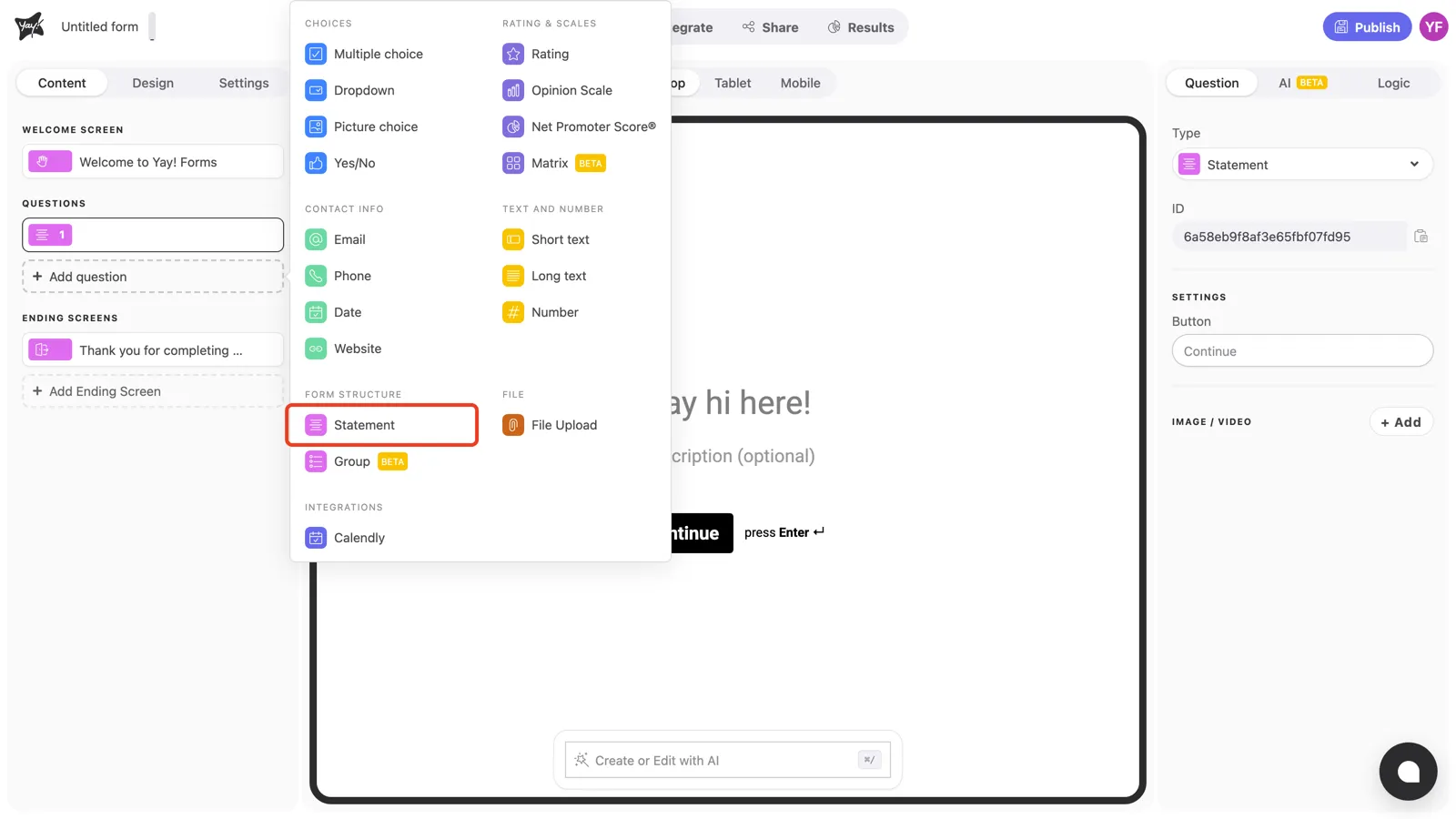
Click + Add question in the left sidebar and pick Statement under Form structure.
Write the statement and description
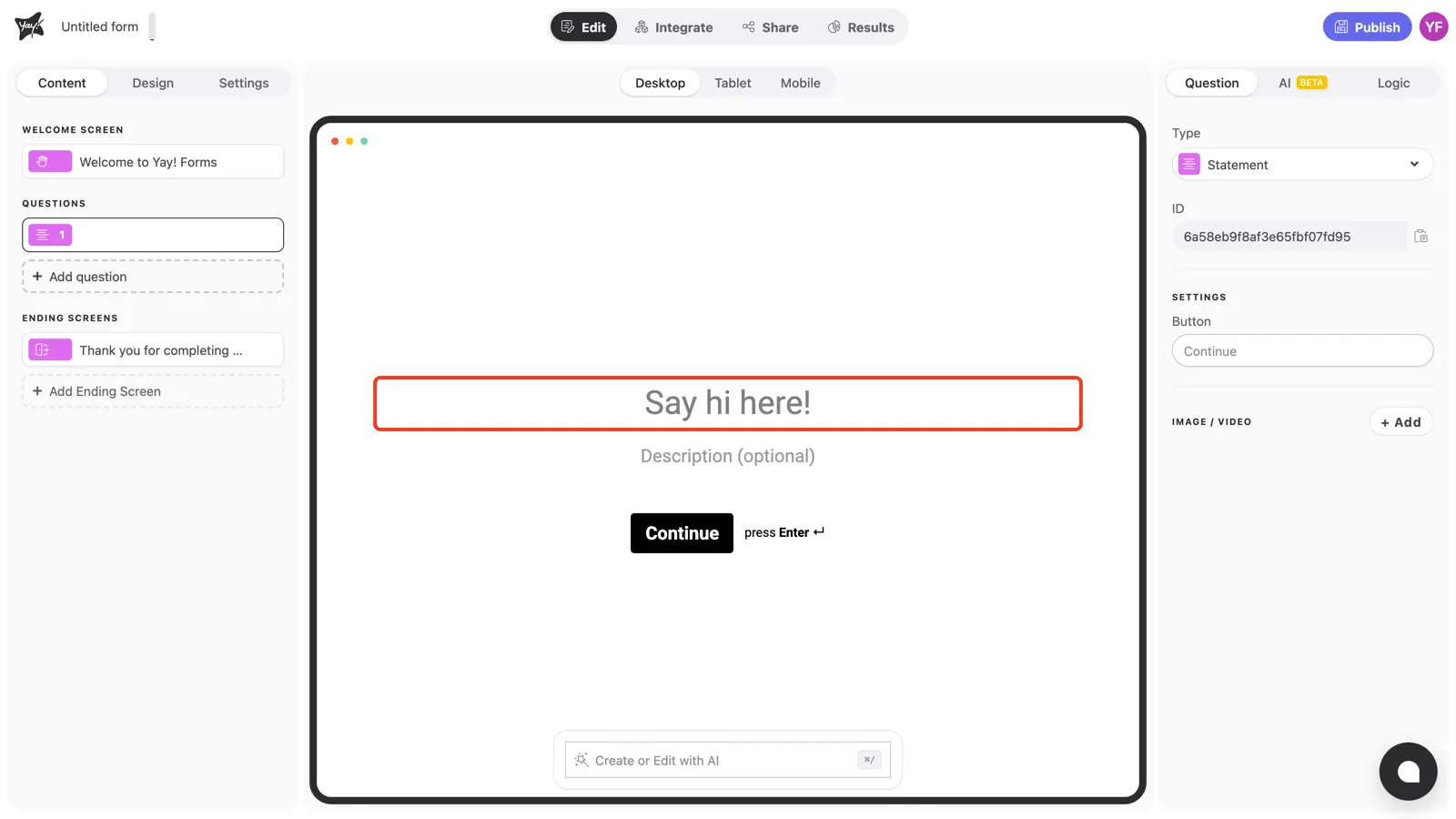
Click “Say hi here!” in the canvas and type your message.
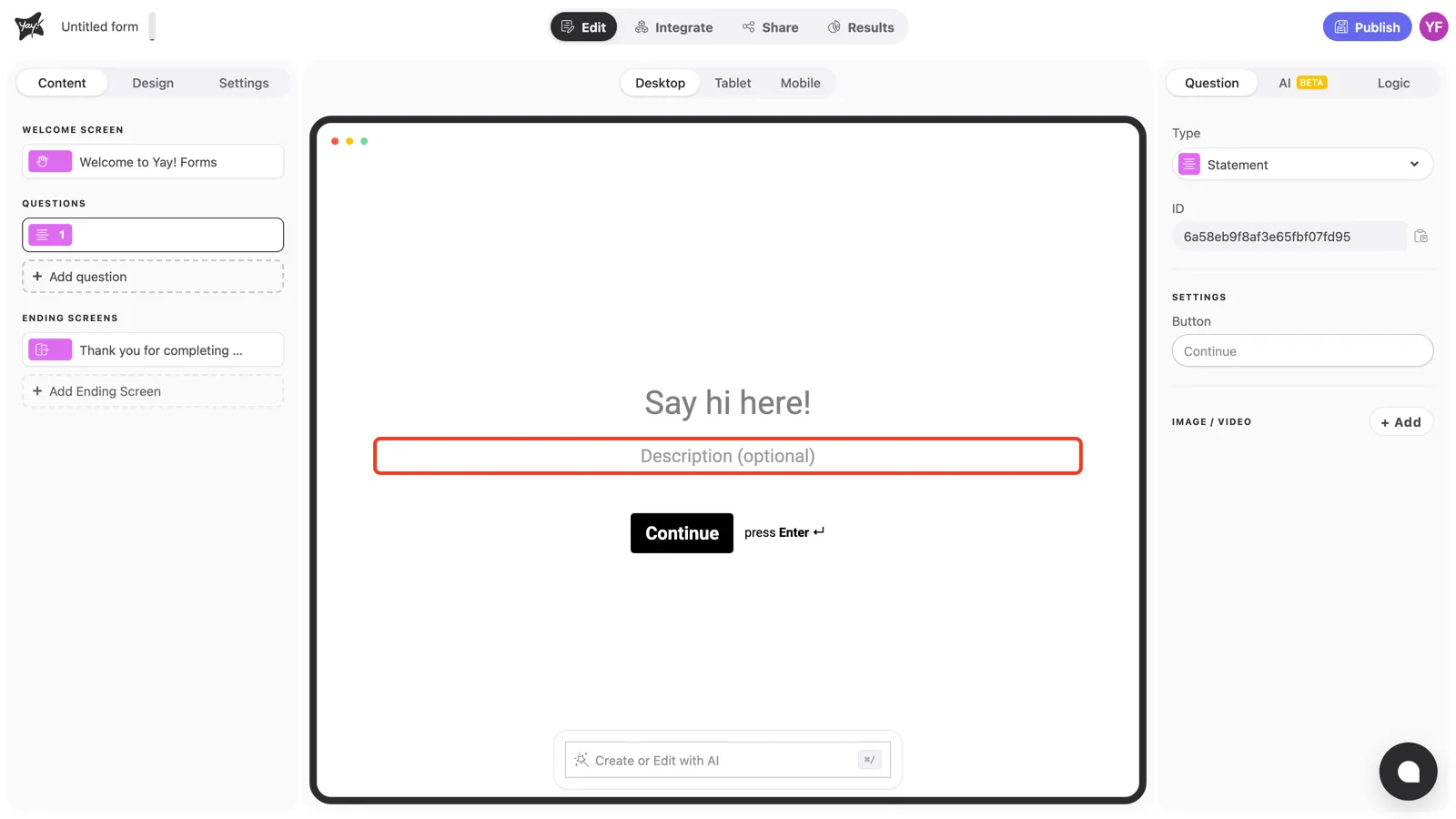
Use the optional description field below for supporting detail. It appears in smaller text under the title.
Customize the button text
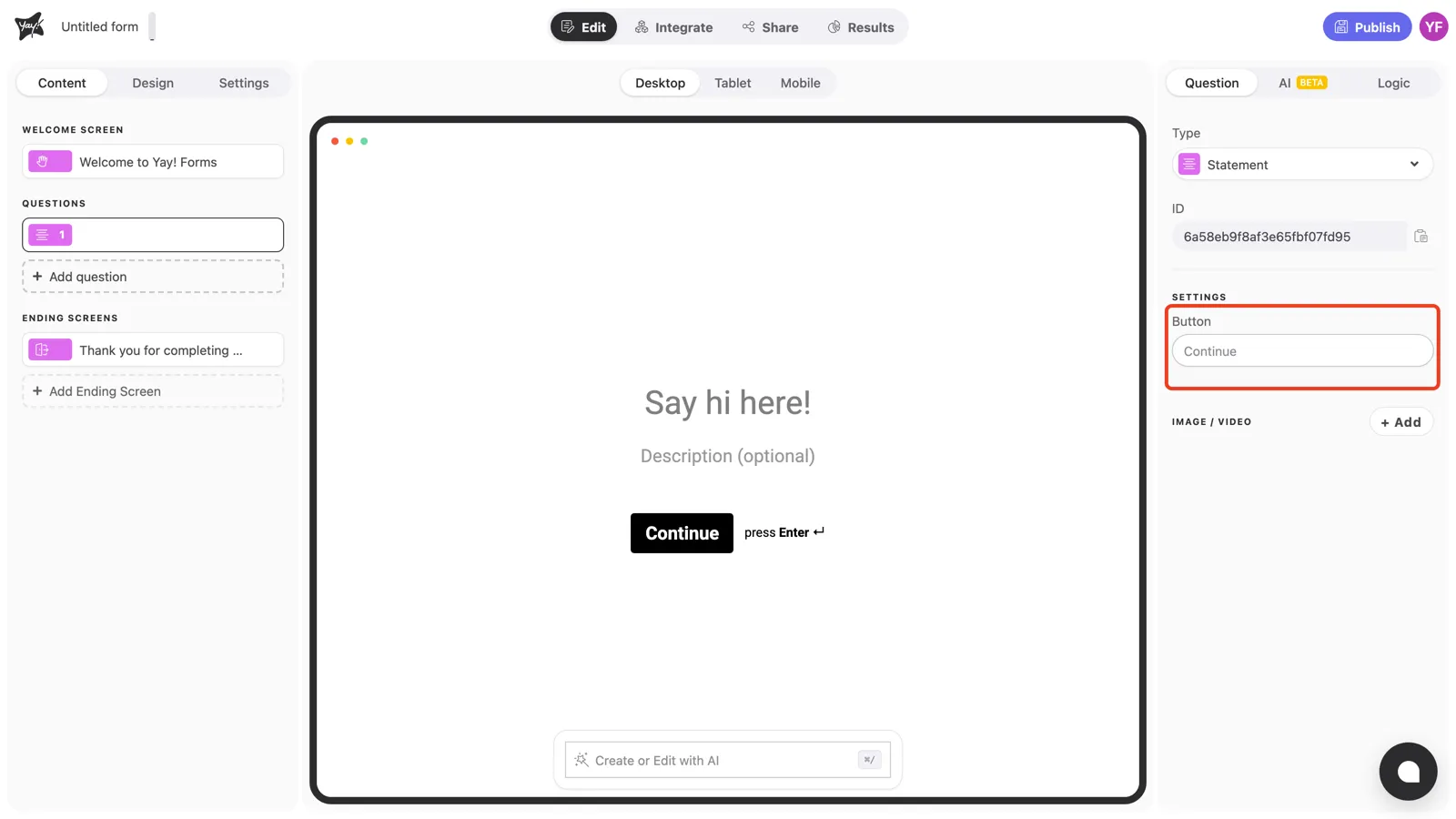
Statements show a Continue button by default. To change its label, type in the field under Button in the right panel’s Settings, for example “Let’s go!”.
Conclusion
You’ve learned how to add a Statement to show a message mid-form, edit its title and description, and customize its button label.
Related articles: