The welcome screen is the first thing respondents see. It sets the tone and explains what the form is about. A clear welcome screen with an honest time expectation (“takes 2 minutes”) measurably improves completion rates.
In this article you’ll learn how to edit the welcome screen’s text, format it, and customize the Start button.
Select the welcome screen
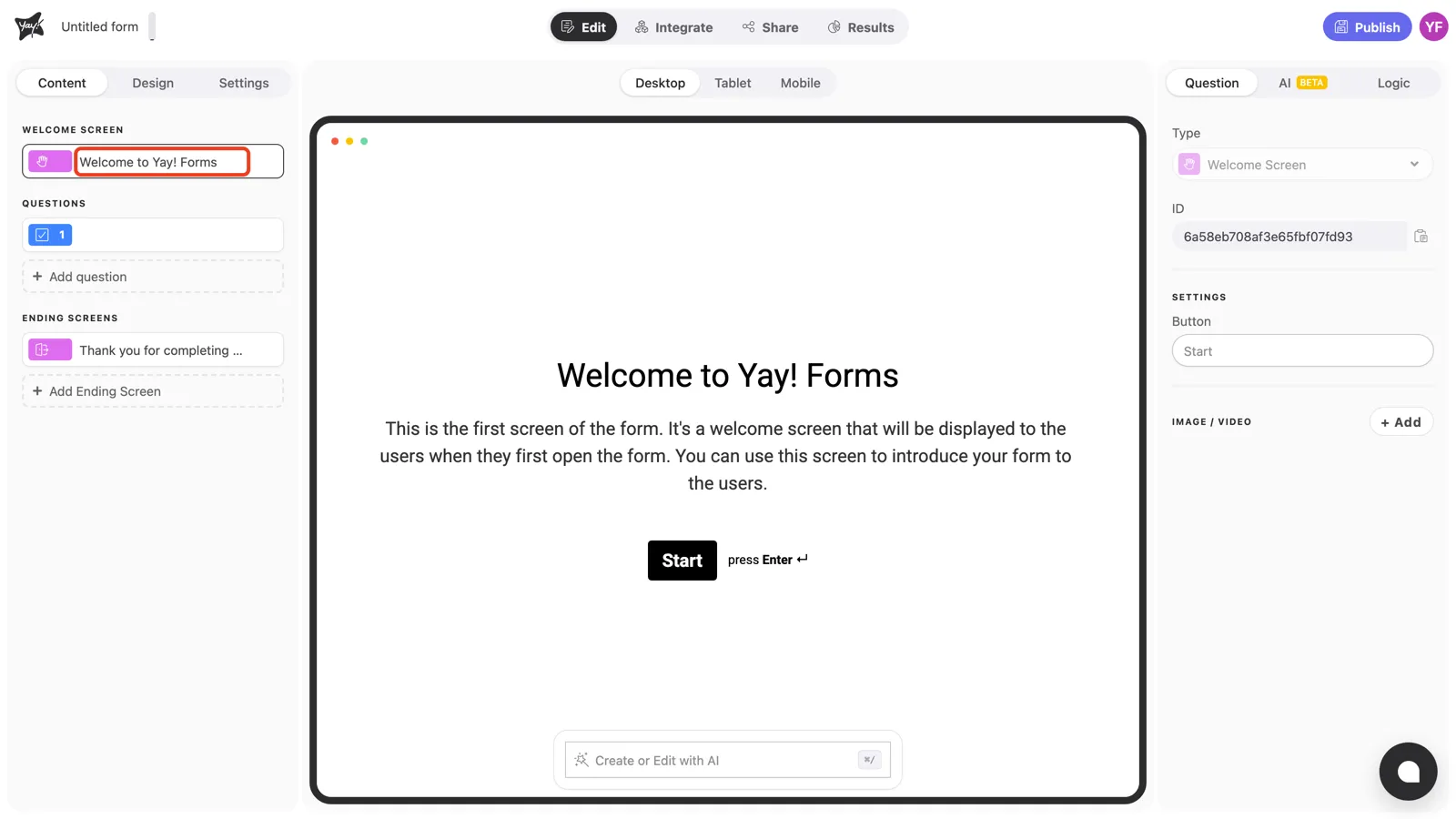
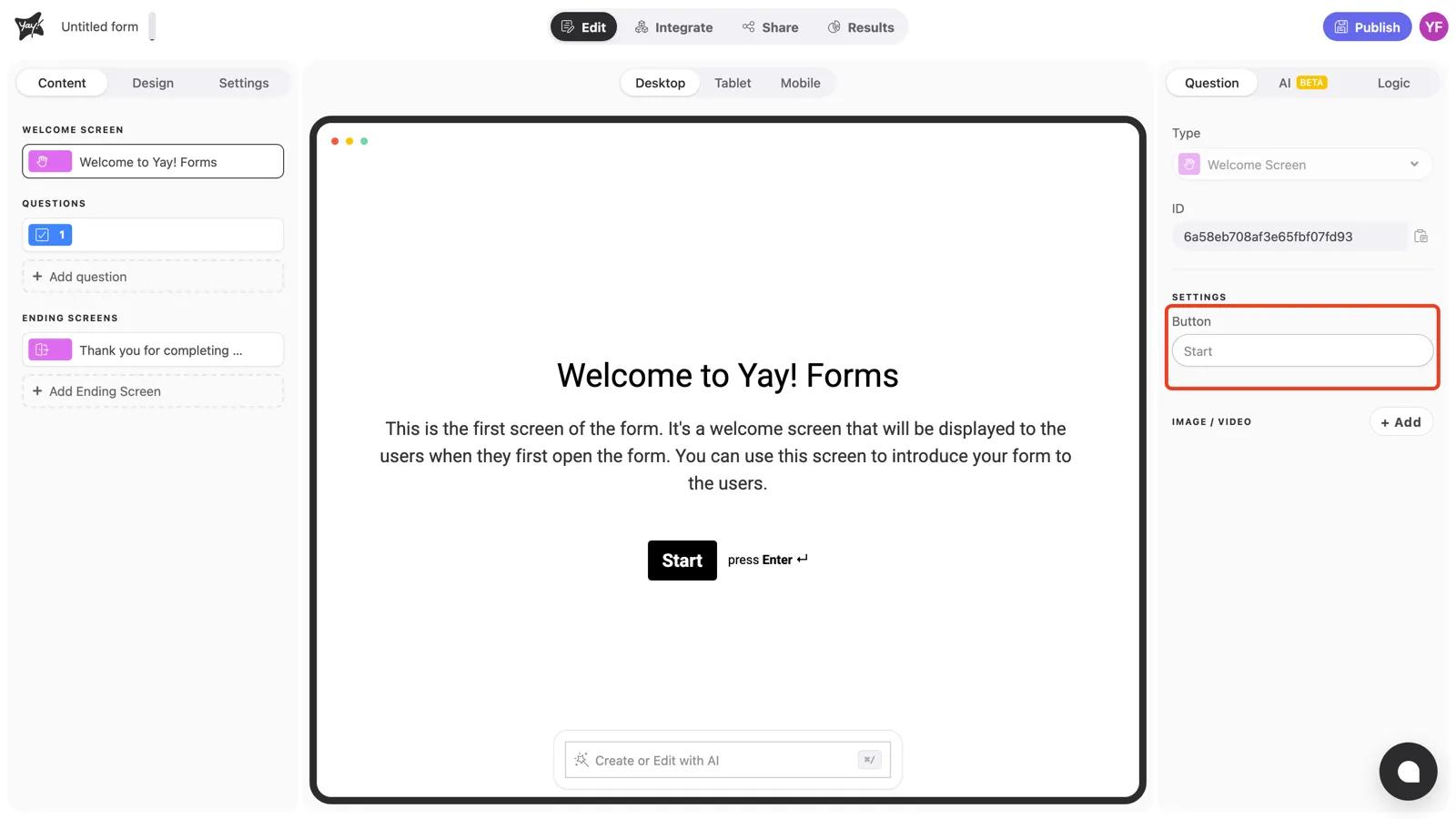
Every new form comes with a welcome screen. Click it at the top of the left sidebar, under Welcome screen, to edit it. The canvas shows a live preview.
Edit the title
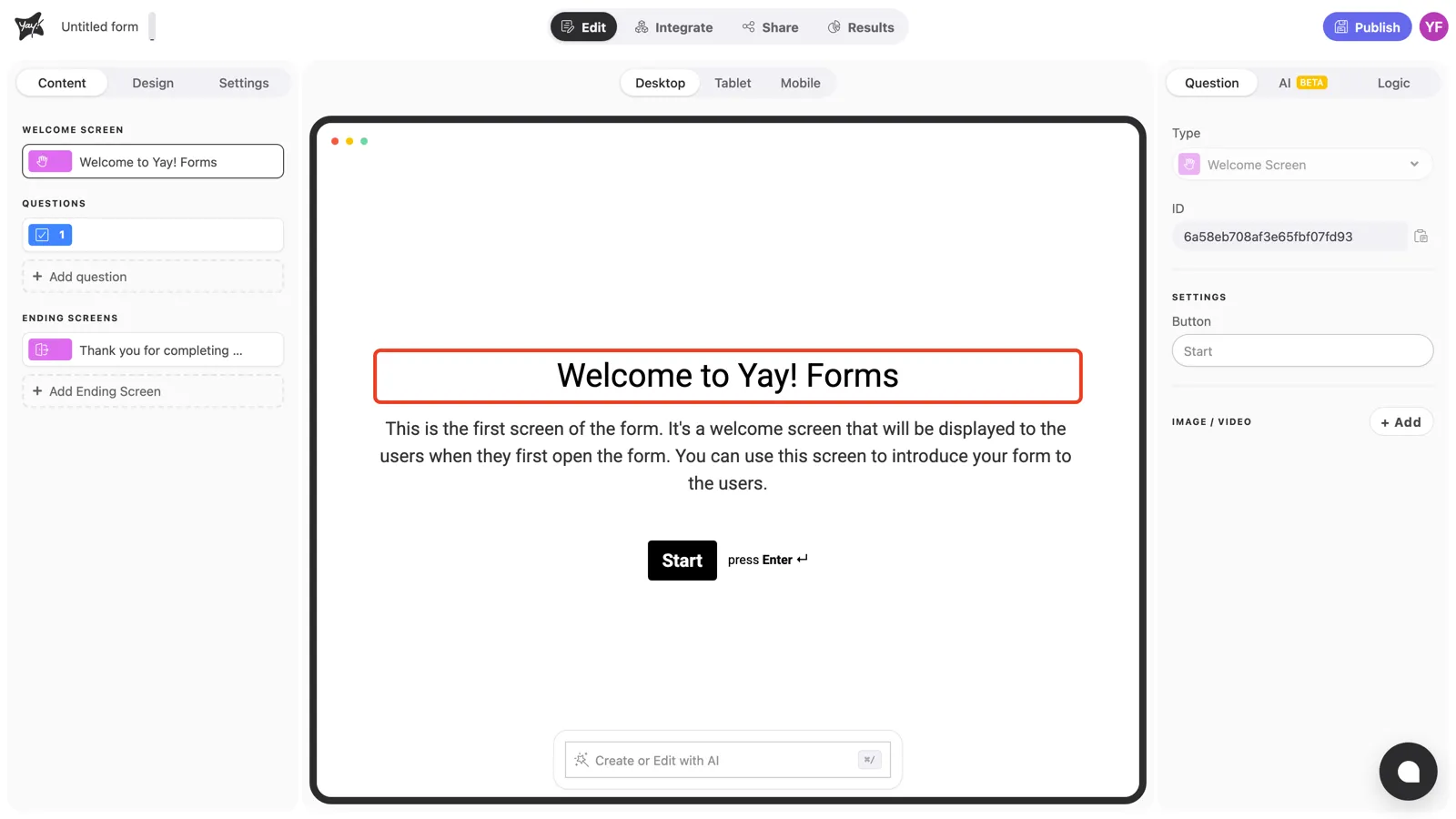
Click the title in the canvas and type. Use it to say what the form is and, when you can, what the respondent gets out of it.
Edit the description
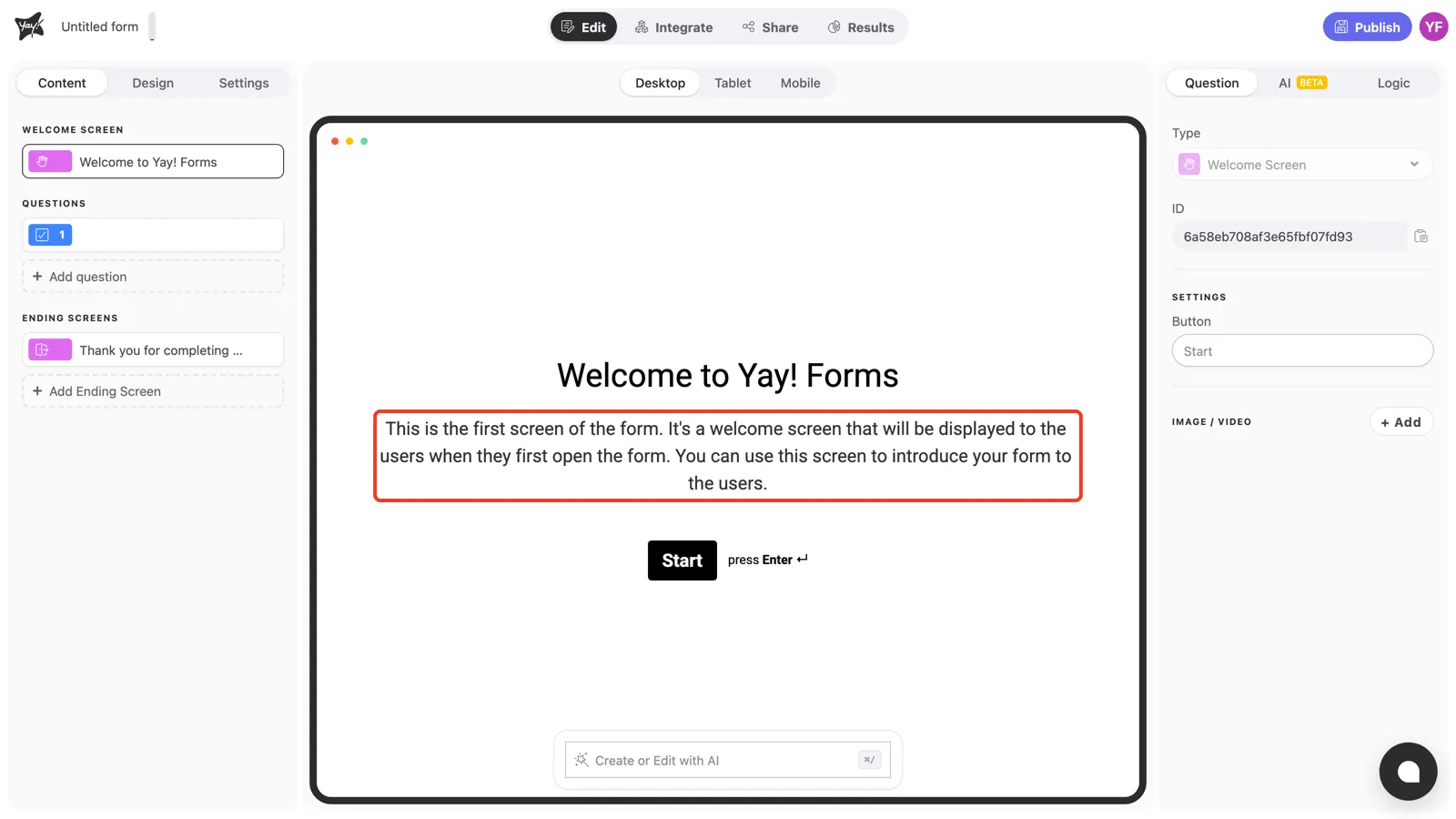
Click the description below the title to explain anything the respondent should know before starting: how long it takes, what the answers are used for.
Format text and add links
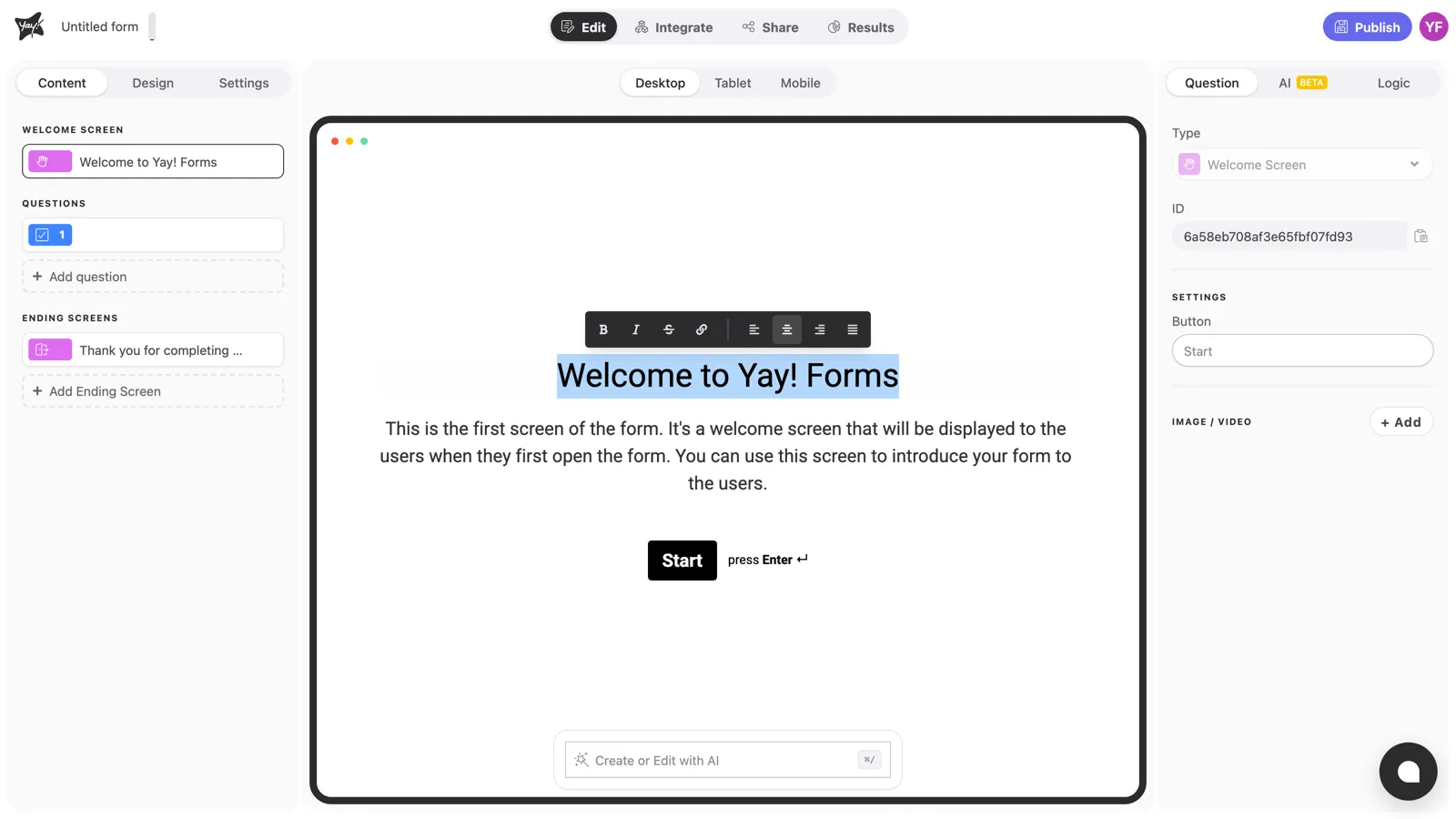
Select any stretch of text and a formatting toolbar appears: bold, italic, strikethrough, link, and text alignment. Use the link button to point to your privacy policy or any supporting page.
Customize the Start button
By default the welcome screen shows a Start button. To change its label, type in the field under Button in the right panel’s Settings, for example “Let’s begin”.
Conclusion
You’ve learned how to edit the welcome screen’s title and description, format the text with links, and rename the Start button.
Related articles: