The Number question type only accepts numeric answers: quantities, ages, budgets, scores. Because the answer is guaranteed to be a number, you can safely use it in calculations, logic conditions, and clean numeric reports.
In this article you’ll learn how to add a Number question, edit its text, and configure its settings: required answers, minimum/maximum values, decimals, and a prefix or suffix.
Add a Number question
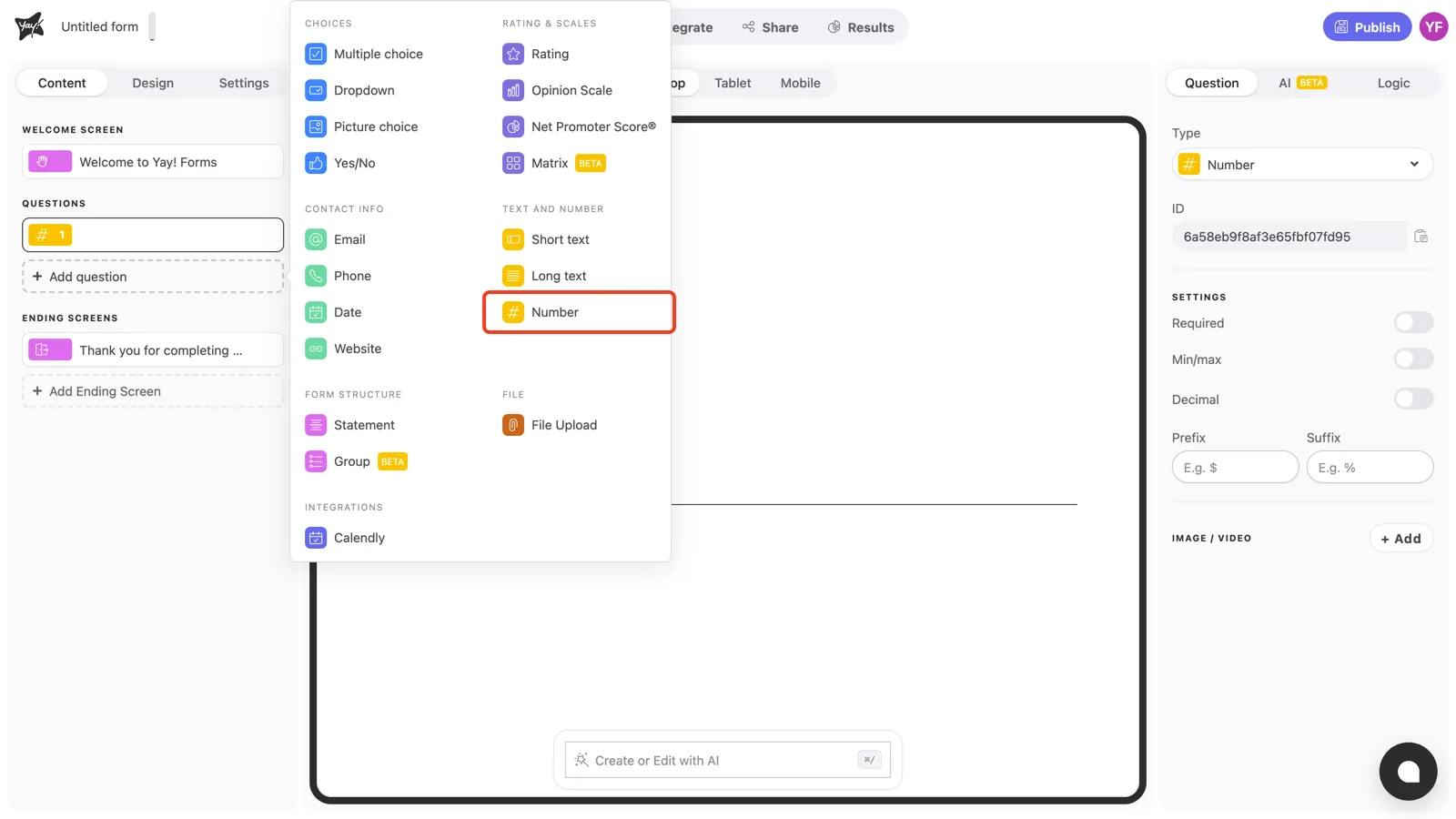
Click + Add question in the left sidebar and pick Number under Text and number.
Write the question and description
Click “Your question here.” in the canvas and type your question, for example “How many people work at your company?”.
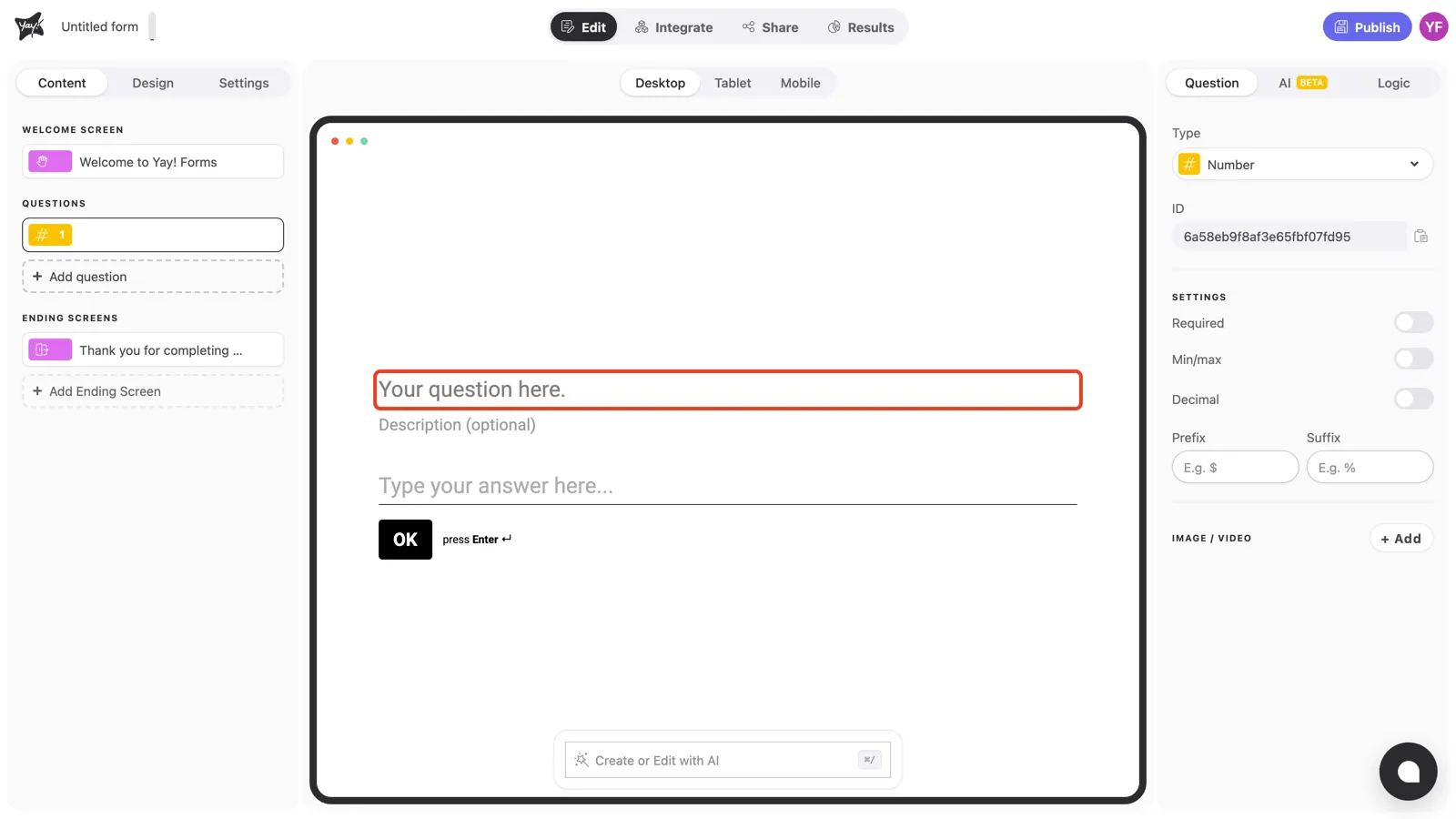
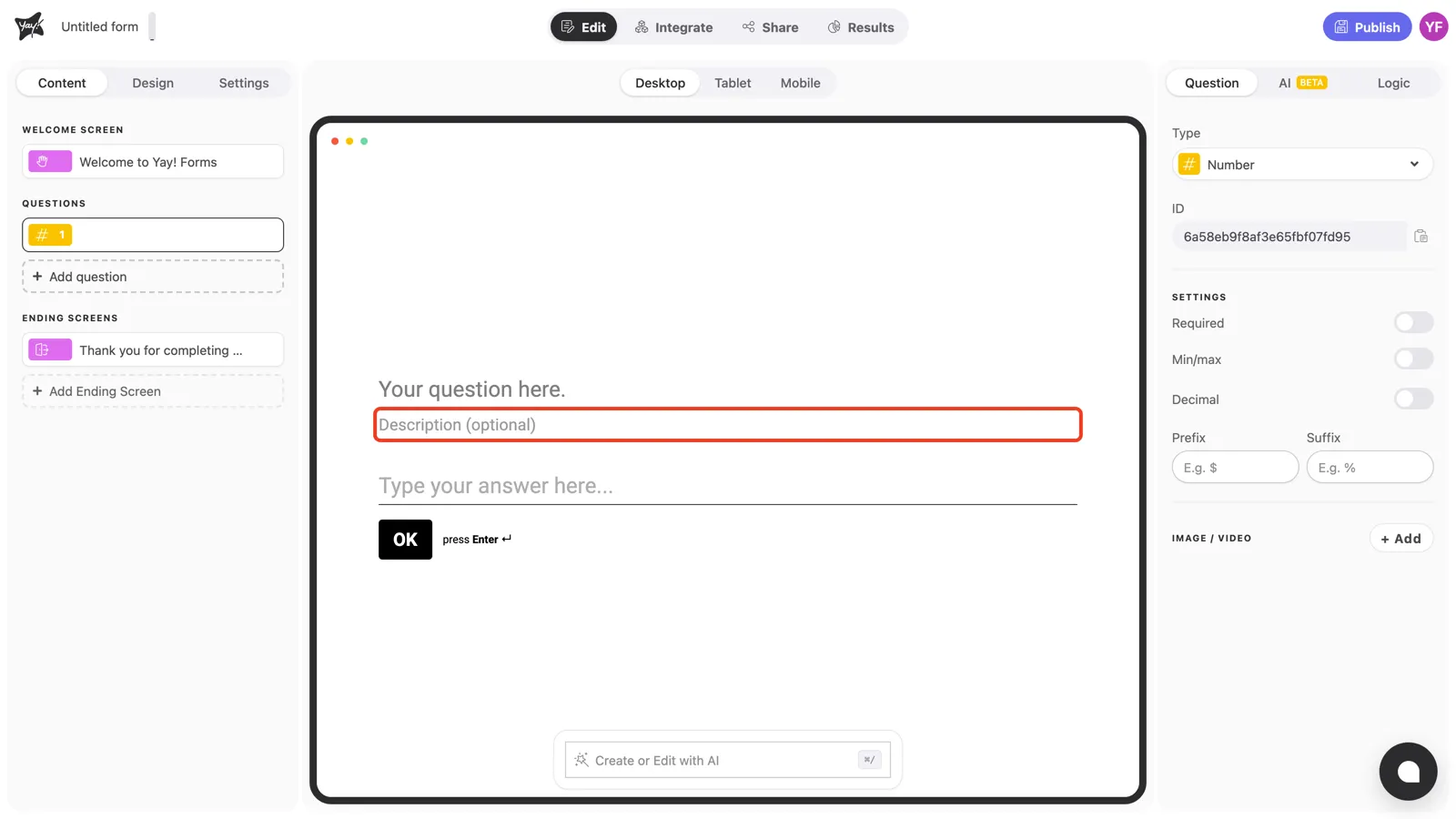
Use the optional description field below it to clarify the unit or range you expect.
Question settings
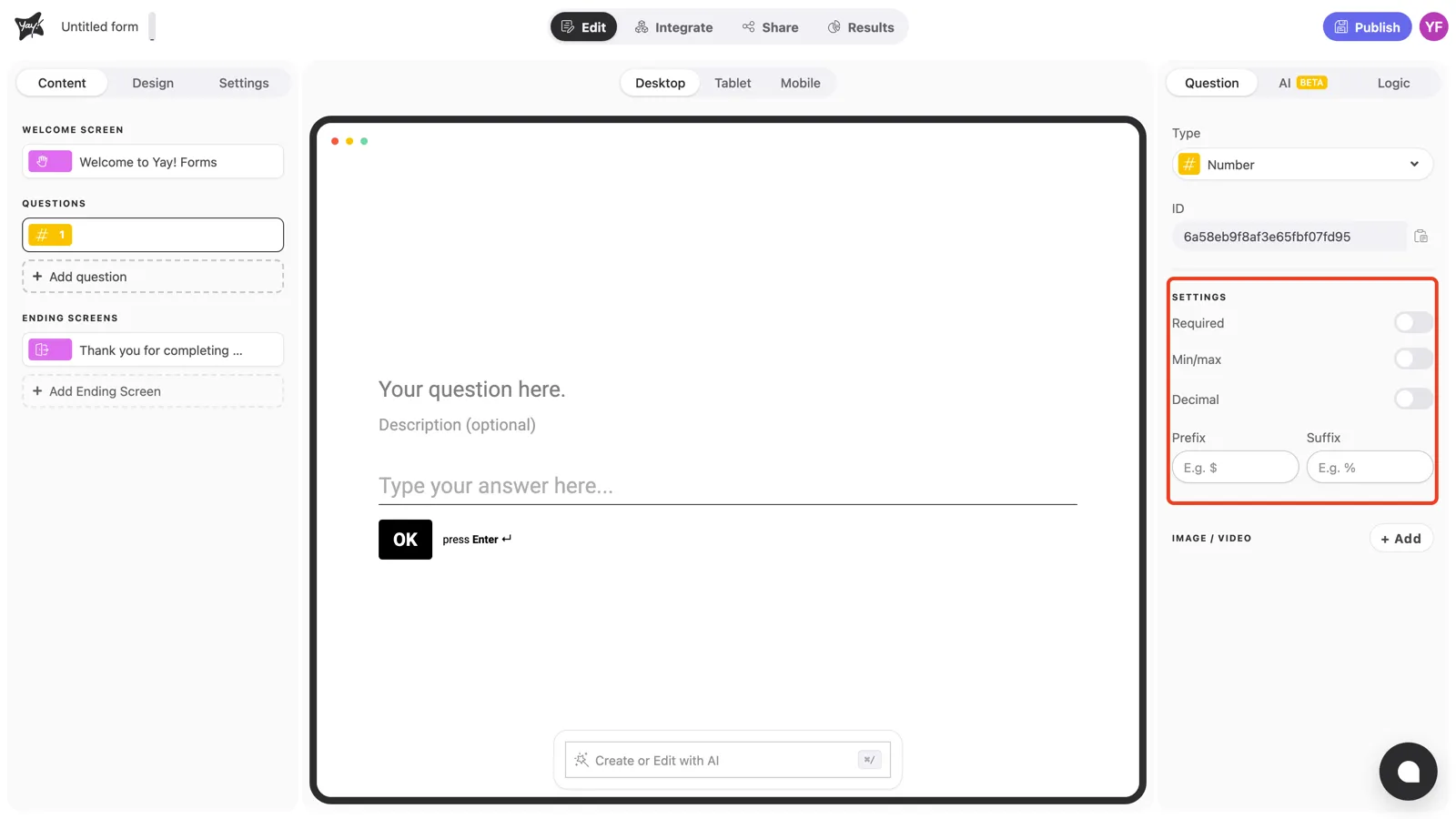
With the question selected, the Settings section in the right panel controls how the question behaves.
Required
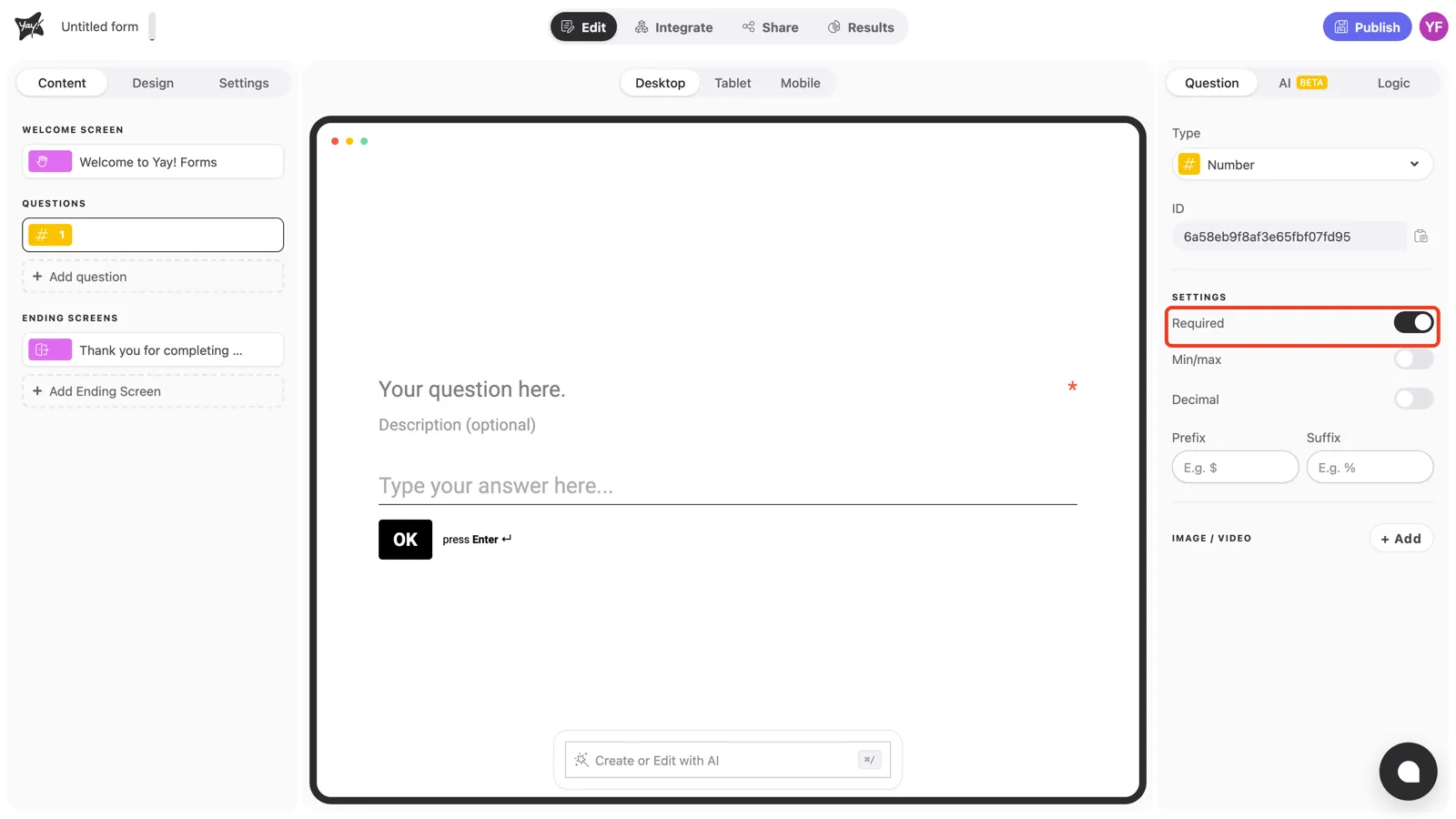
Turn on Required to prevent respondents from skipping the question. An asterisk appears at the end of the question line, and the form won’t advance until a number is entered.
Min/max
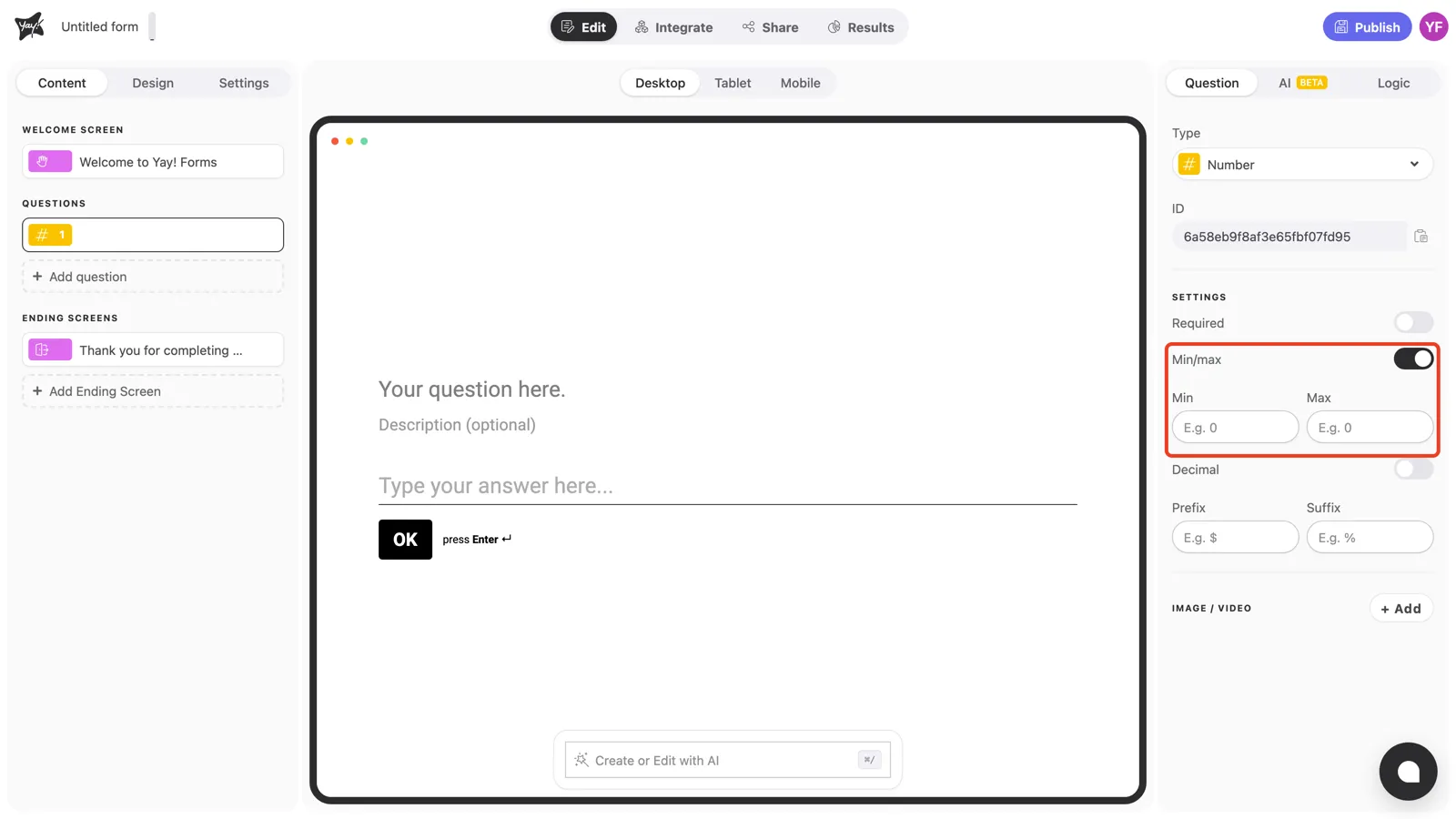
Turn on Min/max to only accept answers inside a range. Two fields appear, Min and Max, and answers outside the range are rejected. Great for quantities that have natural limits, like “How many licenses do you need?”.
Decimal
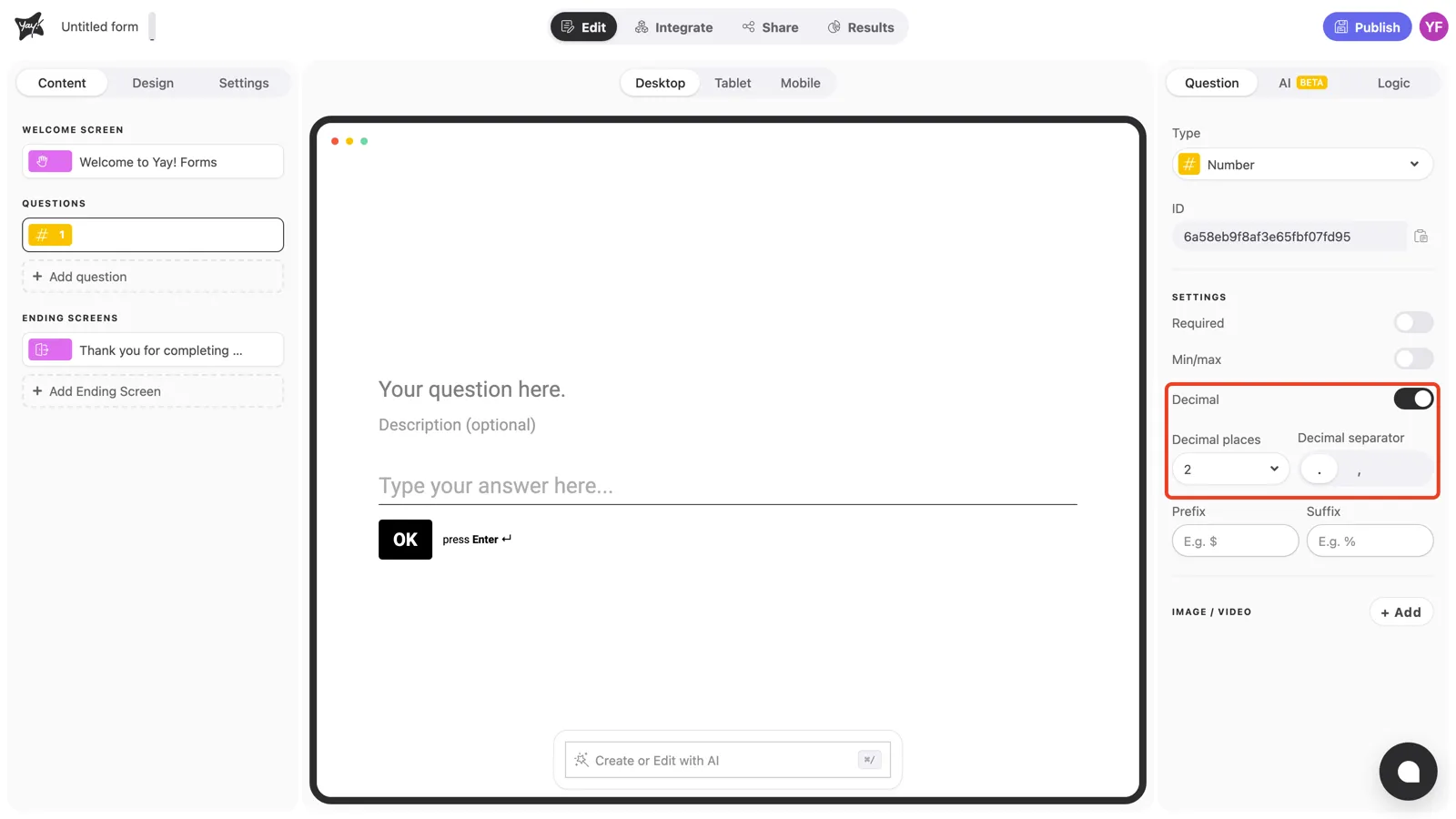
By default, Number questions accept whole numbers. Turn on Decimal to accept fractional answers, then choose the number of Decimal places and whether the Decimal separator is a period or a comma.
Prefix and suffix
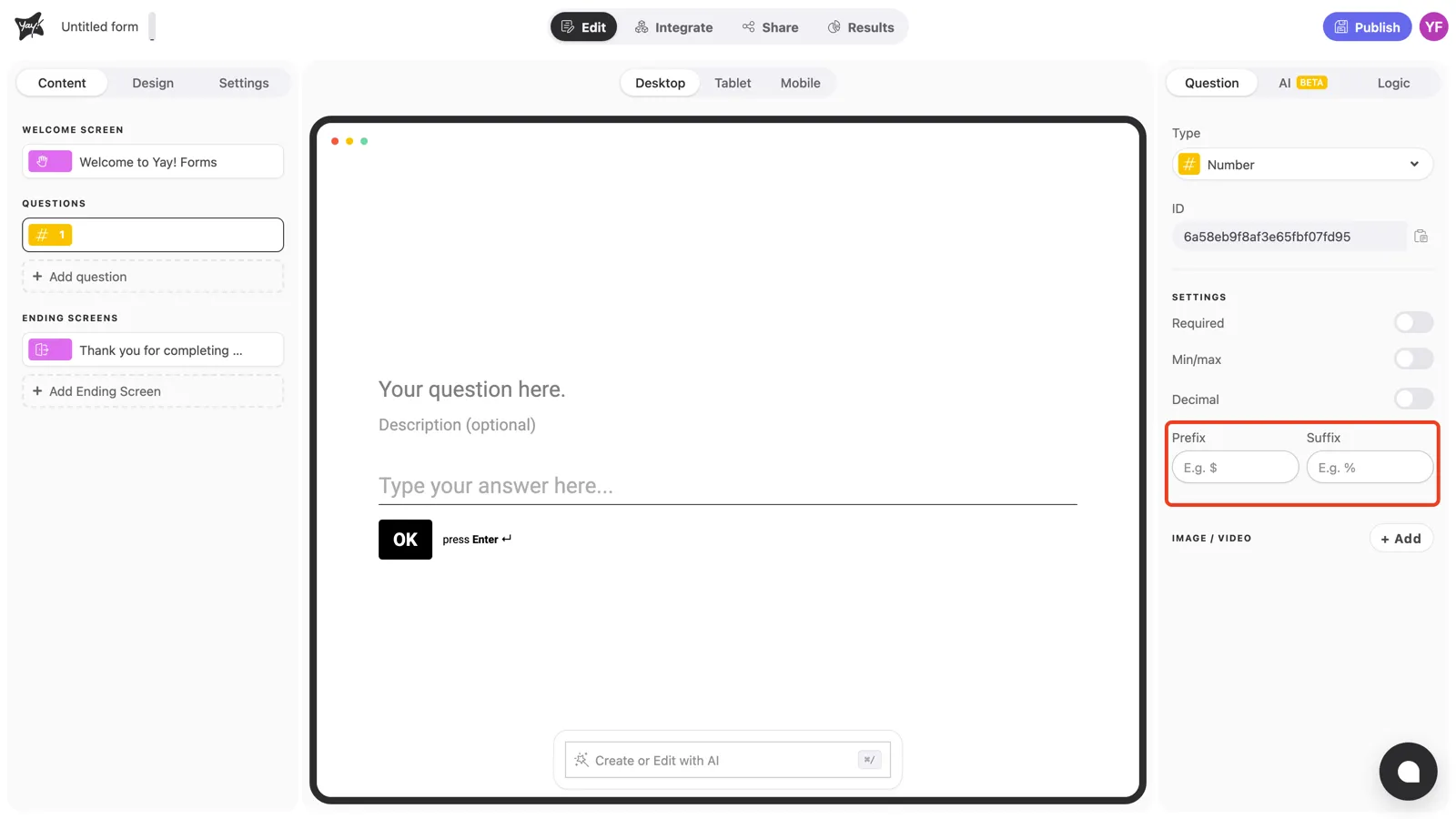
Use Prefix and Suffix to frame the number for your respondent: a currency symbol before it ($), a unit after it (%, kg, /month). The affix appears in the answer box as the respondent types.
Conclusion
You’ve learned how to add a Number question and shape exactly what it accepts: a required answer, a min/max range, decimals with your preferred separator, and a prefix or suffix for context.
Related articles: