The ending screen is what respondents see after submitting. It’s your chance to thank them, confirm what happens next, or send them somewhere useful with a call-to-action button.
In this article you’ll learn how to edit the ending screen’s text and configure its call-to-action button.
Select the ending screen
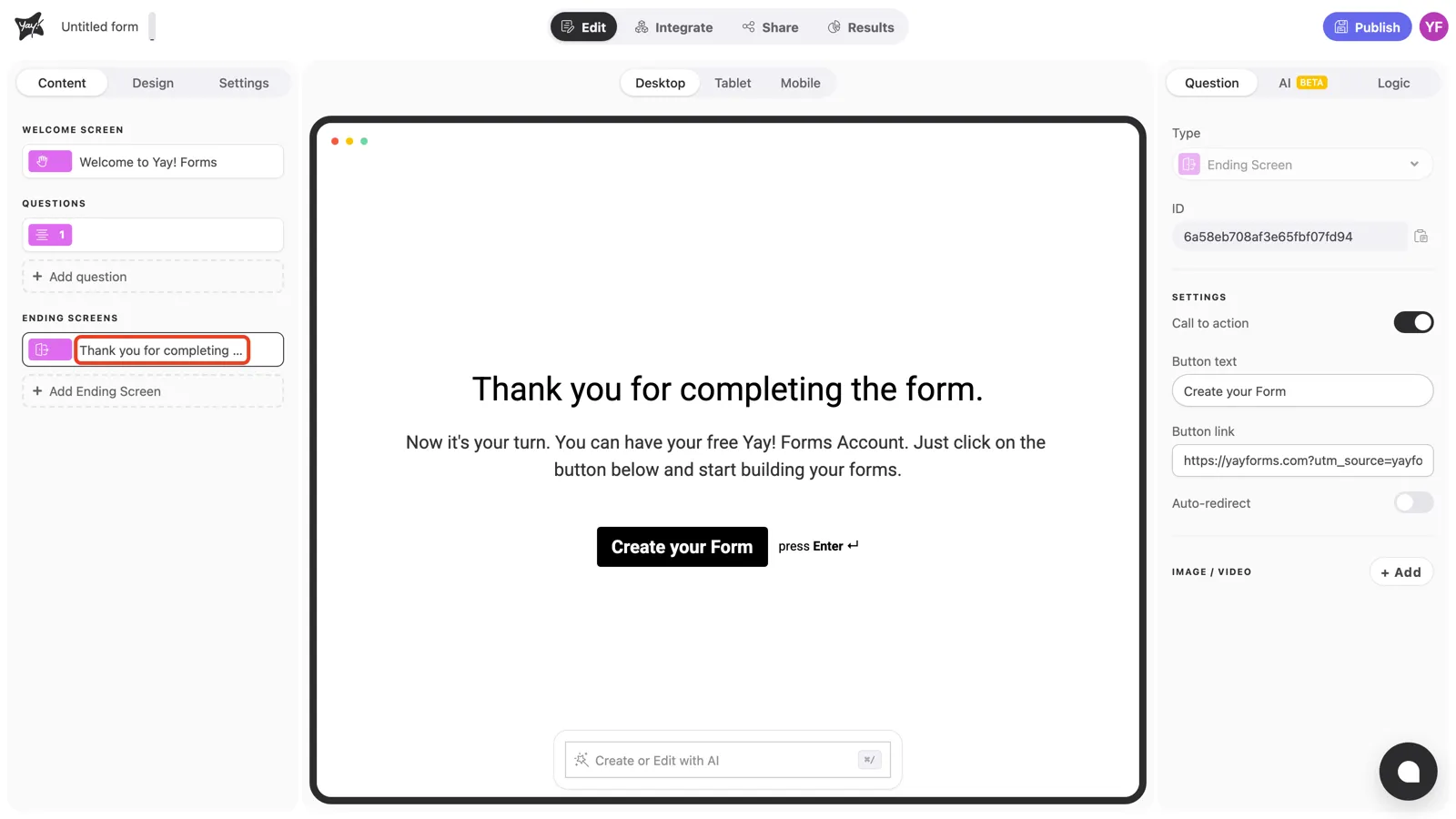
Click the ending screen in the left sidebar, under Ending screens. The canvas shows a live preview.
Edit the message
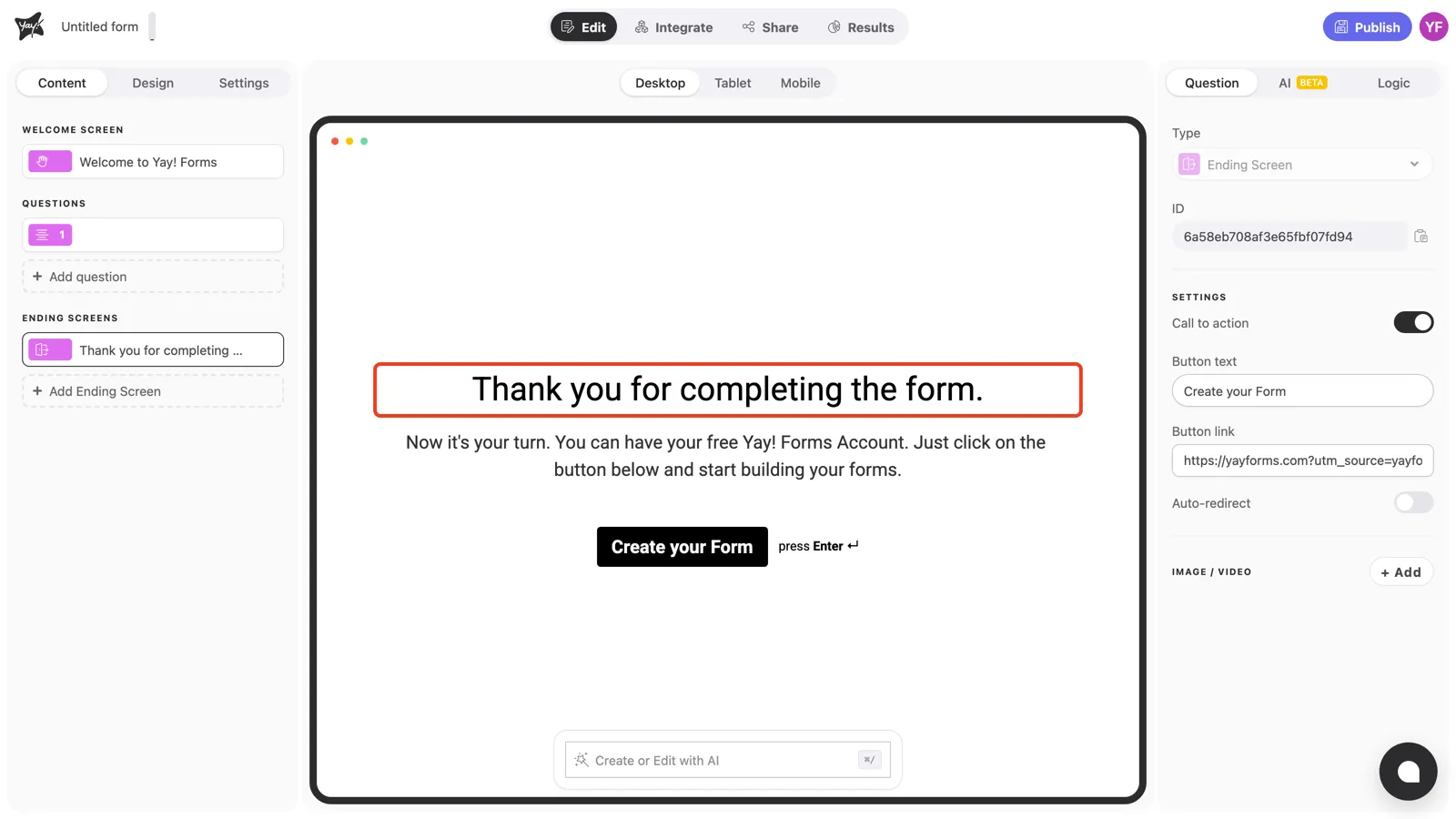
Click the title or description in the canvas and type. Besides thanking the respondent, tell them what happens next. “We’ll reply within one business day” beats a bare “Thank you”.
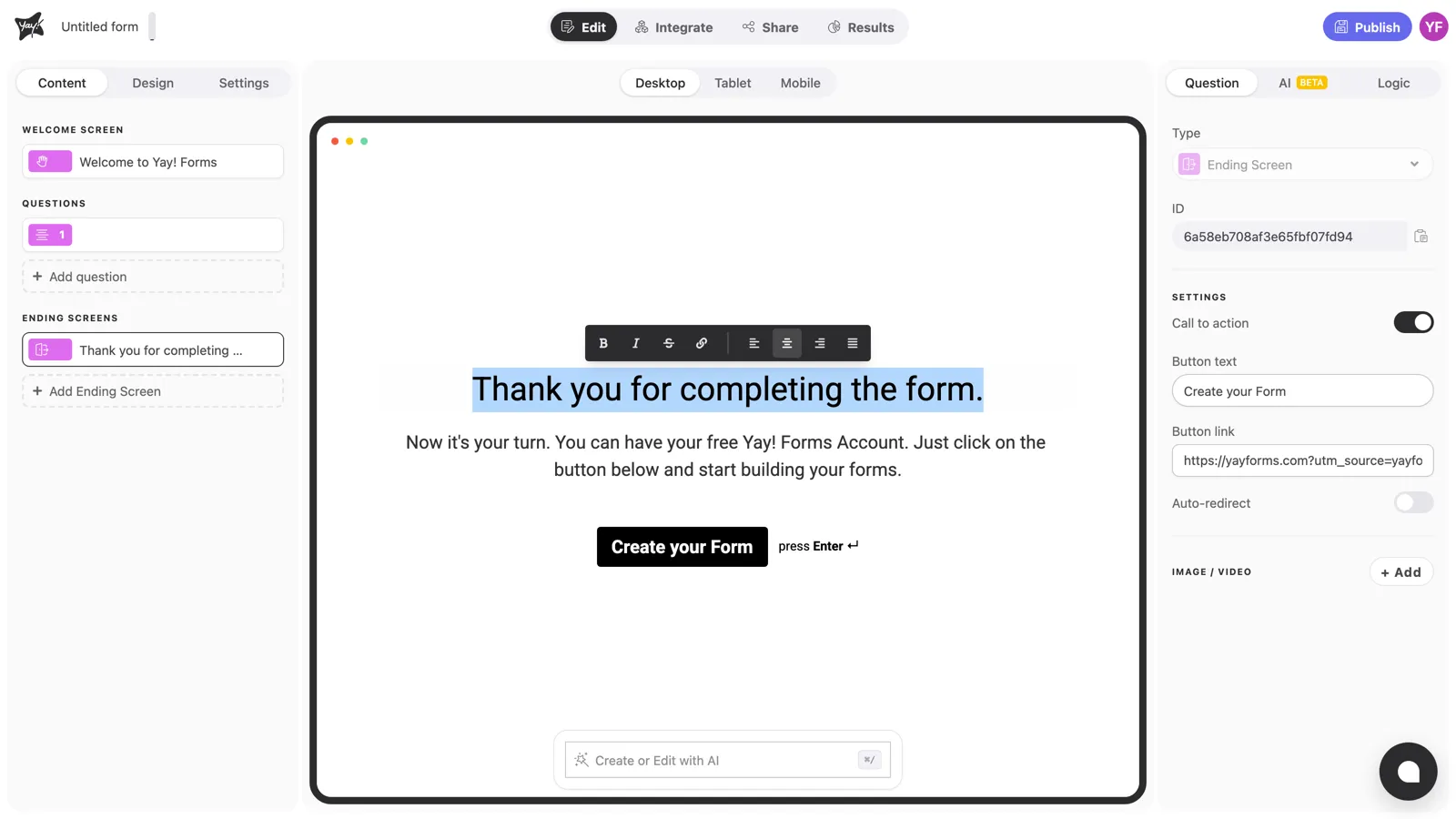
Select any stretch of text to reveal the formatting toolbar: bold, italic, strikethrough, link, and alignment.
Configure the call-to-action button
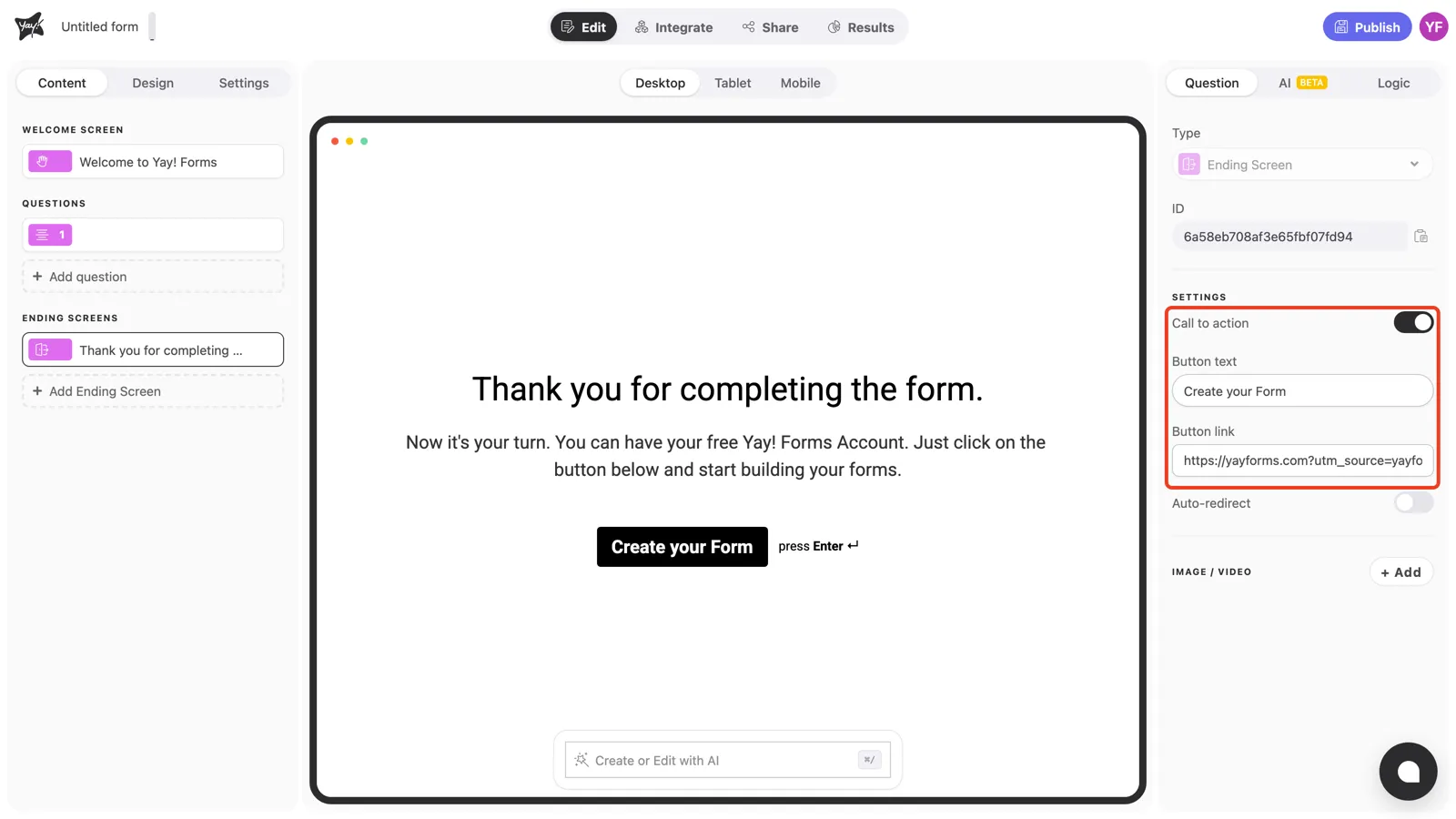
In the right panel’s Settings, the Call to action toggle controls the button on the ending screen. With it on, set the Button text (what the button says) and the Button link (where it takes the respondent): your site, a booking page, a download.
Conclusion
You’ve learned how to edit the ending screen’s message, format it, and point its call-to-action button anywhere you like.
Related articles: