Picture choice is a multiple choice question where the options are images. Visual options are faster to scan than text and work well for product preferences, style tests, and quizzes.
In this article you’ll learn how to add a Picture choice question, set up the image options, and configure its settings.
Add a Picture choice question
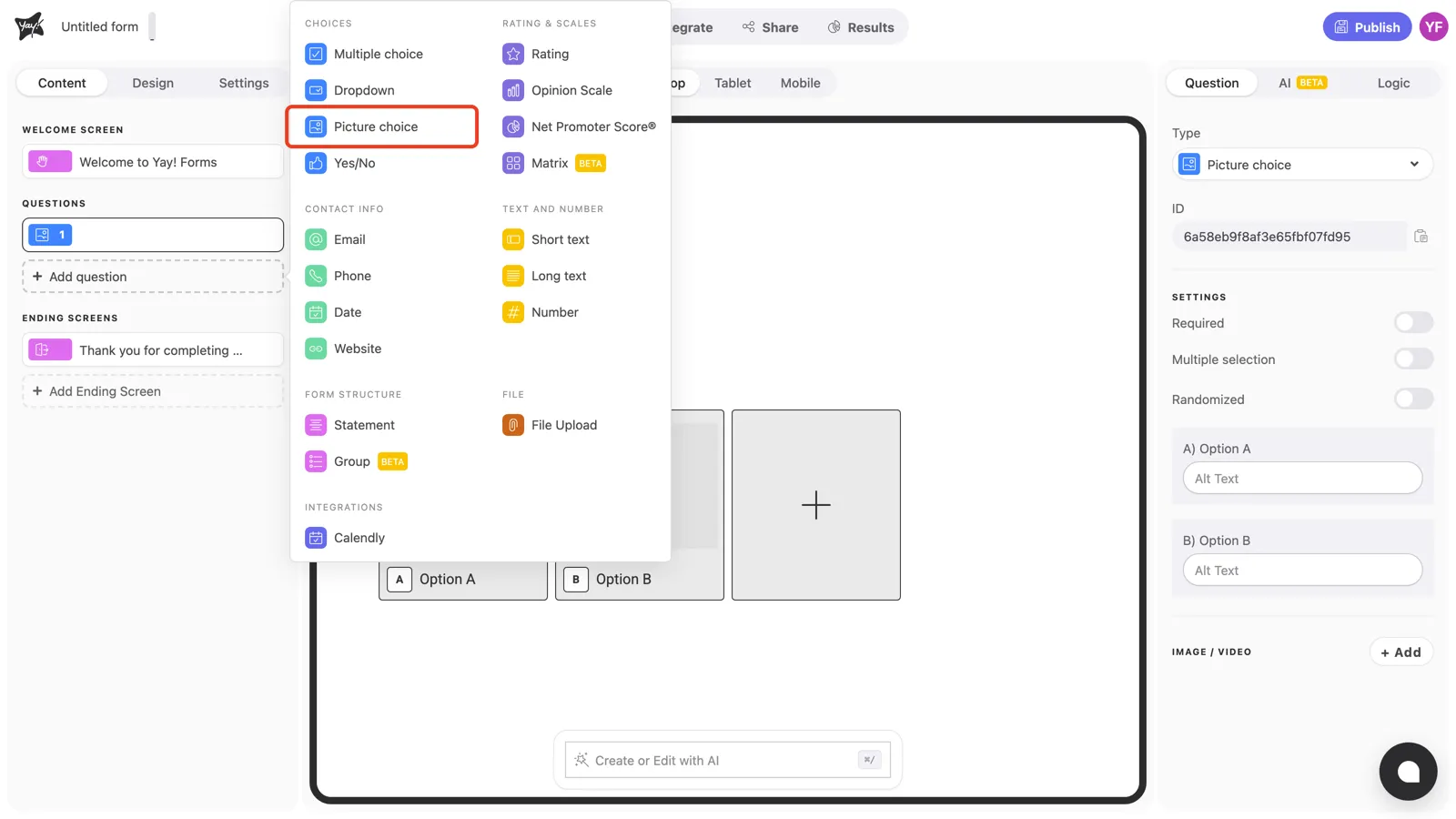
Click + Add question in the left sidebar and pick Picture choice under Choices.
Write the question and description
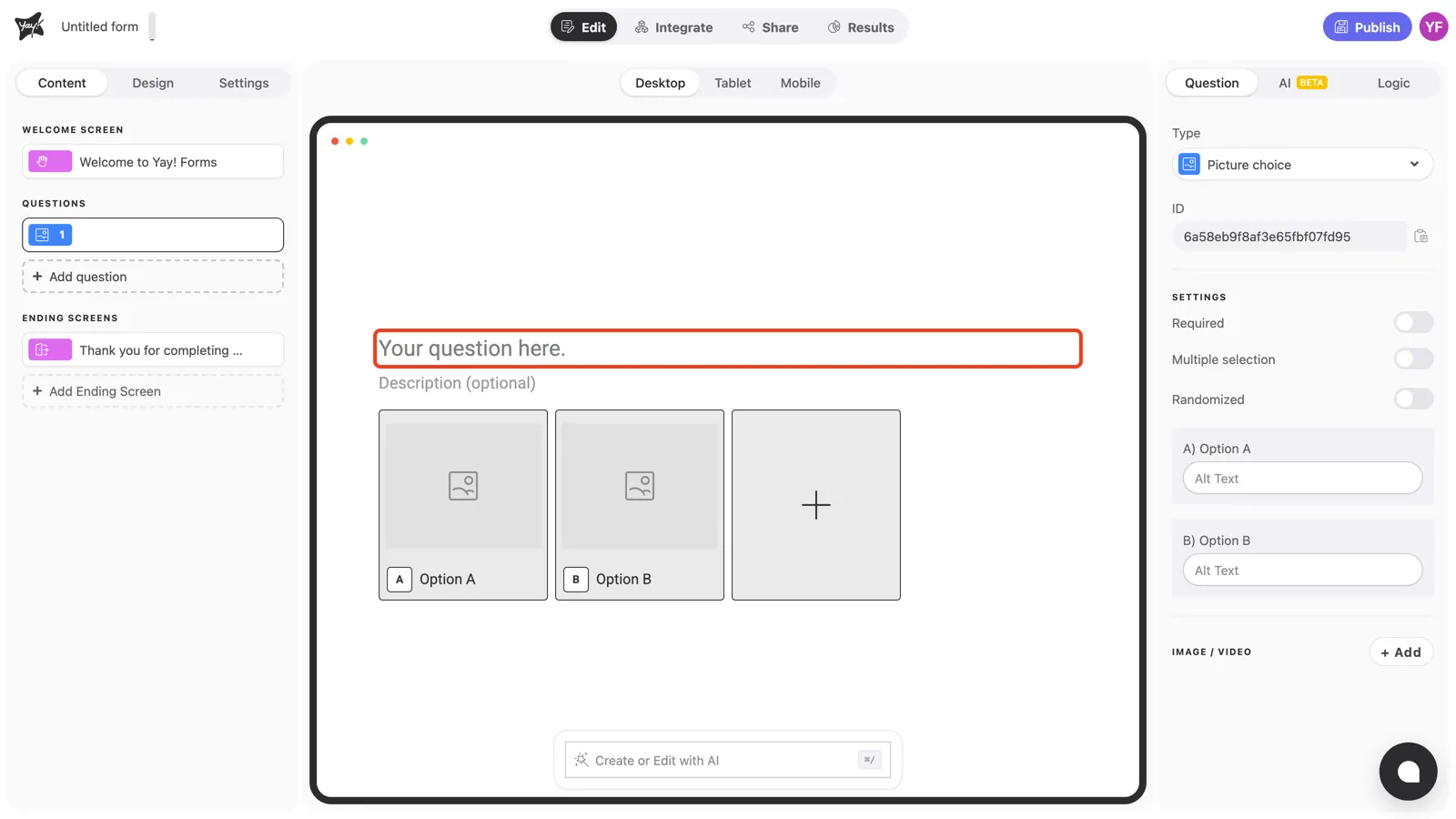
Click “Your question here.” in the canvas and type your question.
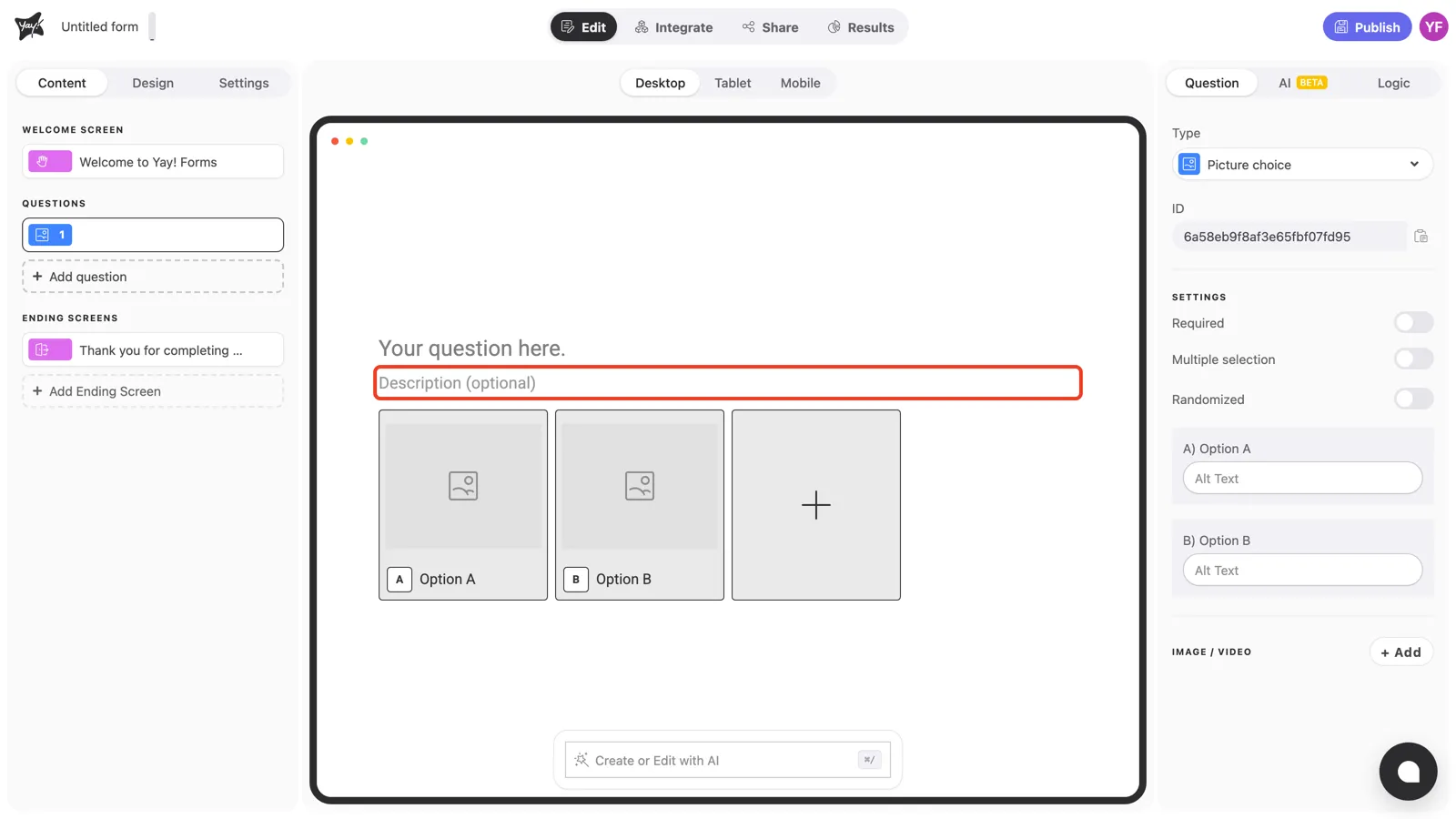
Add extra context in the optional description field below it if the choice needs explaining.
Set up the image options
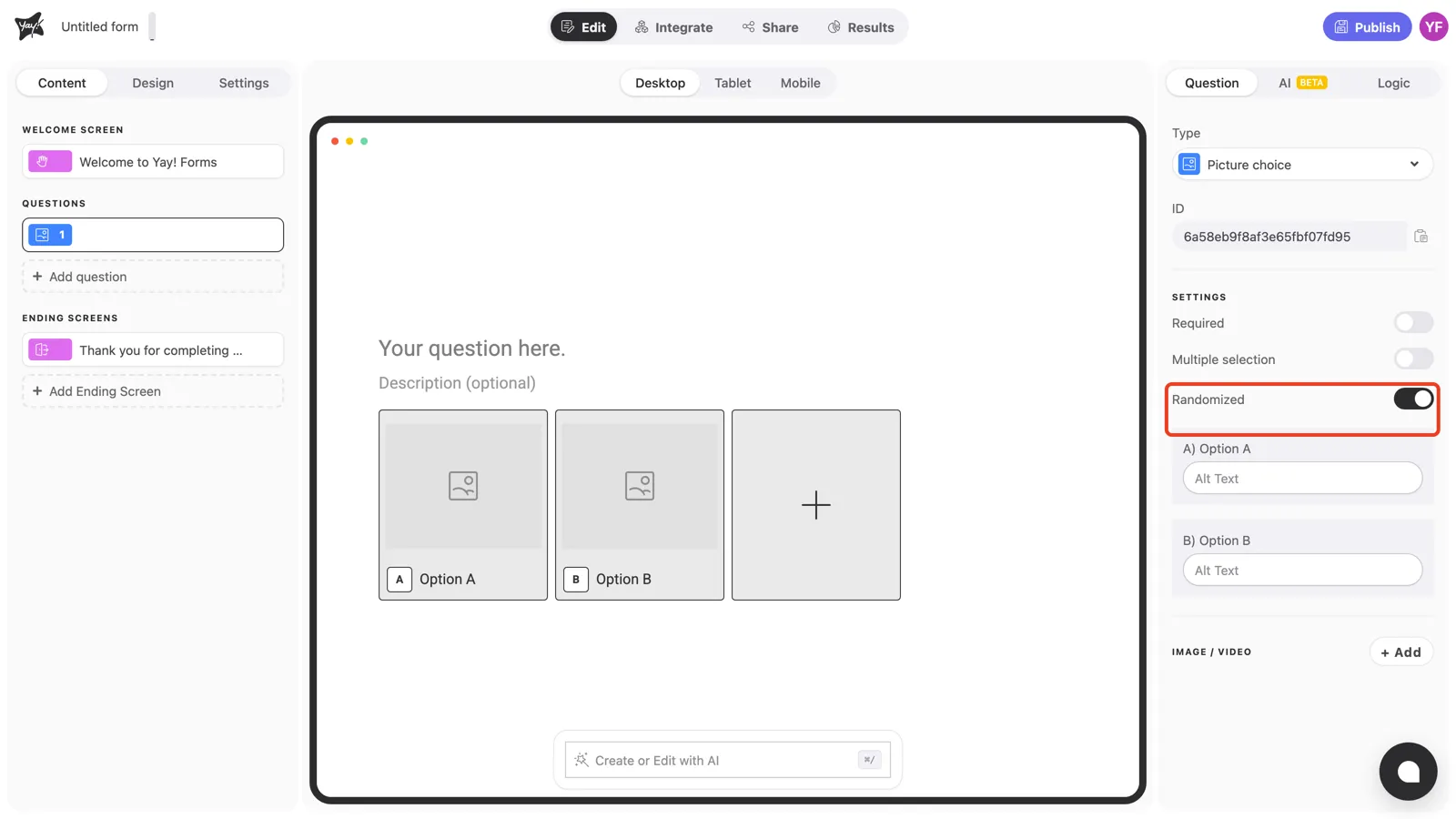
Each option is a tile in the canvas: click a tile to upload its image, and click the + tile to add another option. Like every choice type, each option gets a letter (A, B, C…) respondents can use to answer.
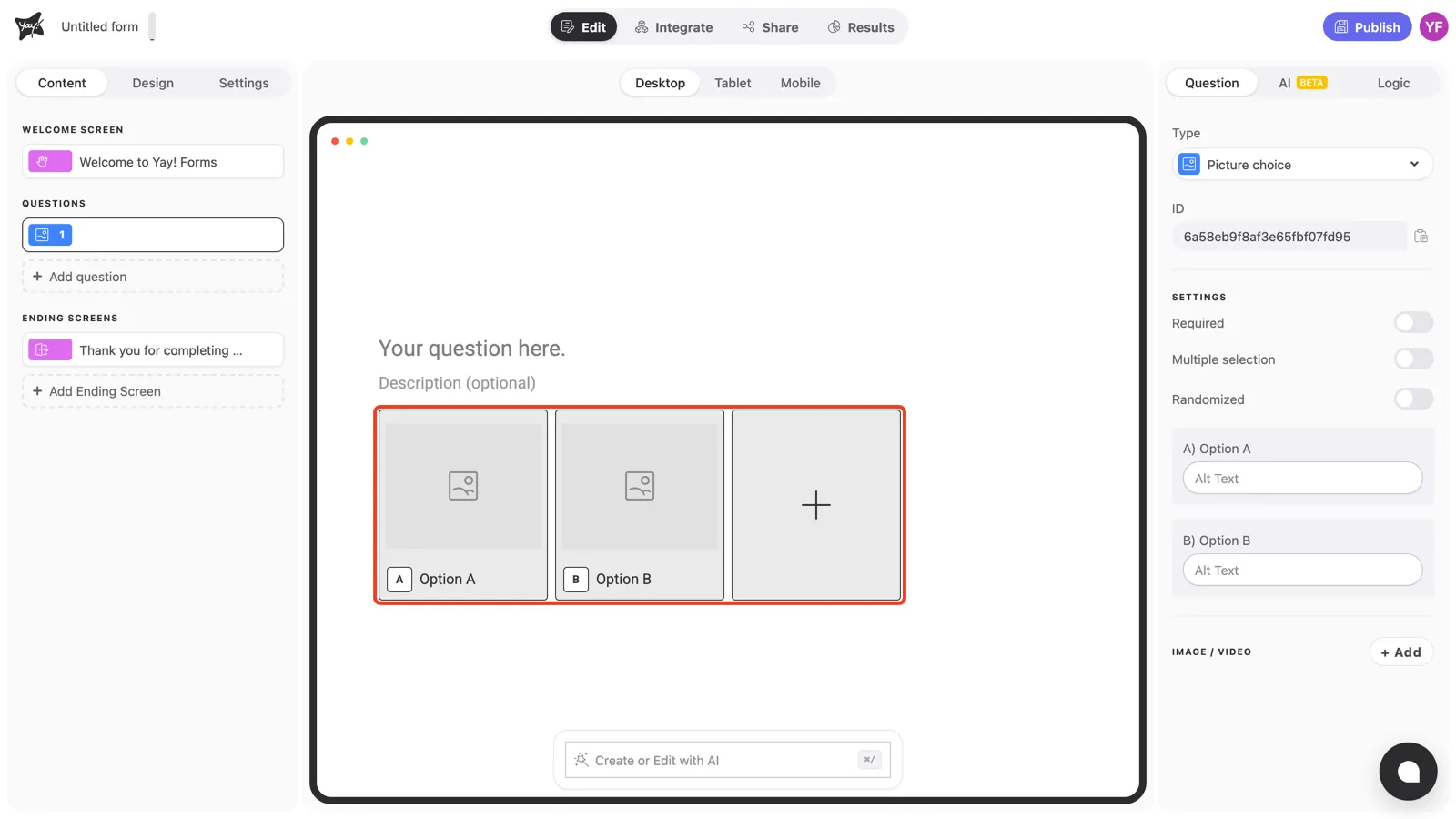
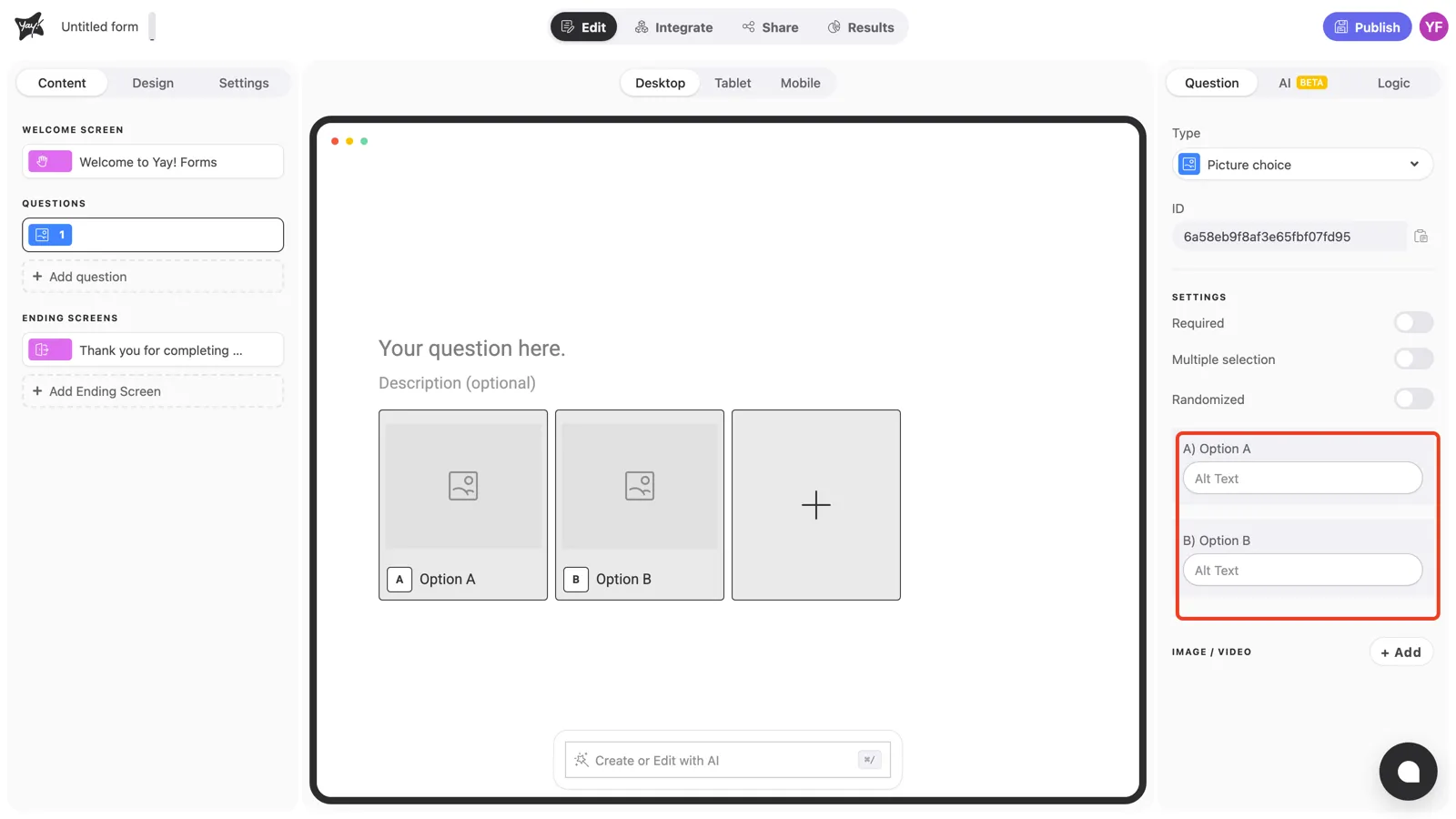
In the right panel, each option also has a text label (shown under the image) and an Alt Text field. Fill it in to describe the image for respondents using screen readers.
Question settings
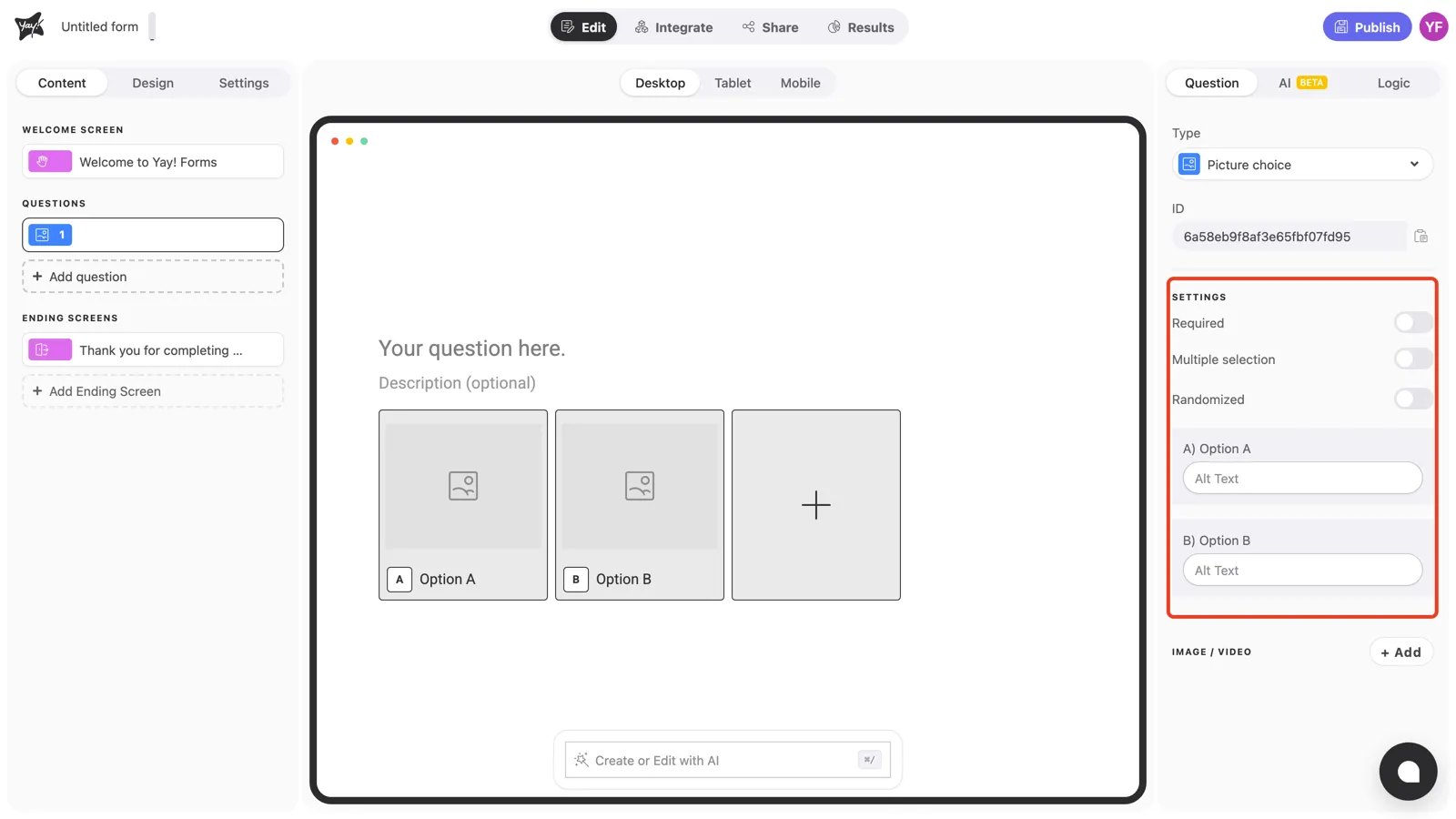
With the question selected, the Settings section in the right panel controls how the question behaves.
Required
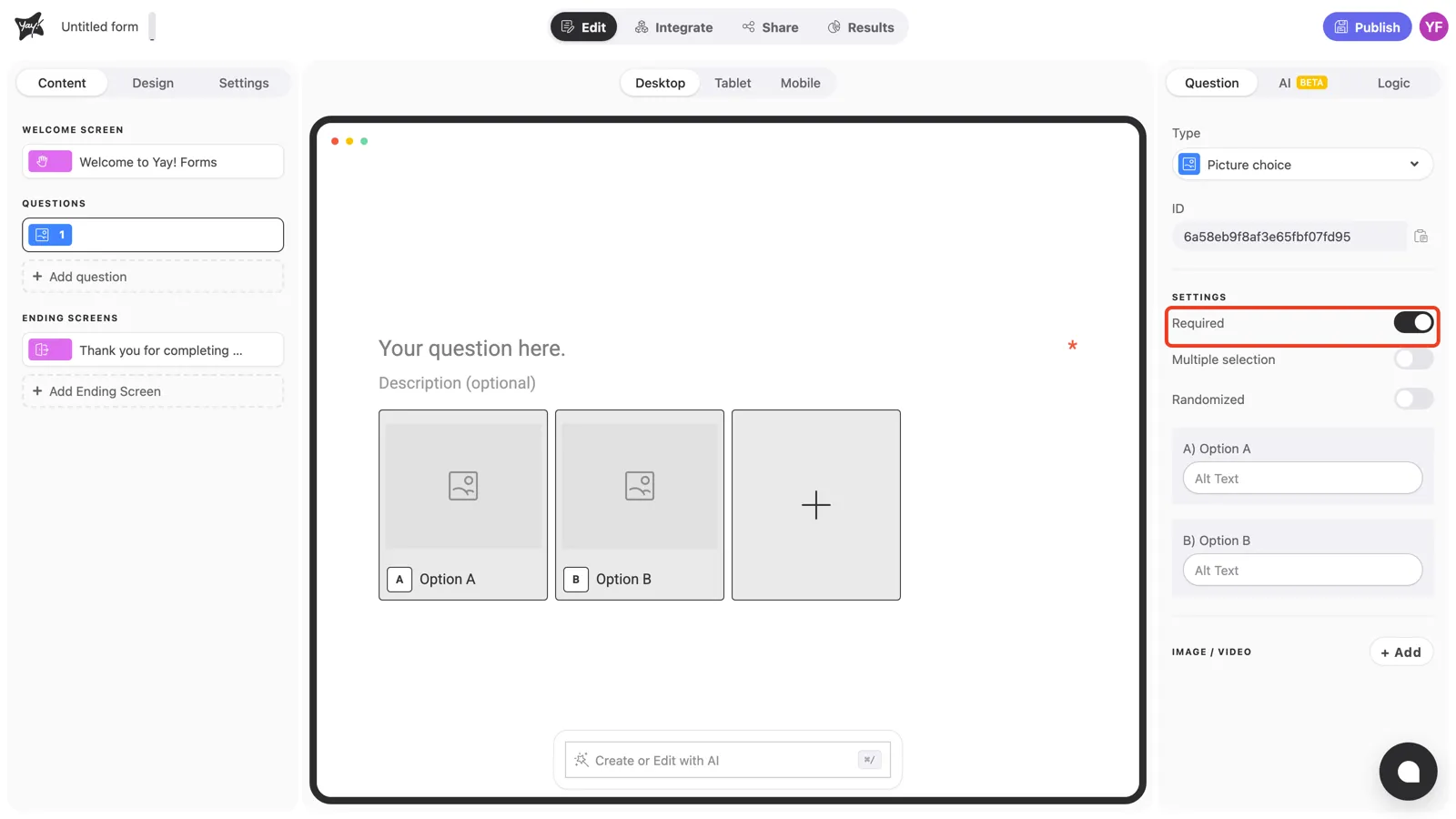
Turn on Required to prevent respondents from skipping the question. An asterisk appears at the end of the question line, and the form won’t advance until an option is picked.
Multiple selection
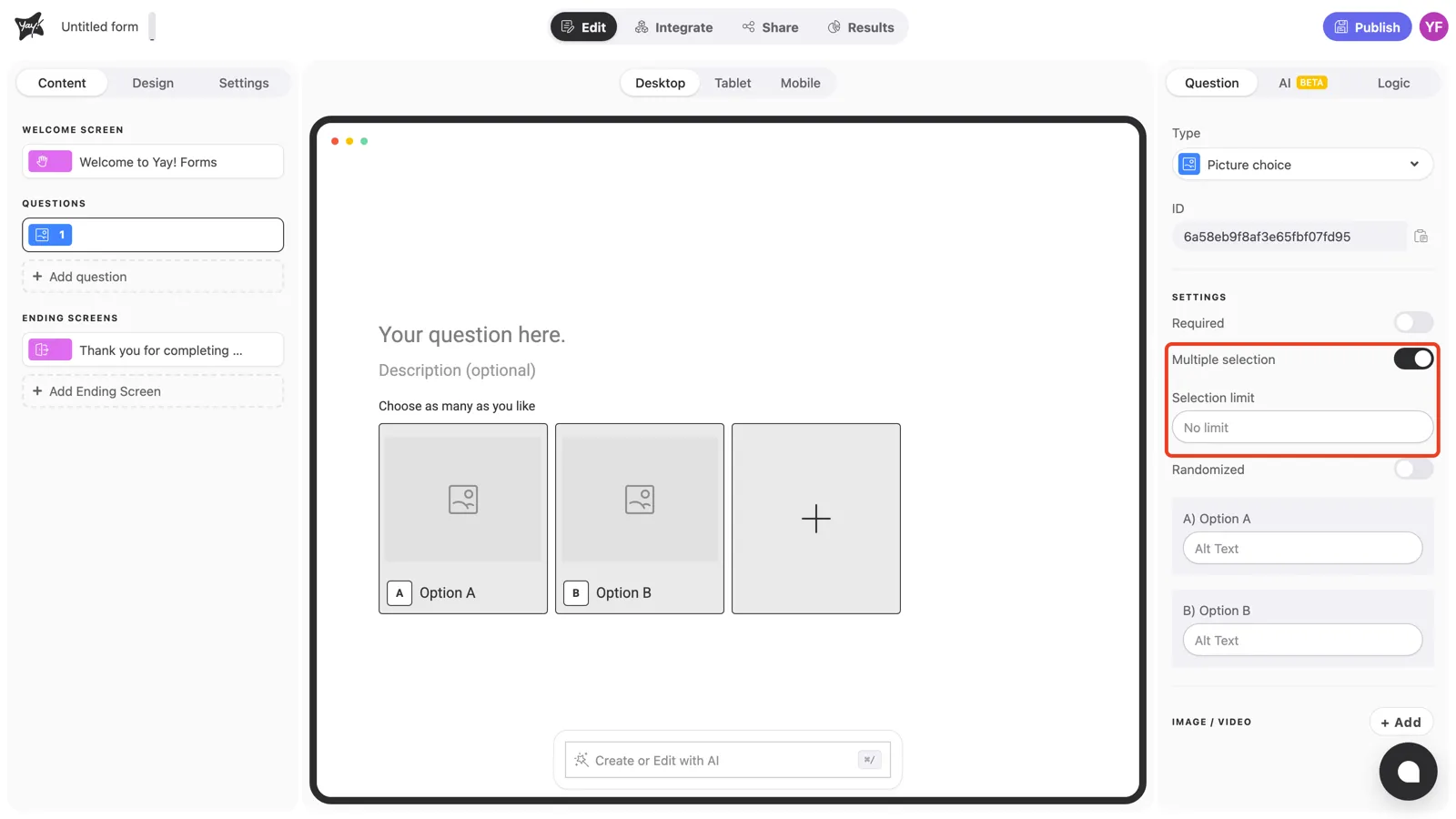
By default, respondents pick exactly one image. Turn on Multiple selection to let them pick several. The form shows a “Choose as many as you like” hint, and a Selection limit field appears where you can cap the number of picks.
Randomized
Turn on Randomized to show the images in a different order for each respondent, which helps avoid position bias in preference tests.
Conclusion
You’ve learned how to add a Picture choice question, upload the option images with alt text, and configure required answers, multiple selection with a limit, and randomized order.
Related articles: