Auto-redirect skips the ending screen entirely. The moment a respondent submits, they’re sent to any URL you choose: a thank-you page on your own site, a checkout, a scheduling link. And because you can pass answers along as URL parameters, the destination page can pick up right where the form left off.
Turn on Auto-redirect
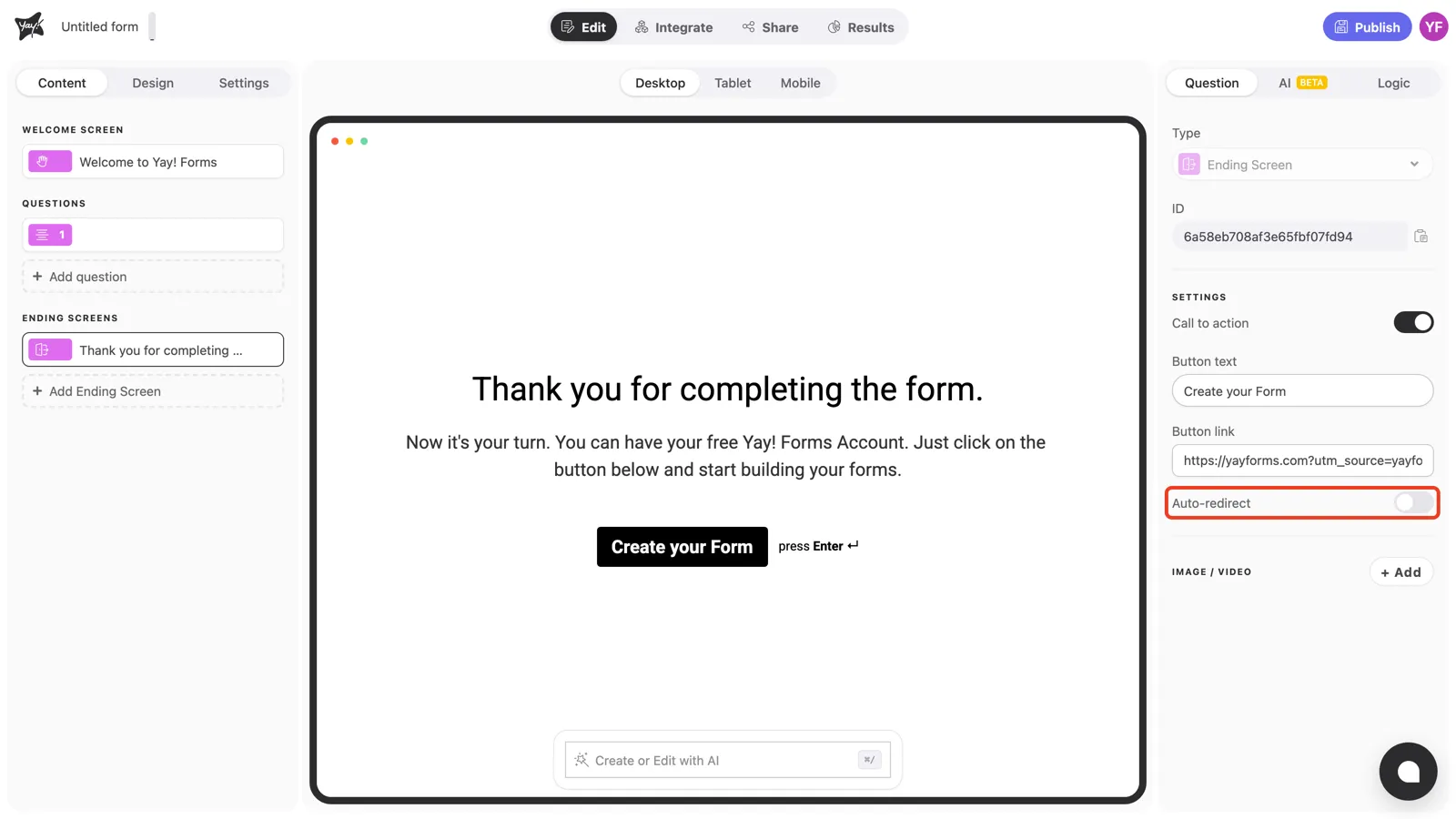
Select the ending screen in the left sidebar and find Auto-redirect in the right panel’s Settings.
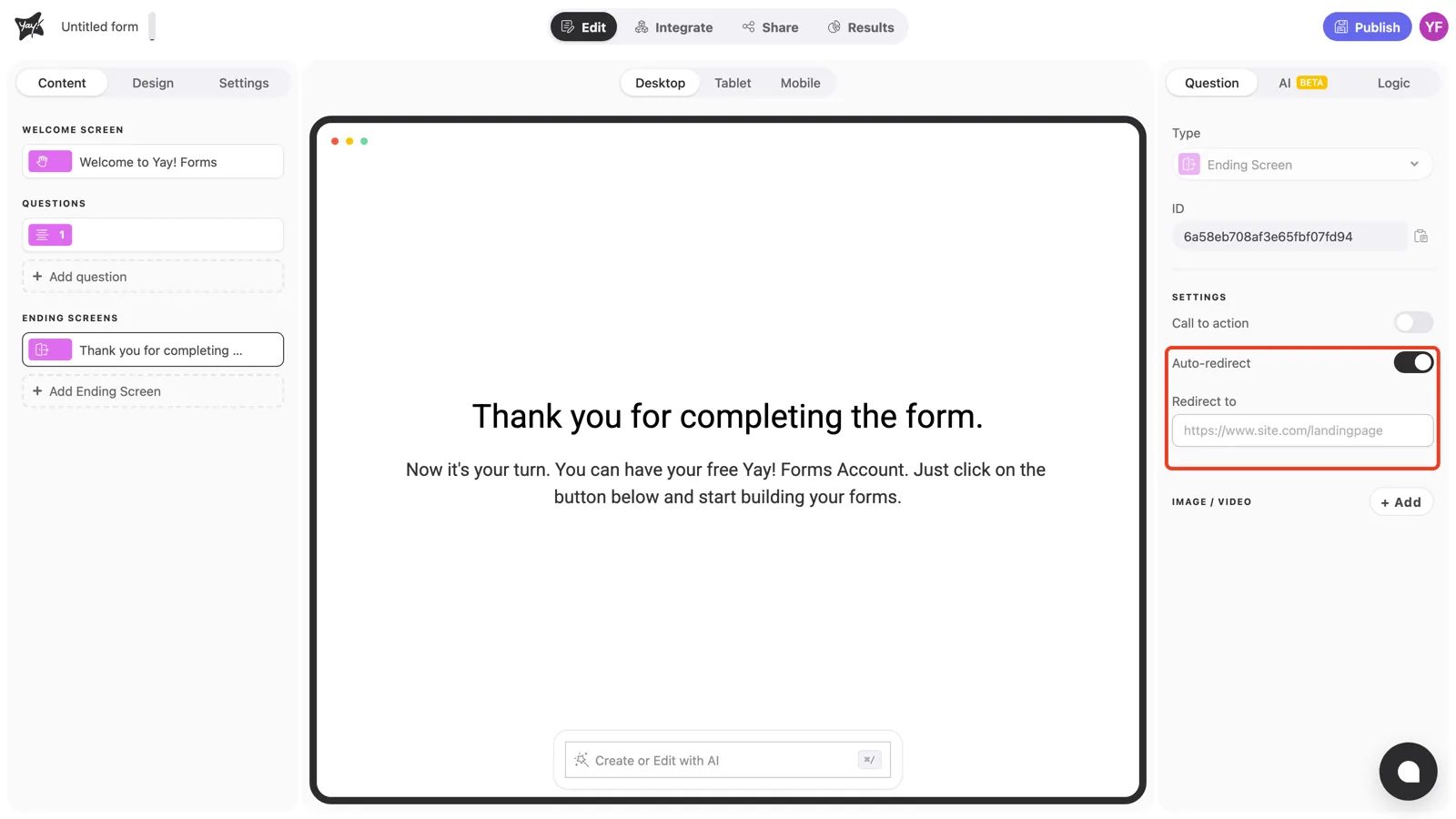
Turn it on and a Redirect to field appears. Paste the destination URL there. Note the canvas: it now warns that this ending screen will not be shown, and displays the redirect URL instead.
Pass answers in the URL with mentions
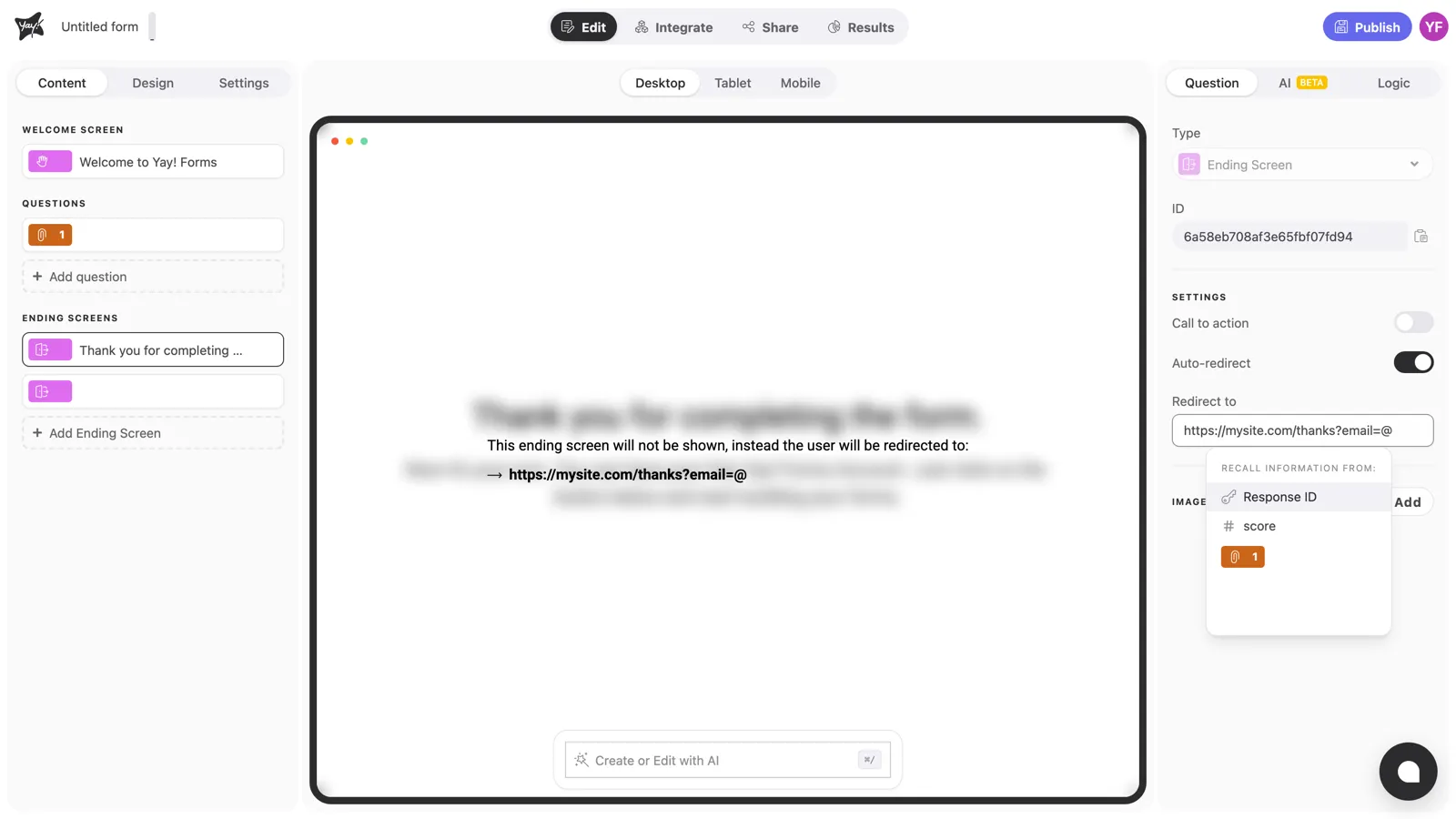
Type @ anywhere in the Redirect to field to insert a mention: the respondent’s answer to a question, their Response ID, or a variable like the quiz score. The value is filled in per respondent when the redirect happens.
For example: https://mysite.com/thanks?email=@Email sends each respondent to your page with their own email in the query string, ready for your site to greet them by name, pre-fill a checkout, or track the conversion.
Conclusion
You’ve learned how to send respondents straight to any URL after submitting, and how to carry their answers along as URL parameters with mentions.
Related articles: