Long text is the question type for open-ended, multi-sentence answers: detailed feedback, suggestions, descriptions of a problem. It’s also where Yay! Forms’ AI text features shine: keyword extraction, sentiment analysis, and automatic classification turn a pile of free-form answers into something you can actually navigate.
In this article you’ll learn how to add a long text question, edit its text, and configure its settings.
When to use a long text question
Use long text when you want respondents to elaborate: “What almost stopped you from buying?”, “Describe the issue you ran into”. Respondents get a bigger text box and no pressure to be brief. For one-line answers (names, titles, single facts), a Short text question keeps the form faster to fill.
Add a long text question
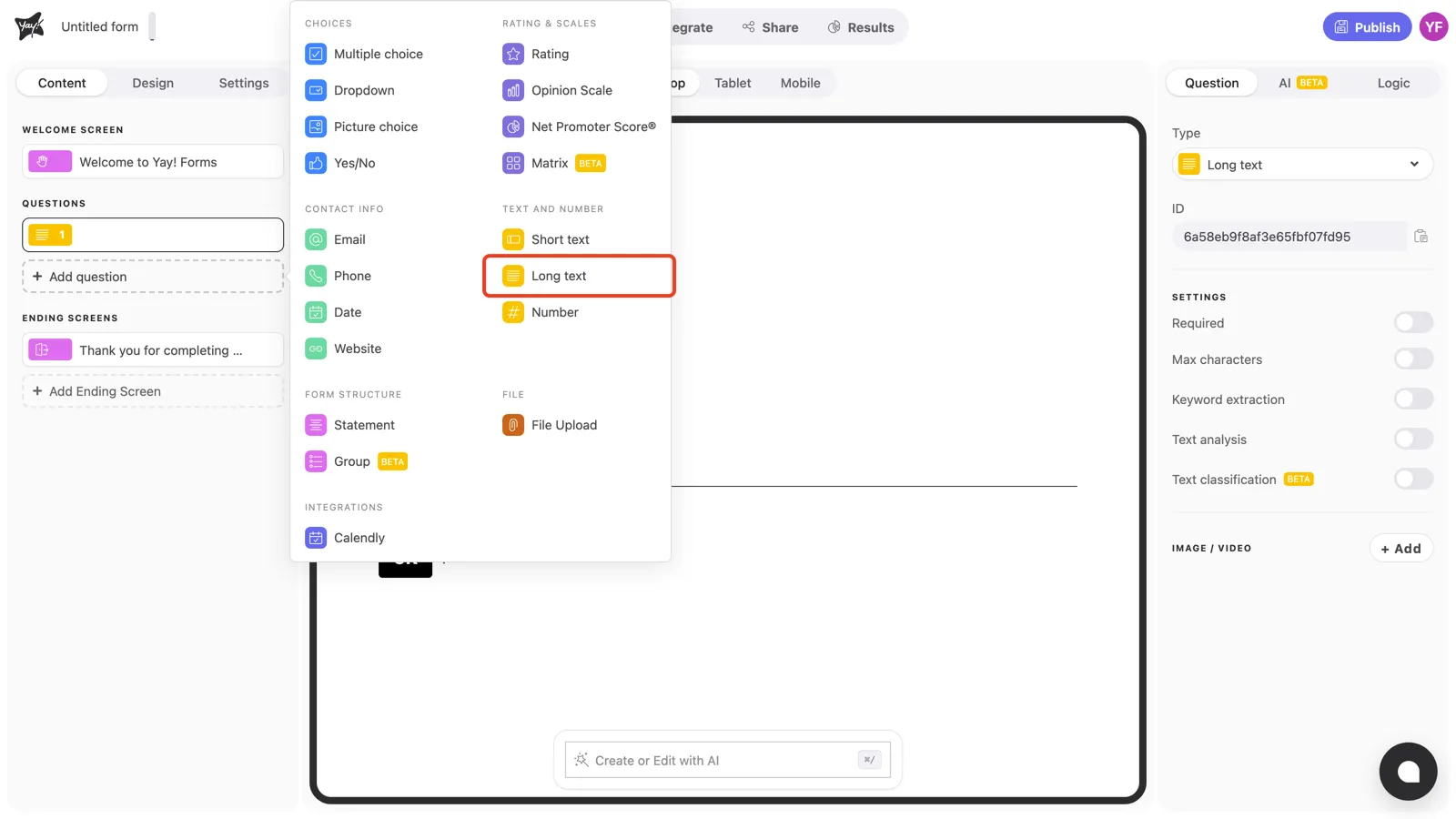
Click + Add question in the left sidebar and pick Long text under Text and number.
Write the question and description
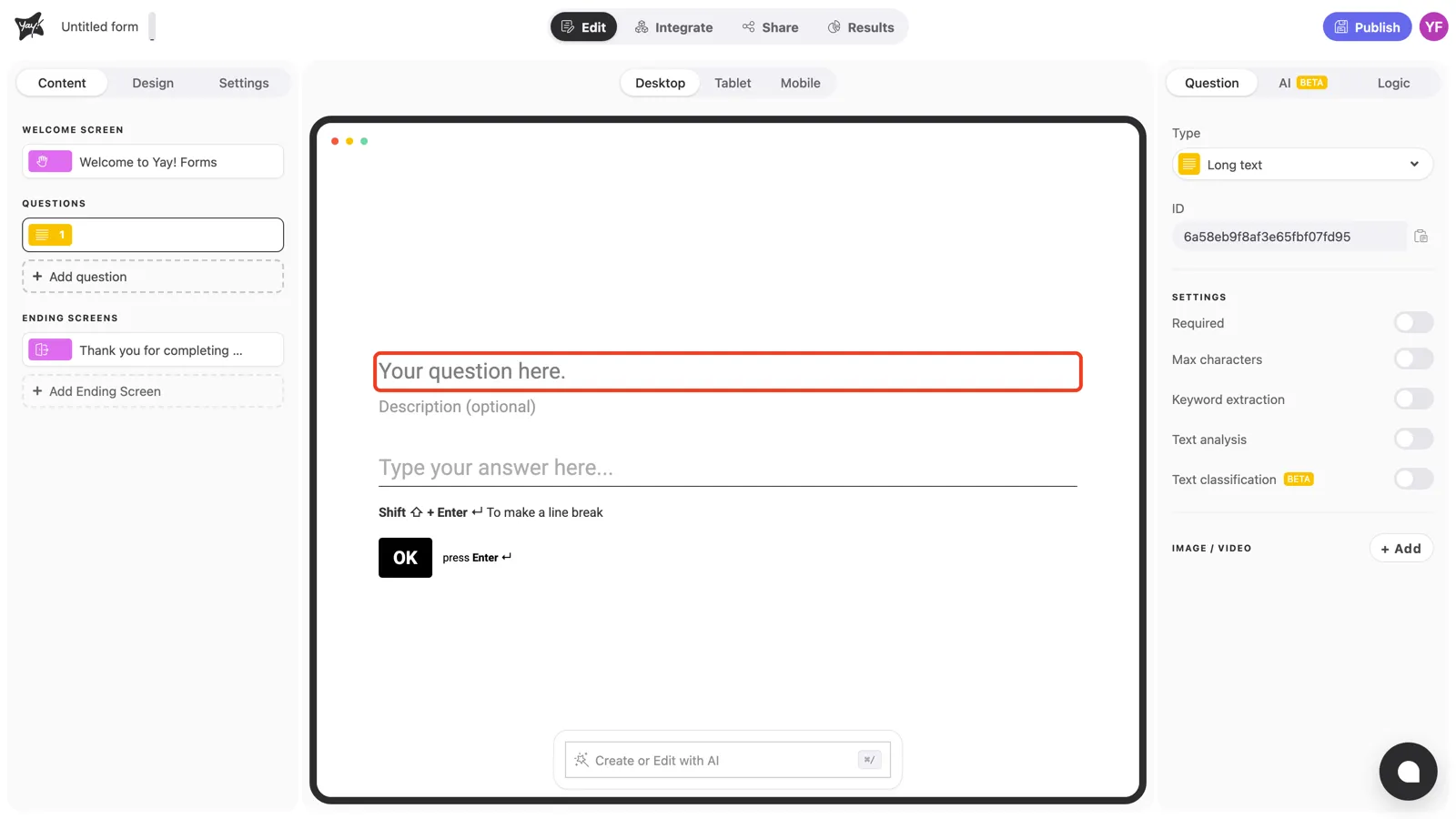
Click “Your question here.” in the canvas and type your question.
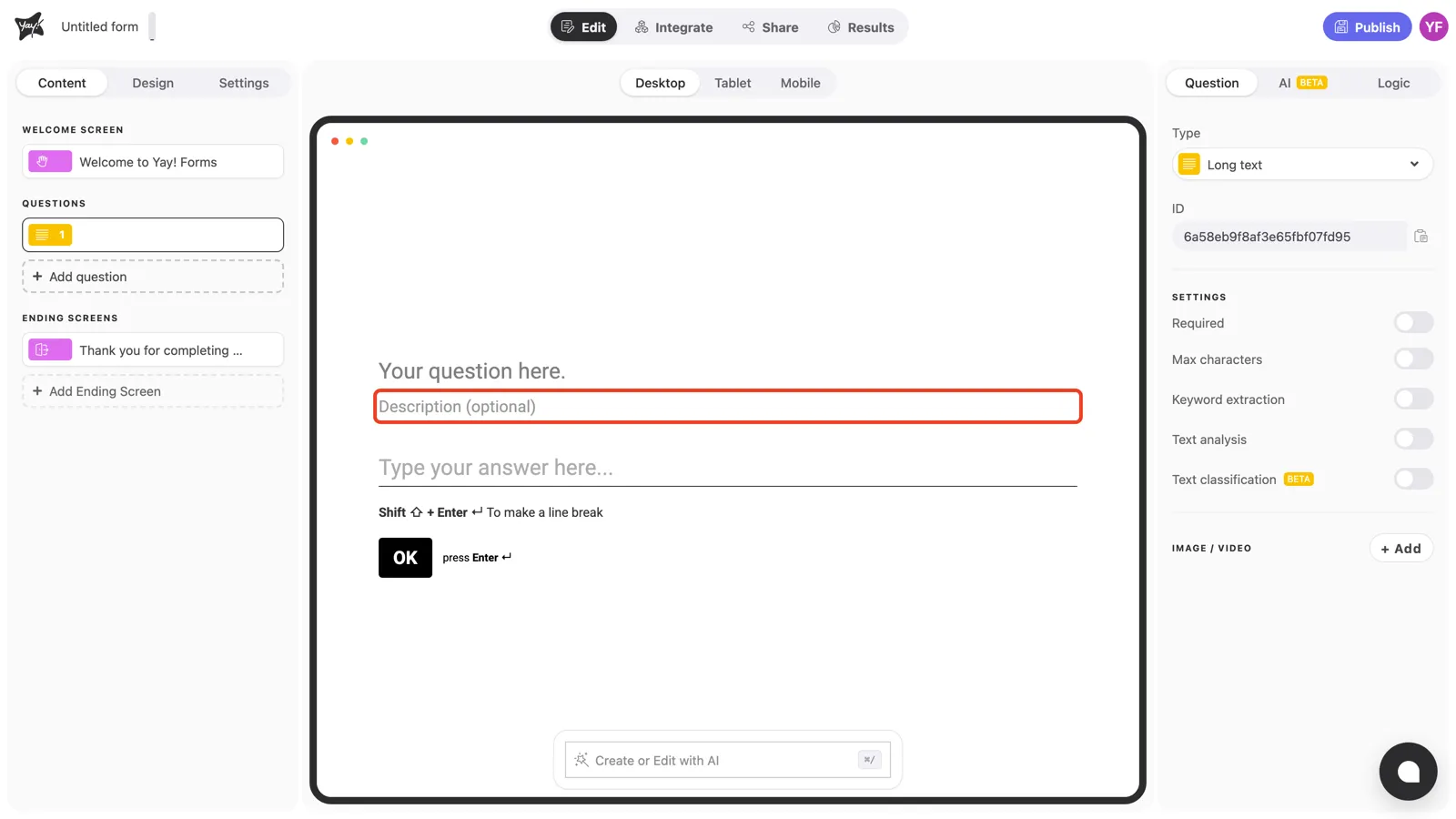
Use the optional description field below it to give context or an example. With open-ended questions, a good example noticeably improves the quality of the answers.
Question settings
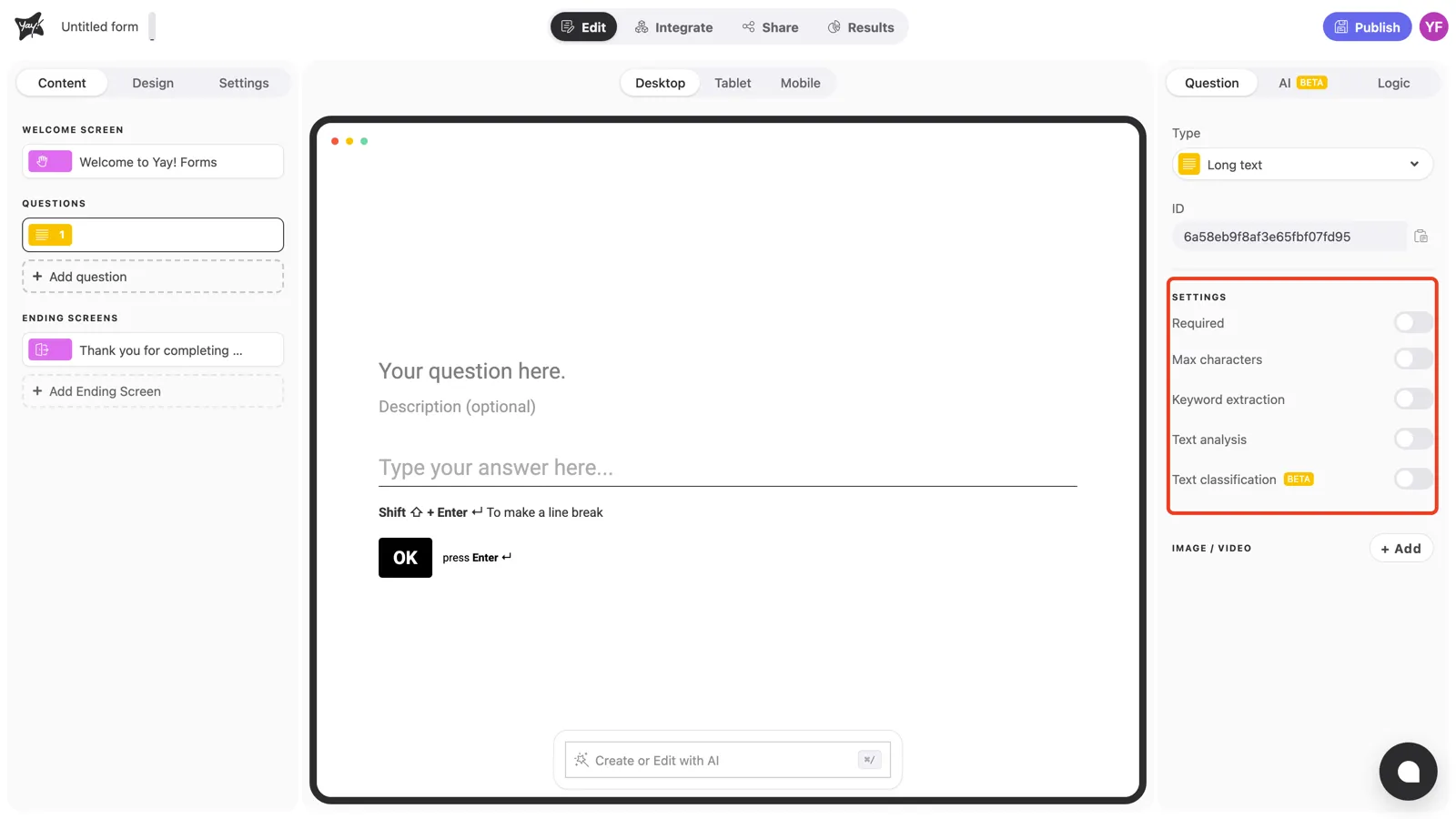
With the question selected, the Settings section in the right panel controls how the question behaves.
Required
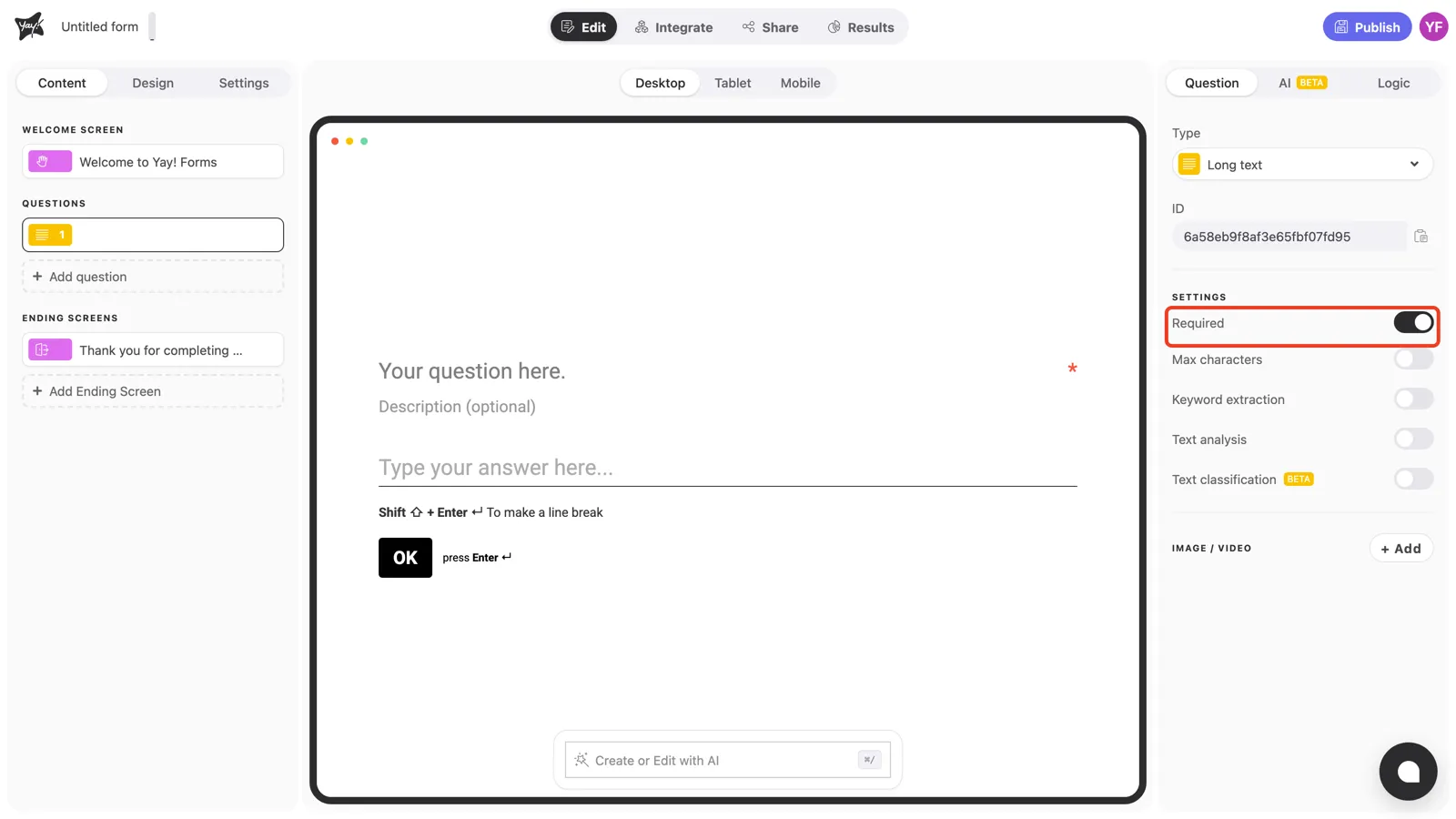
Turn on Required to prevent respondents from skipping the question. An asterisk appears at the end of the question line, and the form won’t advance until something is typed.
Max characters
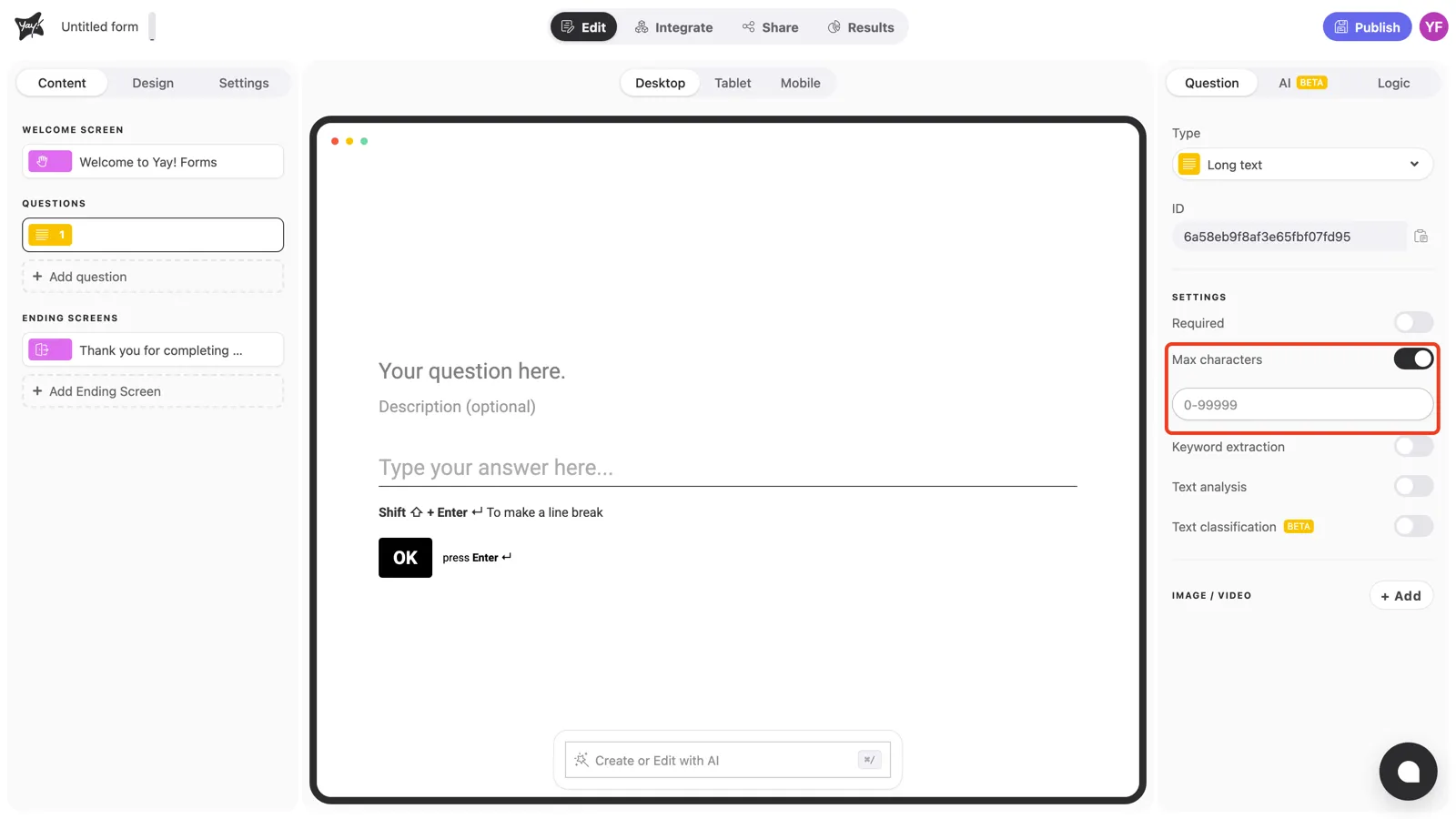
Turn on Max characters to cap the length of the answer. A field appears where you can set the limit (up to 99,999 characters).
Keyword extraction
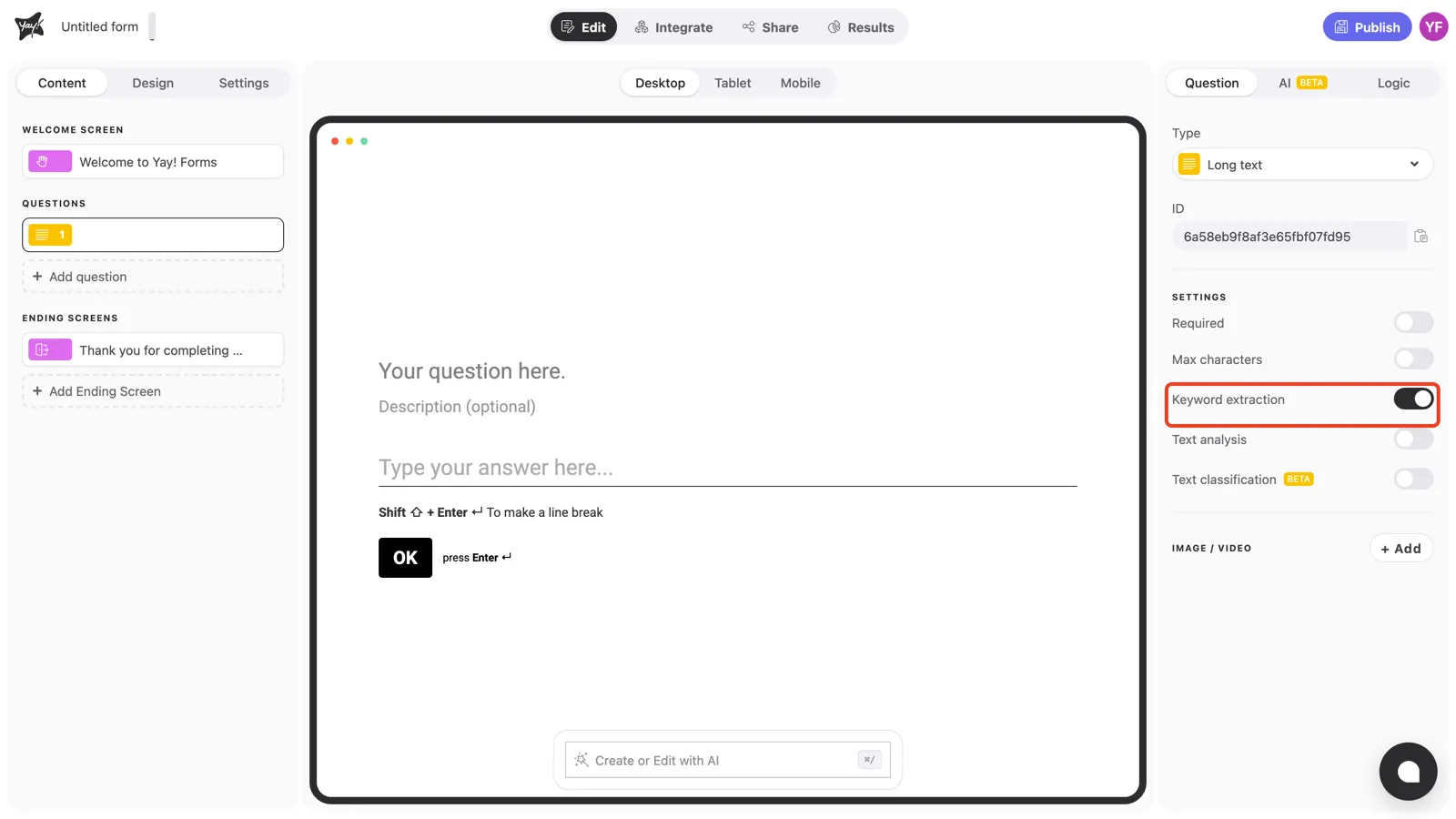
Turn on Keyword extraction and Yay! Forms will identify the most relevant words across all answers, build a word cloud with them, and let you filter responses by keyword in your results.
Text analysis
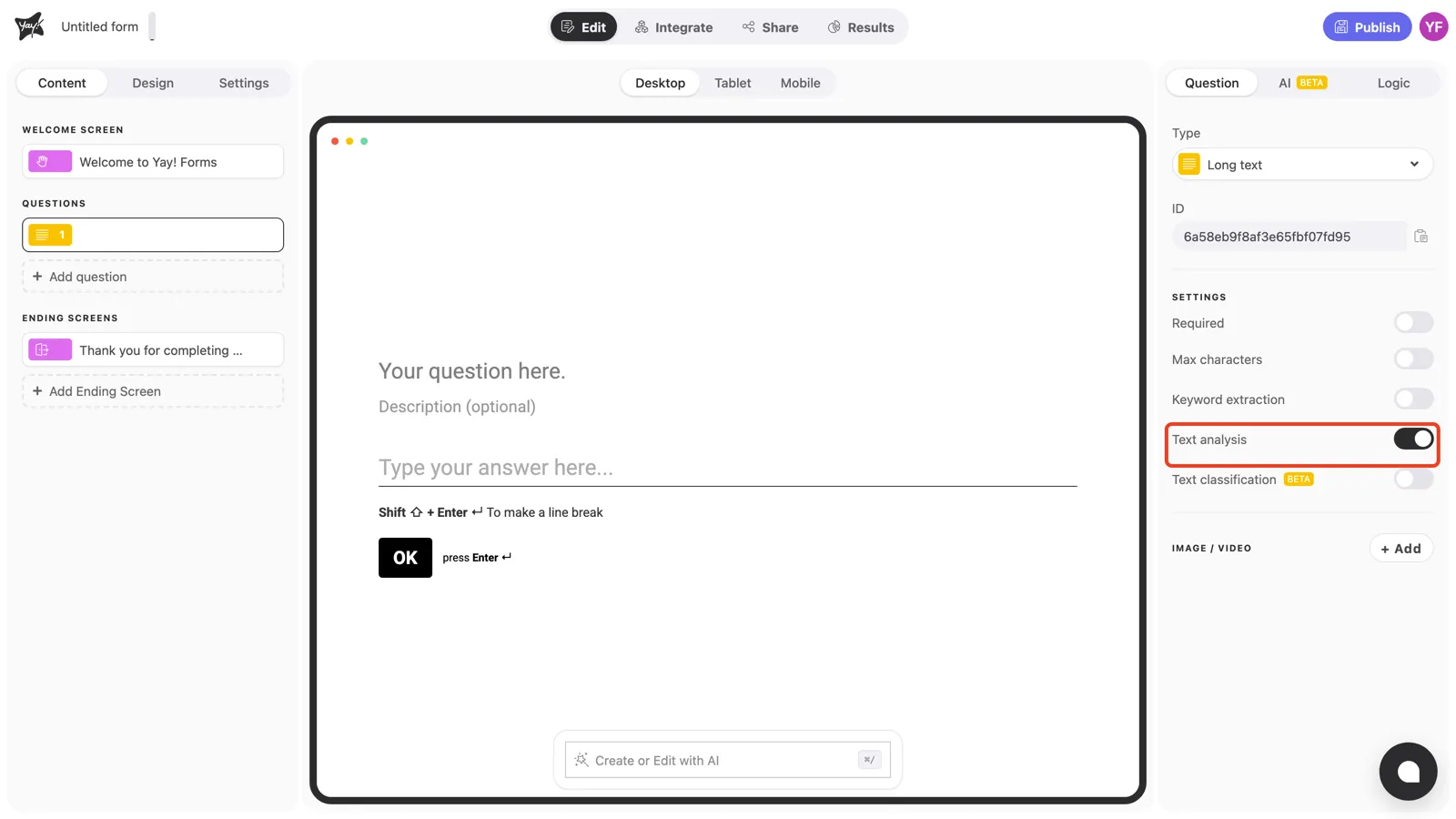
Turn on Text analysis to score the sentiment of each answer, so you can see at a glance how respondents felt and filter responses by sentiment.
Text classification
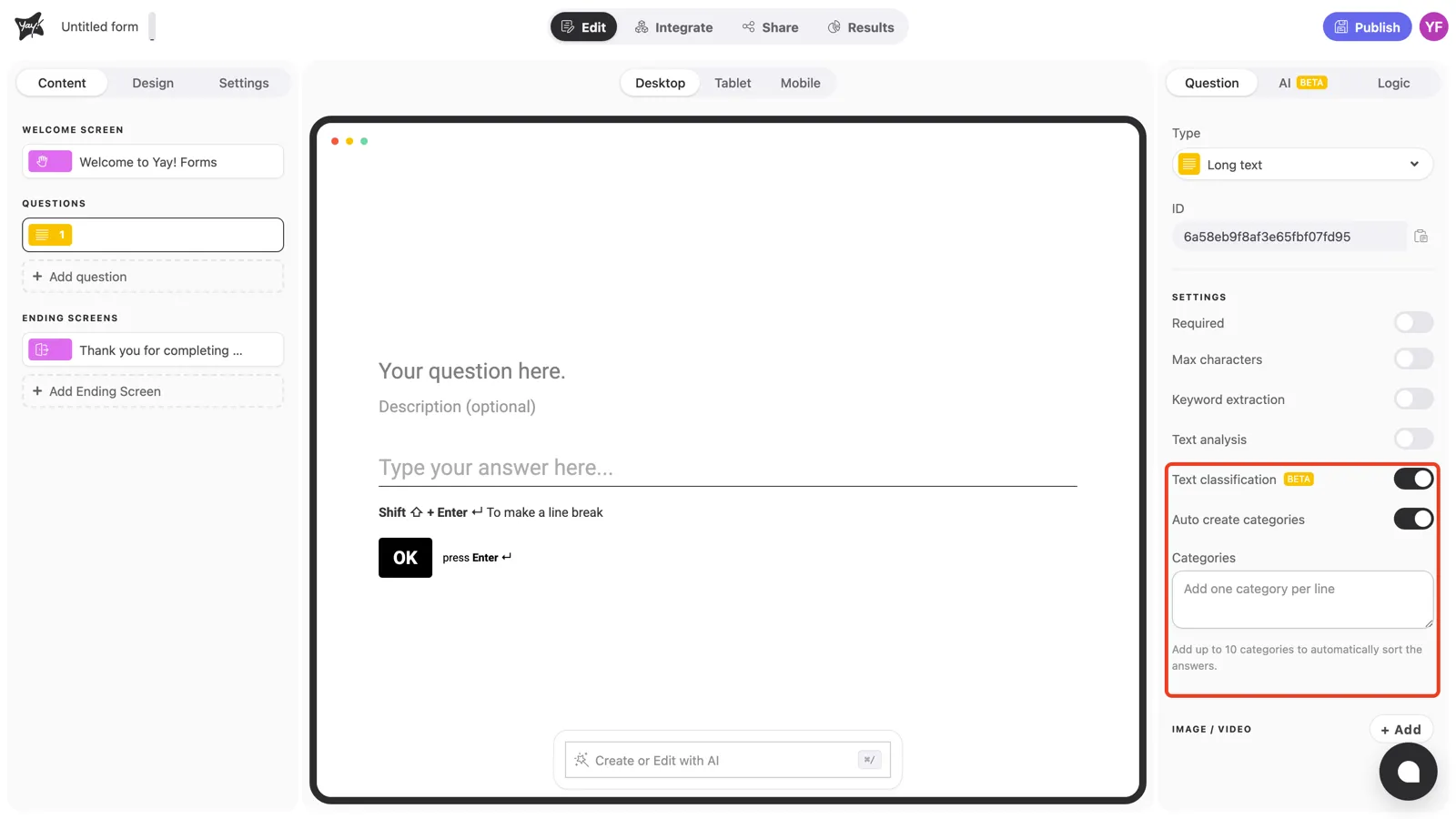
Turn on Text classification (beta) to sort answers into categories automatically. Type your categories in the Categories box, one per line (up to 10). Leave Auto create categories on if you also want Yay! Forms to create new categories on its own as answers come in.
Conclusion
You’ve learned how to add a long text question, edit its text, and configure its behavior: required answers, character limits, and the AI-powered keyword extraction, text analysis, and text classification settings.
Related articles: