A variable is a named value that lives for the whole form response: it starts at an initial value, changes as logic rules run, and can be tested, displayed, and sent along with the results. Quiz scores, profile counters, and qualification flags are all variables.
Create a variable
Select any question, open the Logic tab in the right panel, and click Variables at the top. The variables manager opens.
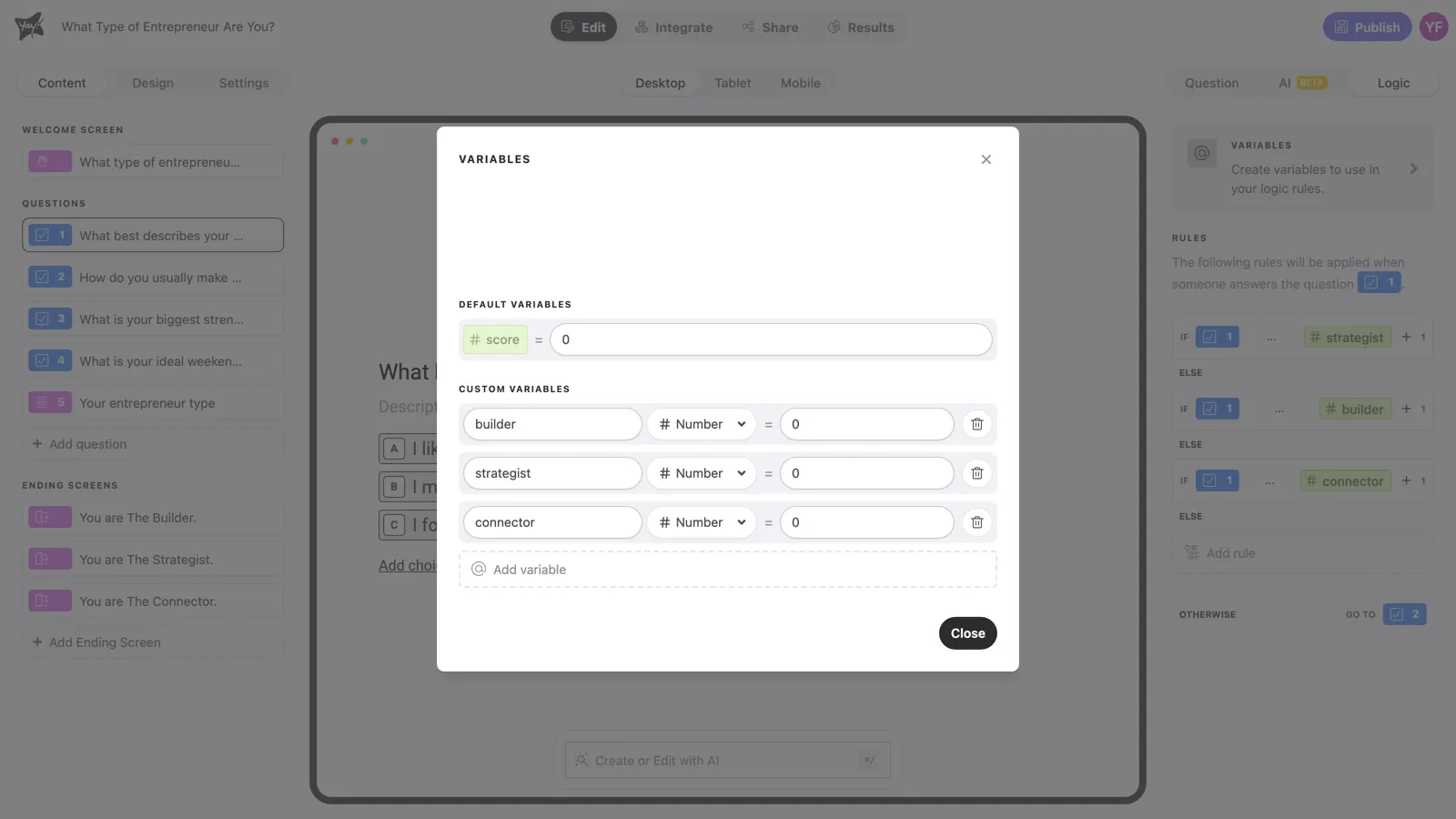
Every form starts with a built-in score variable, ready for scored quizzes. Click Add variable to create your own: give it a name (you’ll reference it by this name everywhere) and an initial value. In the profile quiz above, builder, strategist, and connector all start at 0.
Variable types
| Type | Holds | Rule actions available |
|---|---|---|
| Number | Any number | Add, Subtract, Multiply, Divide, Assign value to variable |
| Text | Free text | Assign value to variable |
| Yes/No | True or false | Assign value to variable |
Assign value to variable overwrites whatever the variable held before; the arithmetic actions change the current value. Number is the type you’ll use most: it powers scores, counters, and the is the greatest one comparison used in profile quizzes.
Change a variable with rules
Variables only change through rule actions. A typical scoring rule reads: IF the answer is “500+”, THEN Add 20 TO score. The logic article covers conditions and actions in detail; the key fact here is when it happens: the variable changes at the moment the question carrying the rule is answered, so a rule that reads a total must sit on a later question.
Show a variable with @
Type @ in any question title, description, or ending screen and pick the variable from the menu. The respondent sees the current value in place of the mention.
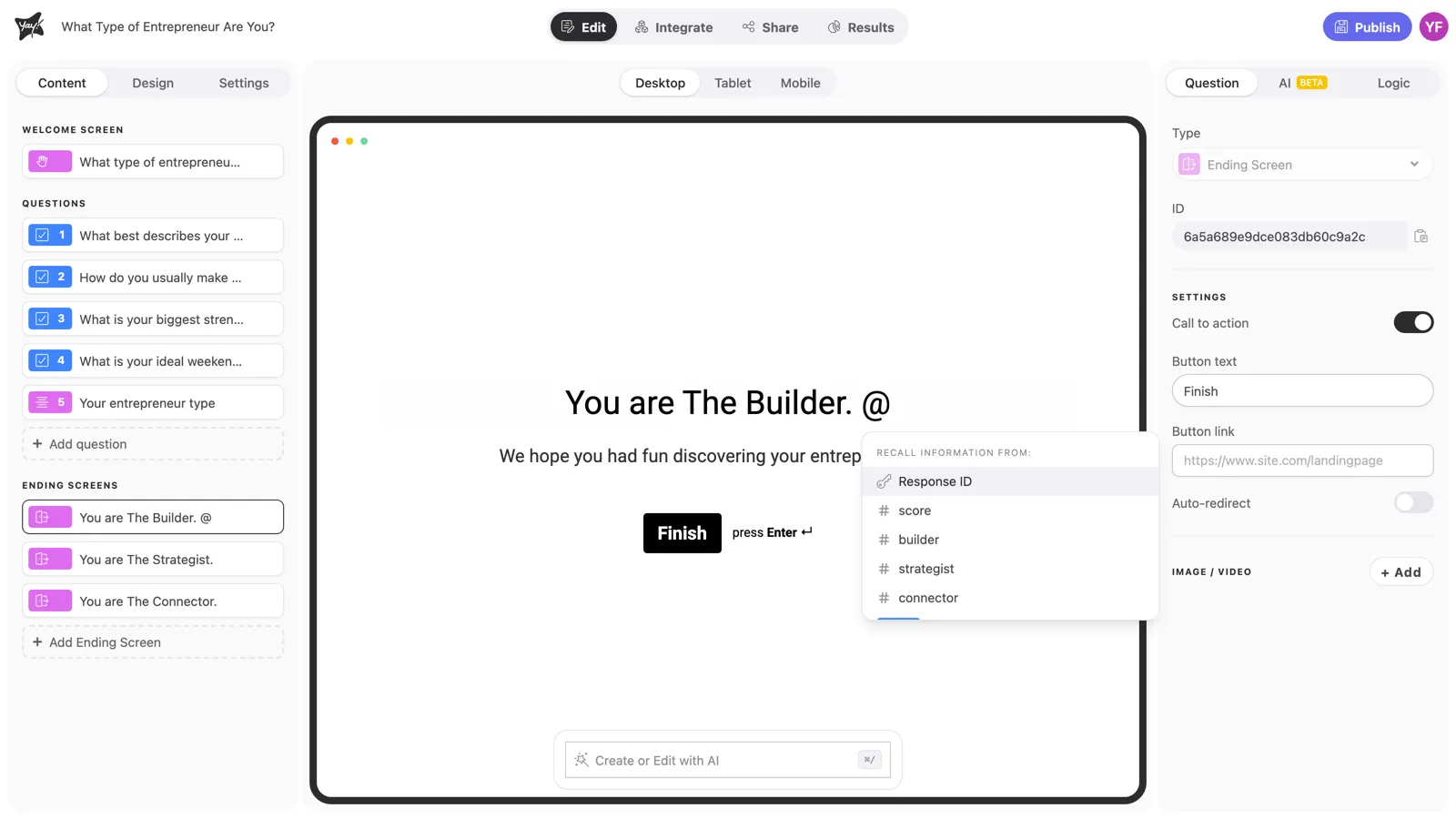
“You scored @score out of 65” on an ending screen is the classic use. Mentions also work in Auto-redirect URLs, so you can pass the final score to your own site as a URL parameter.
Conclusion
You’ve learned what variables are, the three types and the actions each accepts, that rules are the only way to change them, and how to display the value anywhere with @.
Related articles: