Adding visual elements to your form is an effective way to make it more attractive and engaging for those who fill it out. Whether to include your brand logo, an illustrative image, an animated GIF, or even a video, these resources help convey the message better and reinforce the visual identity of your project.
With the form media feature, you can upload files, use externally hosted images and videos, or reuse content from your gallery. This way, you can create more dynamic, personalized forms with greater visual impact.
Upload an image to your form
To upload an image to your form, follow the steps below:
- Click the “Add” button in the Question’s right sidebar.

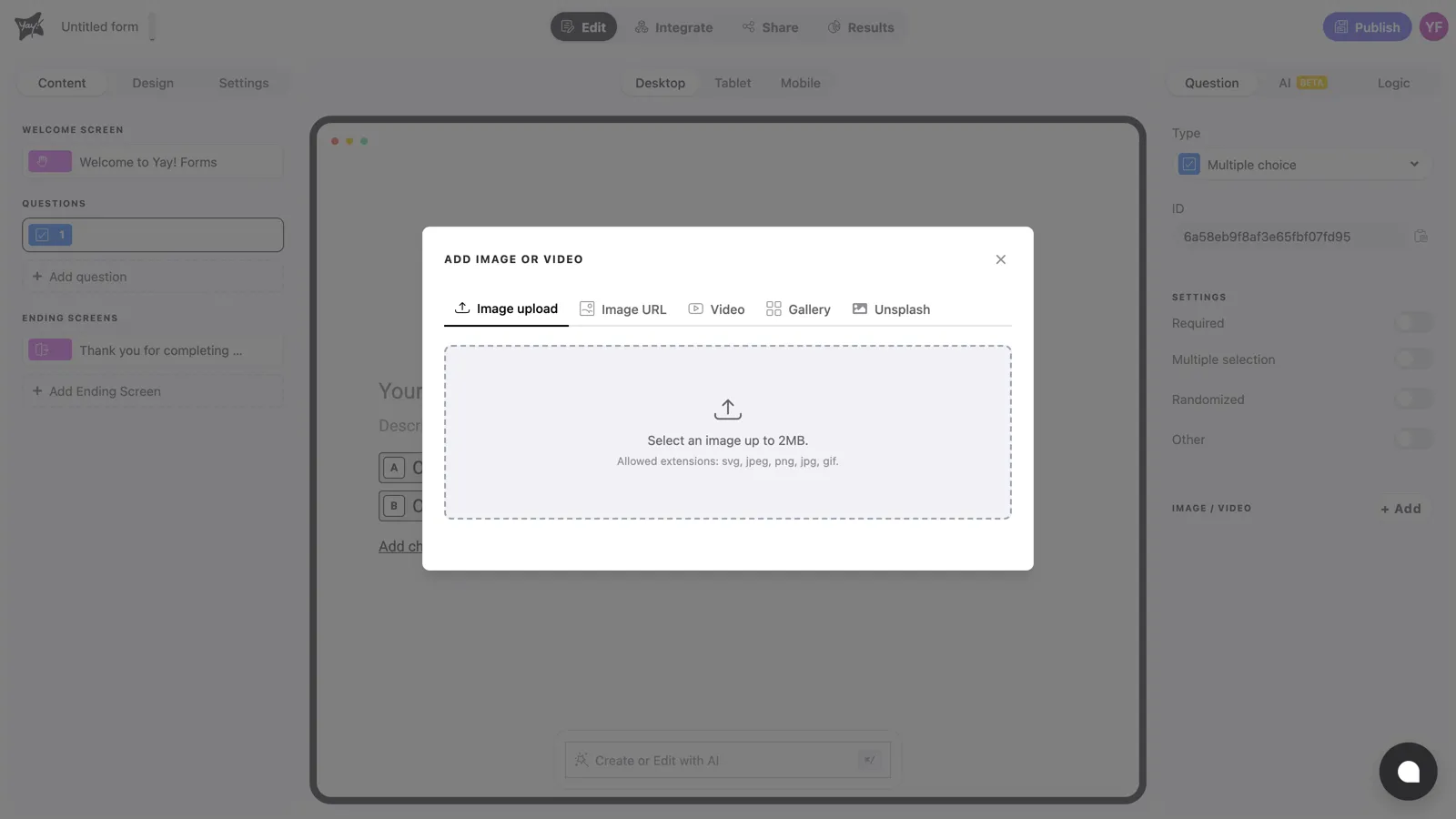
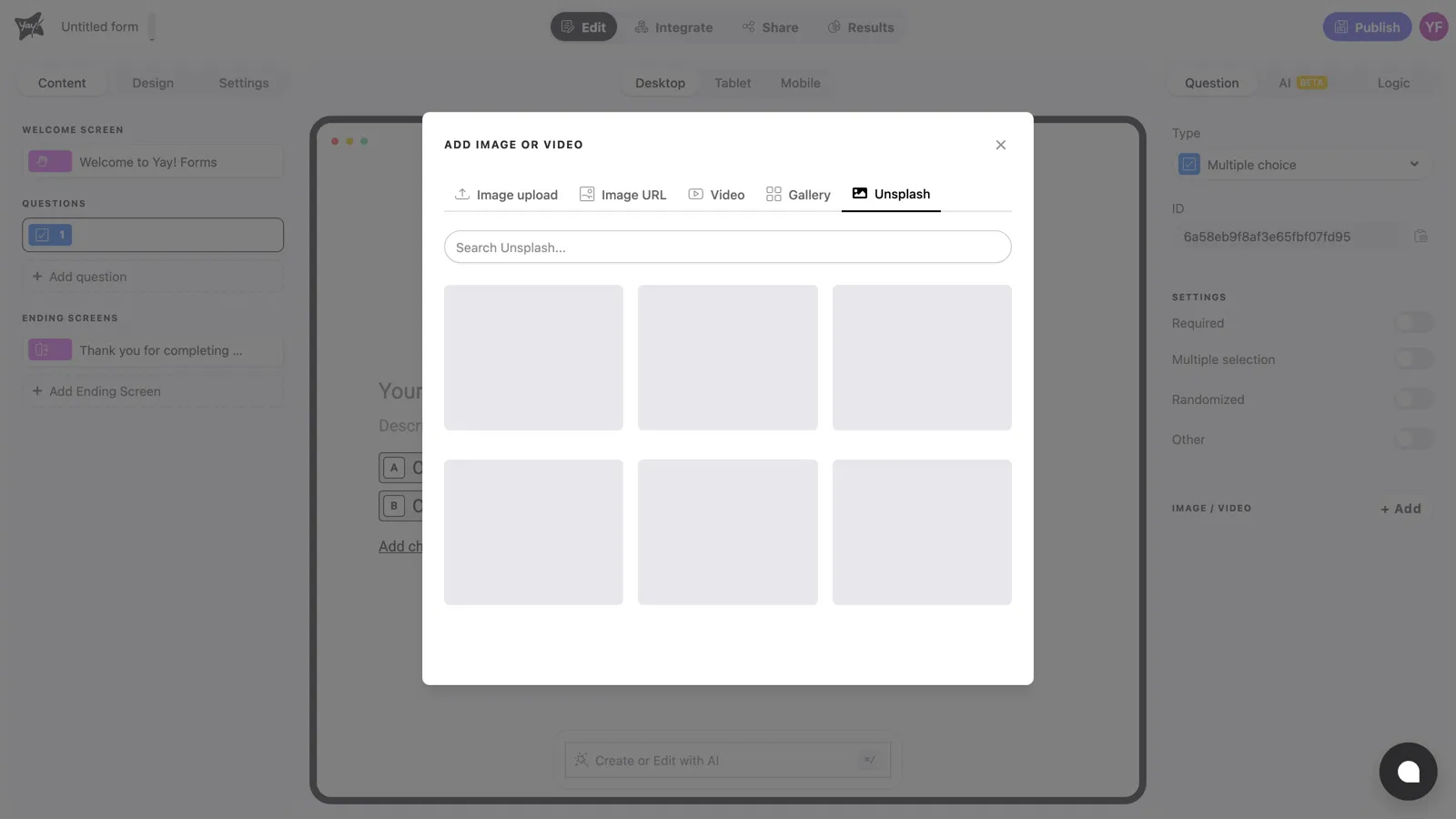
- Now, click the “Image upload” tab.
- Click the icon to upload your file.
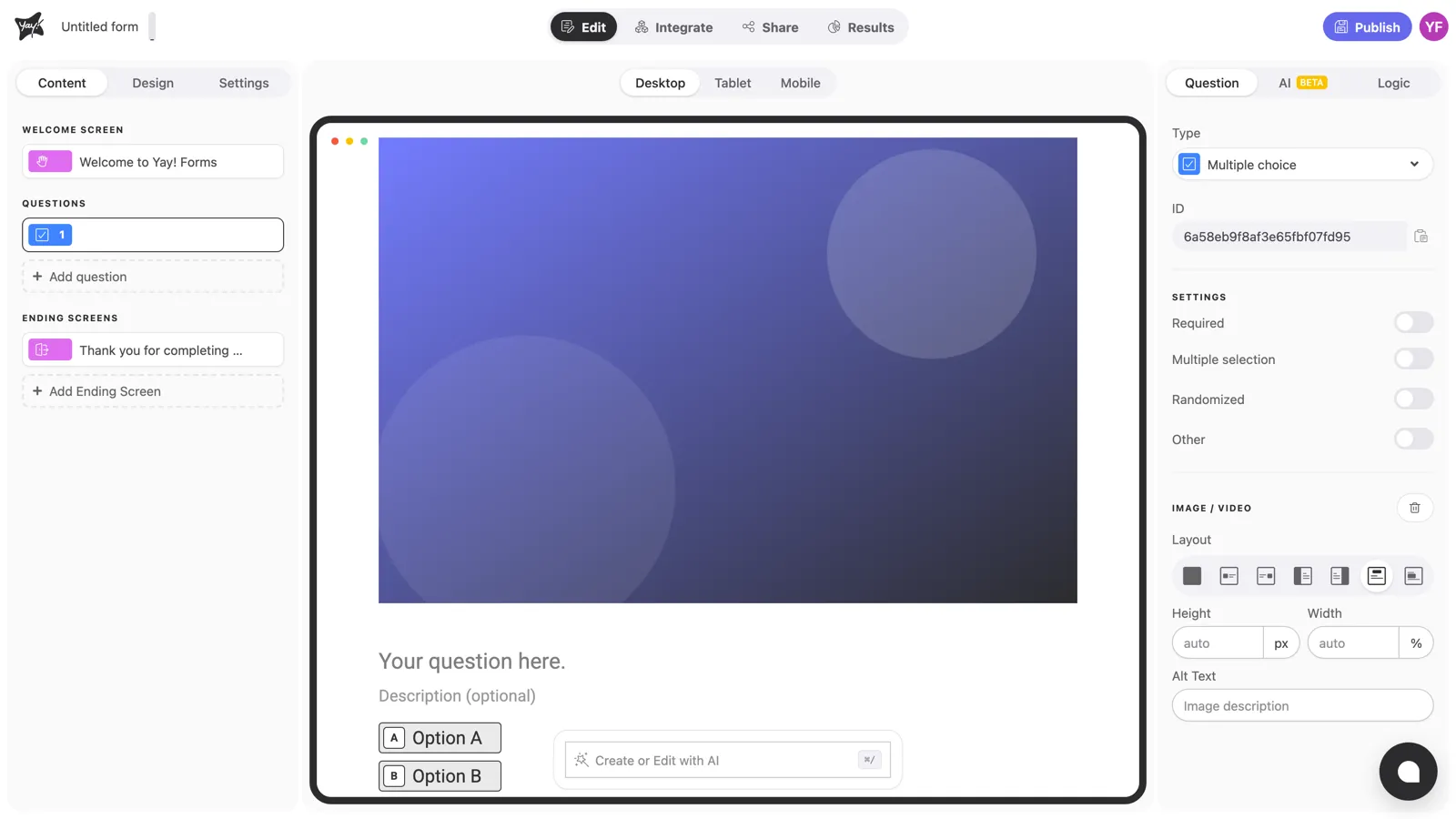
Note that your file must have an accepted extension (PNG, SVG, JPEG, JPG, or GIF), as shown in the image below. You can also specify the height and width in pixels in the fields below.

Add external media
Add an external image
To add an external image to your form, follow the steps below:
- Get the link from the image hosting location (for example, https://freeimage.host)
Note that the provided link must be a valid image, with the .PNG or .JPG extension
- Click the Add button in the Question’s right sidebar:

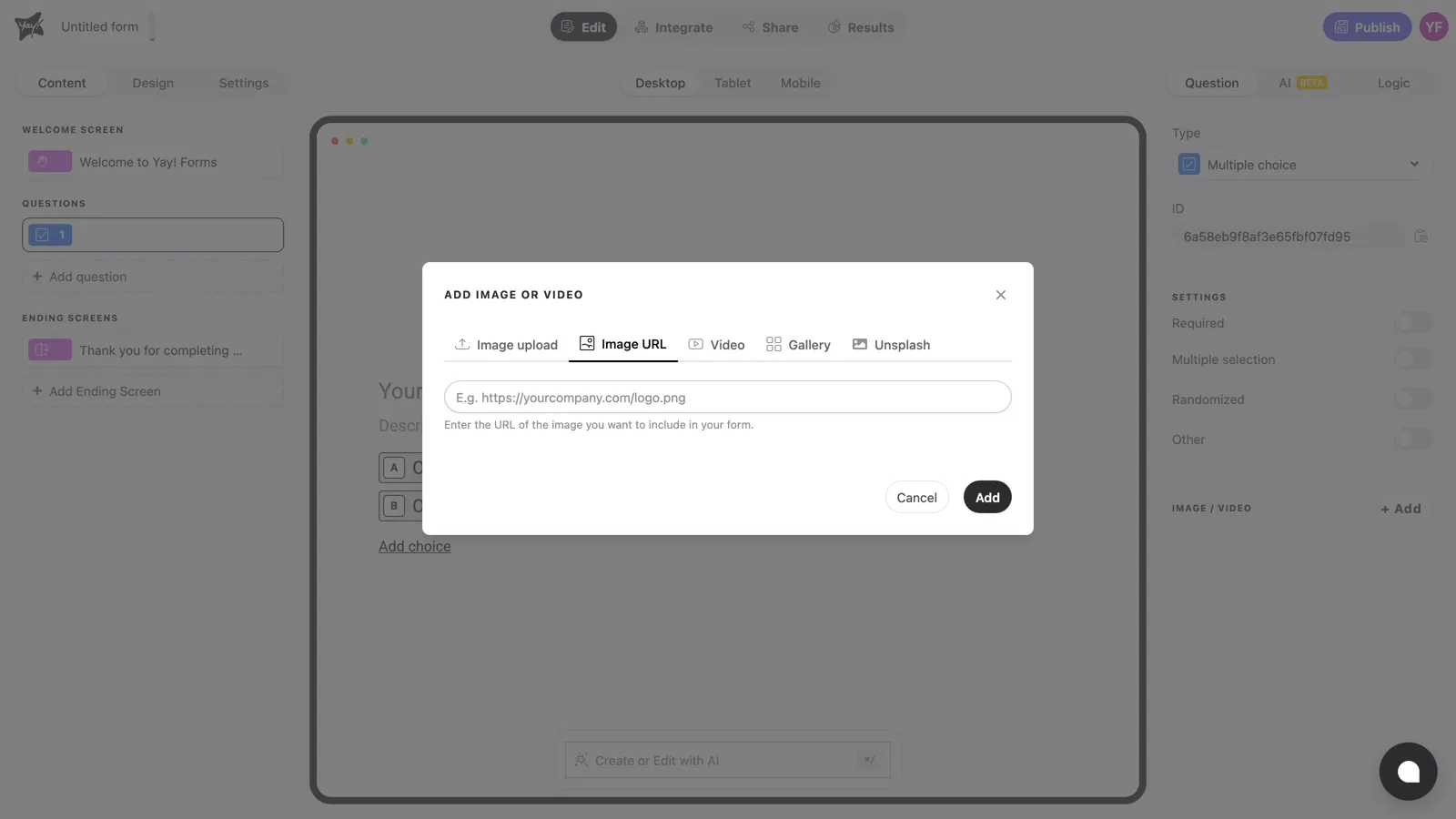
- Now click the image tab and add the URL in the corresponding field, as shown below:
Note that the image link must include an accepted extension (PNG or JPG), as shown in the image. You can also specify the height and width in pixels in the fields below.

Embed a video
To embed an external video in your form, follow the steps below:
- Get the share link for the video from YouTube, Vimeo, or Wistia.
- Click the Add button in the Question’s right sidebar:

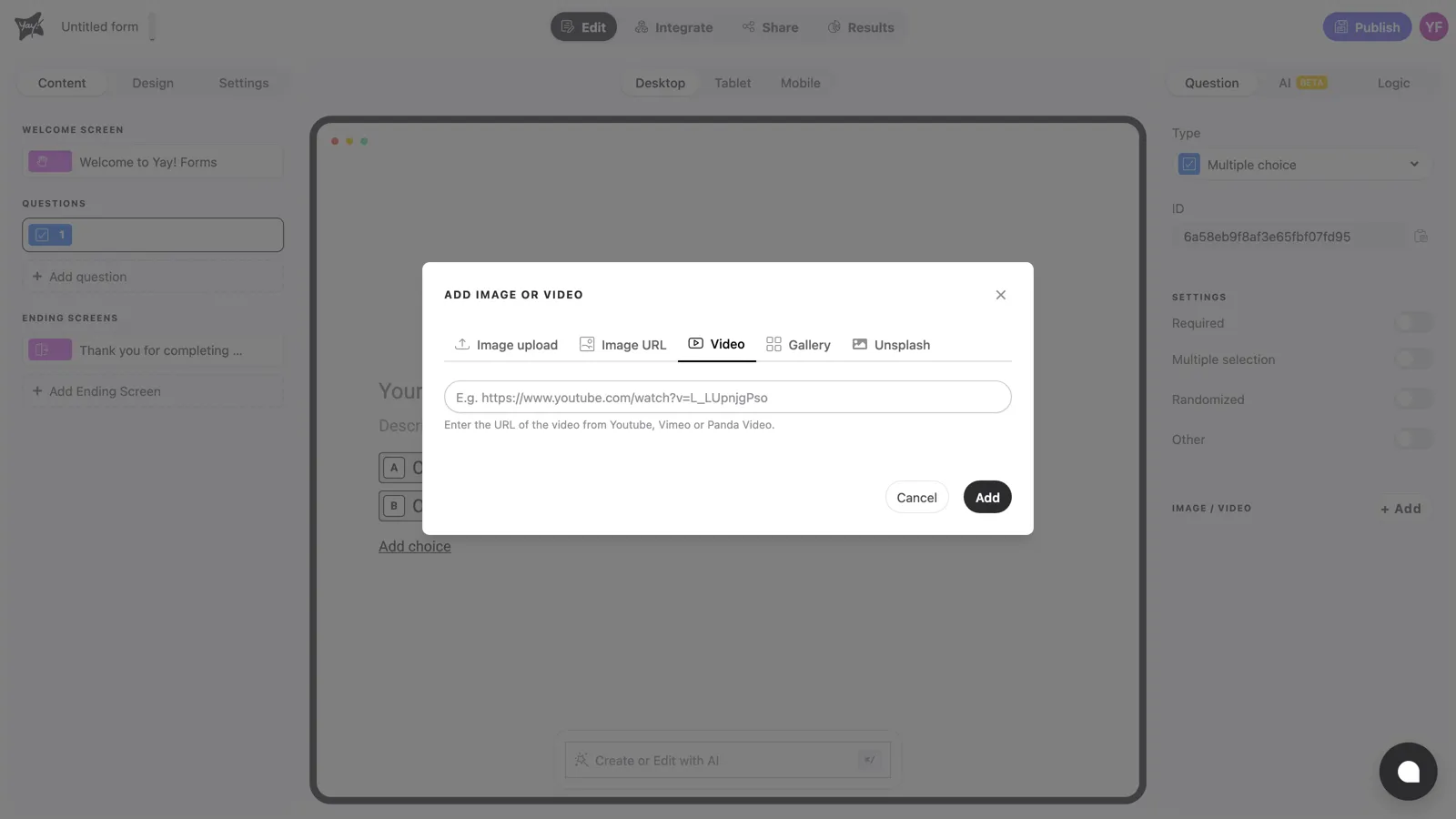
- Now click the video tab and add the URL in the corresponding field, as shown below:

Use items from your gallery
Add an item from your Gallery to your form:
To add an item from your gallery, follow these steps:
- Before you start, make sure you have already uploaded the files you want to use to the gallery. This will ensure the items are available to add to your form.
- Click the “Add” button in the Question’s right sidebar.

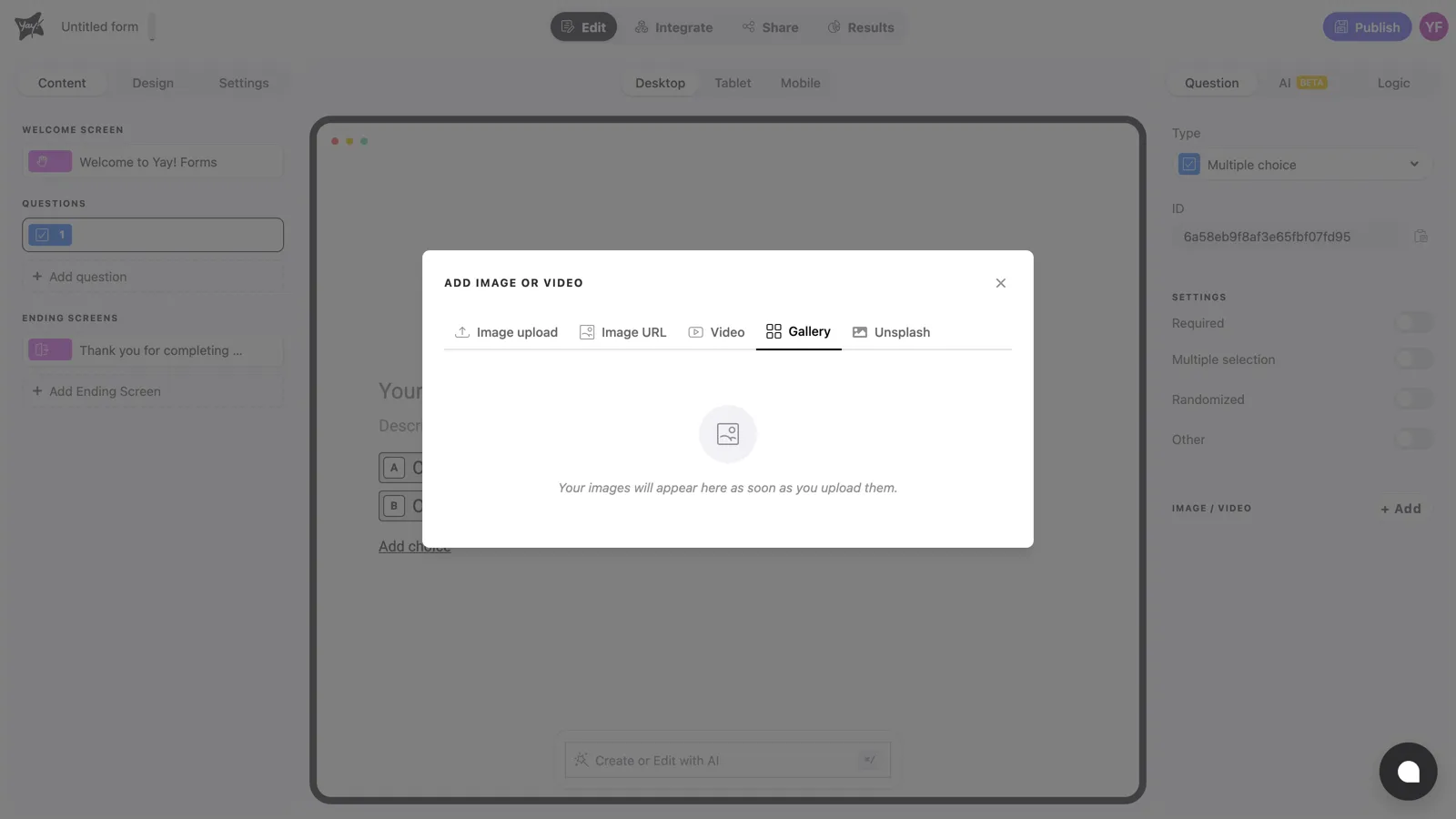
- Now, click the “Gallery” tab.
- You will see a list of the files you previously uploaded. To add an item from the gallery to your form, simply click the photo or file you want to include. After clicking the desired photo, it will be automatically added to your form.
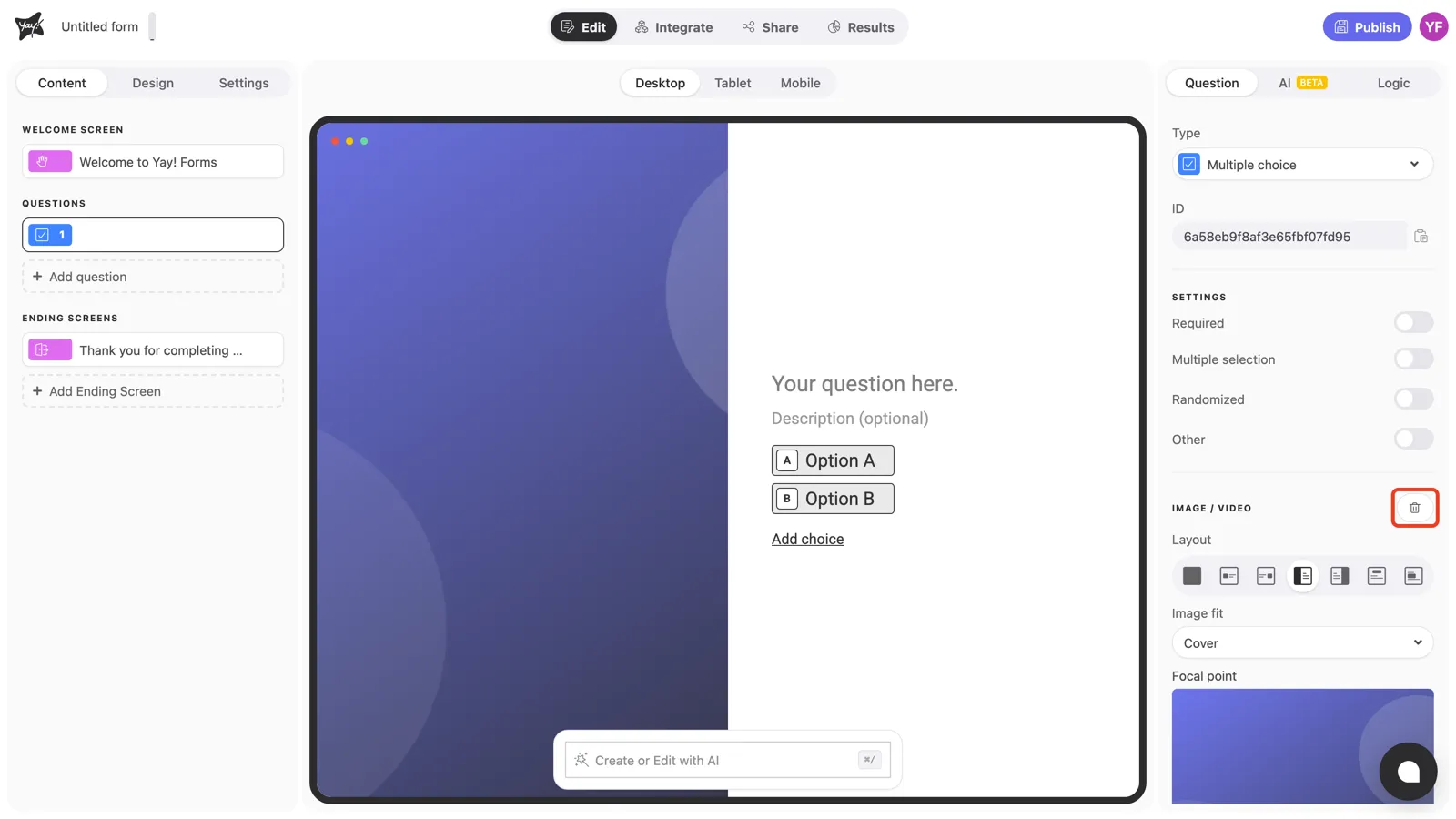
- If you want to delete an item from your gallery, hover over the item and click the delete icon. A confirmation message will appear. Confirm to delete the item.


Per-device media settings
Once you’ve added an image or video, you can set different settings for the same media on each device (Desktop, Tablet, and Mobile). For example: the same photo can have different heights, fits, and focal points on mobile to make sure the main subject stays in focus on a narrow vertical screen. To do this, switch the device tab above the canvas and adjust whatever you need.
If you prefer, you can also use entirely different media on each device — although the most common case is to keep the same image and only vary the settings.
Learn more in How to customize the form layout per device.
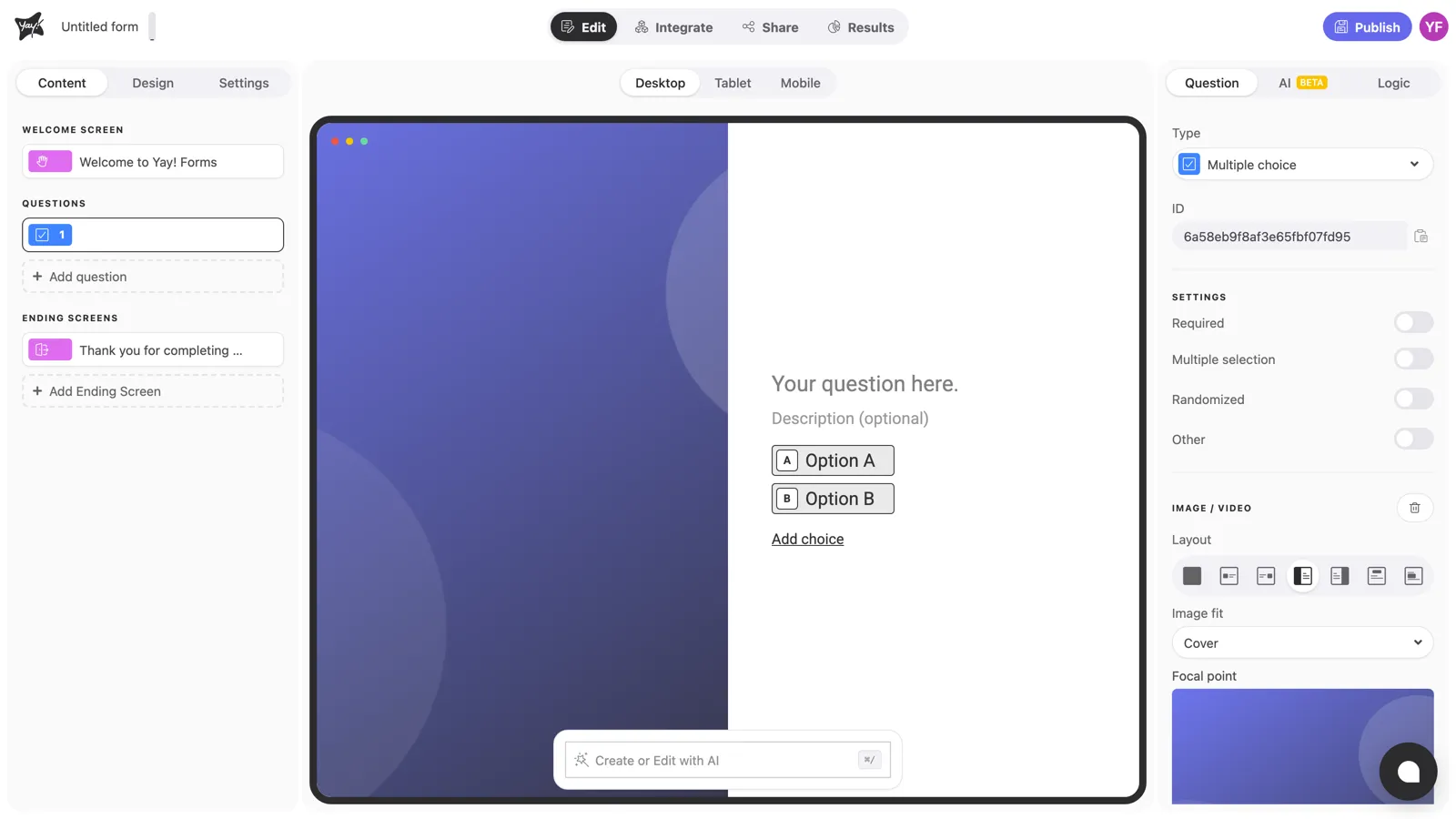
💡 If you want to learn how to change your image’s positioning in the form, follow this link: How to change your image positioning
Support
If you have any questions or suggestions, send an email to help@yayforms.com
Conclusion
You learned how to enhance a form’s visual appeal by adding media through uploads, external image and video links, and items from your gallery, helping you create more dynamic and visually consistent forms.