This guide covers the integration between Yay! Forms and Slack. You connect your Slack account, pick a channel, and every new response reaches that channel as a message with the questions and answers and a button that opens that response in Yay! Forms. There is no Slack app to create and no webhook URL to copy.
Requirements
- A Yay! Forms account on the Plus plan or higher (the trial includes it), with a form created.
- A Slack account allowed to install apps in your workspace. If your workspace requires app approval, Slack asks an admin for it during the connection.
1. Open the integration
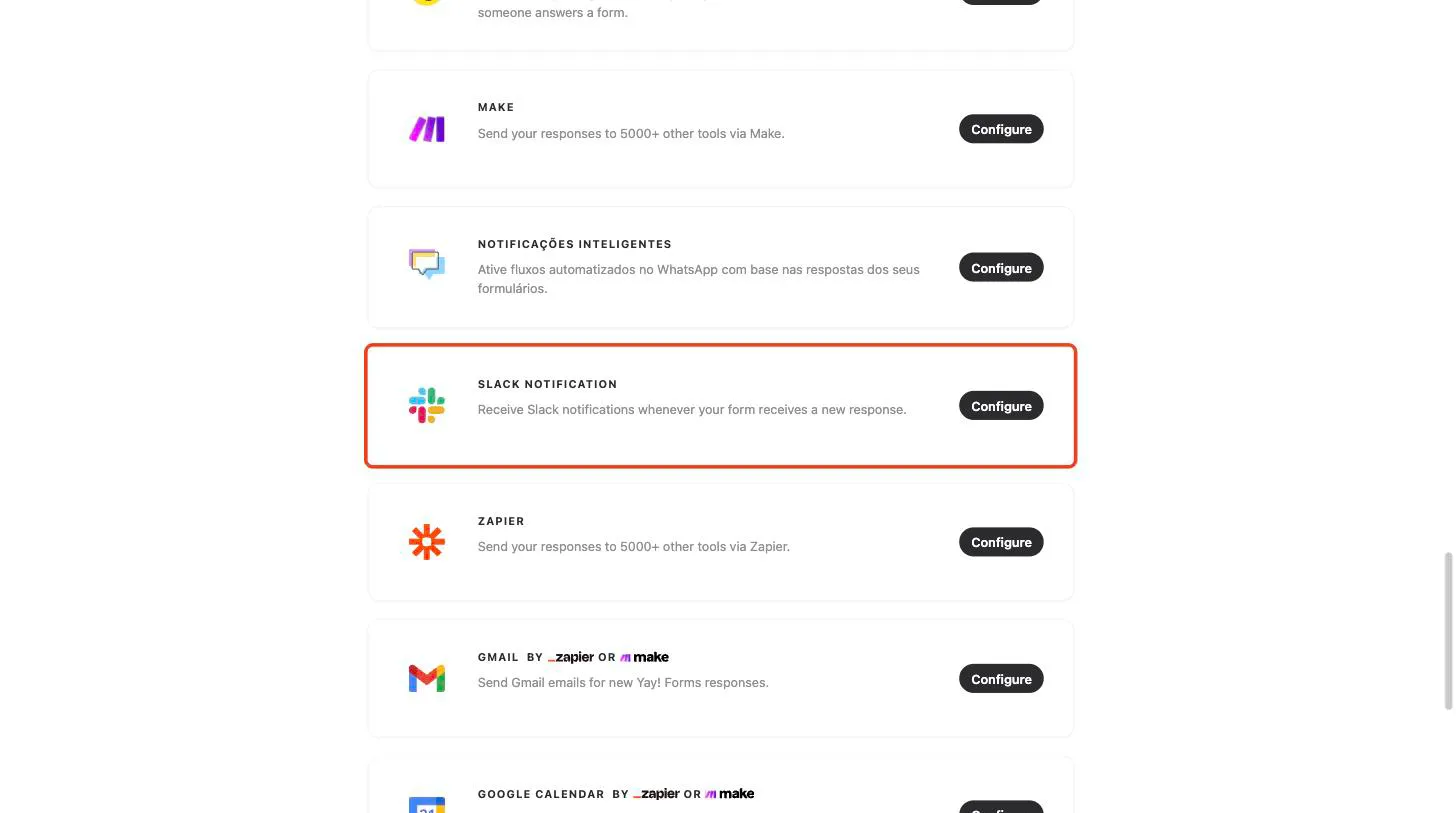
Open your form and select the Integrate tab. Find the Slack card in the list and click Configure.
2. Connect your Slack account
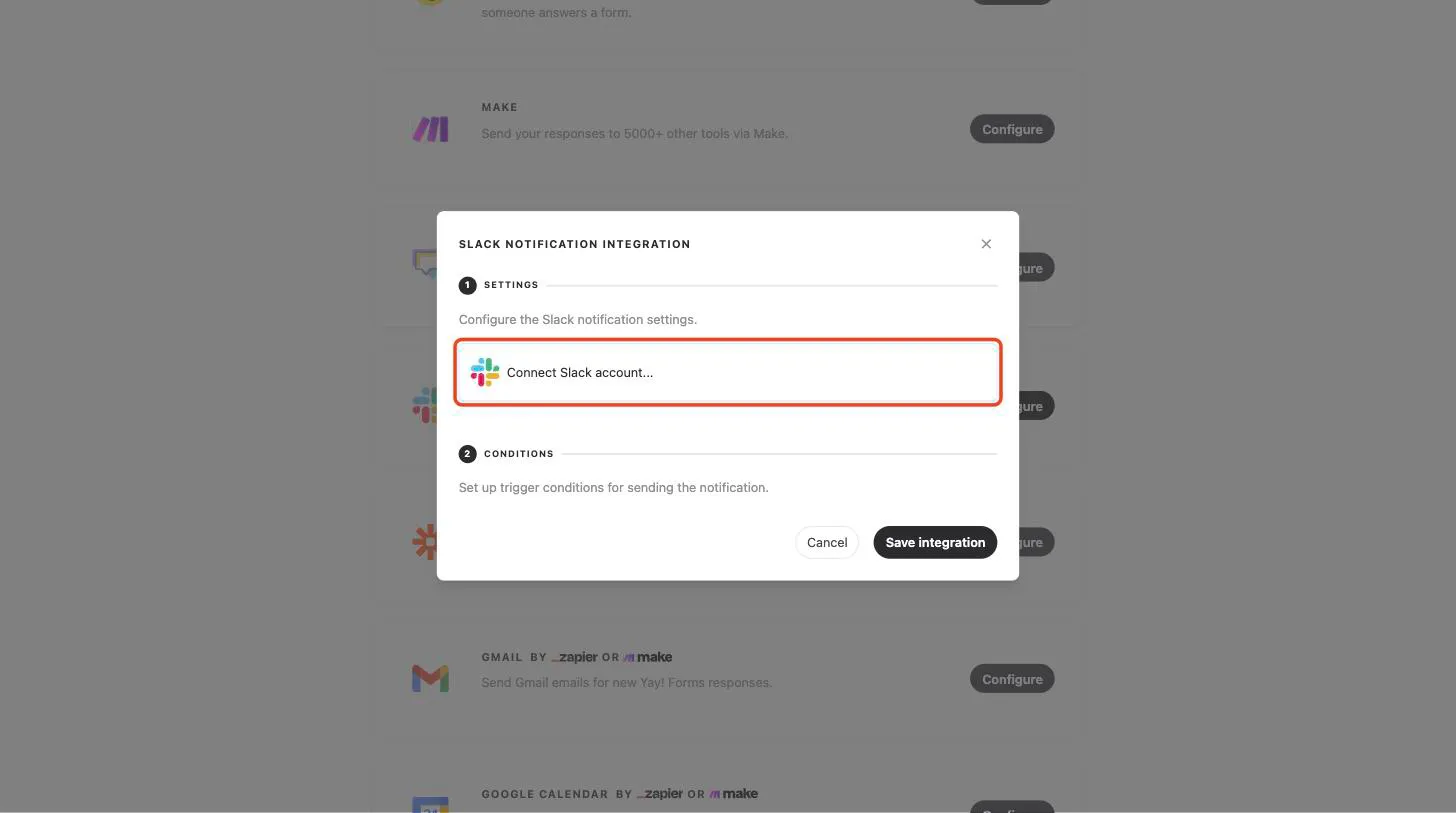
The modal opens on the Settings step. Click Connect Slack account…
A Slack window opens. Check the workspace in the top right corner, use the selector to choose the channel that will receive the notifications, and click Allow. Slack lists the channels you have access to.
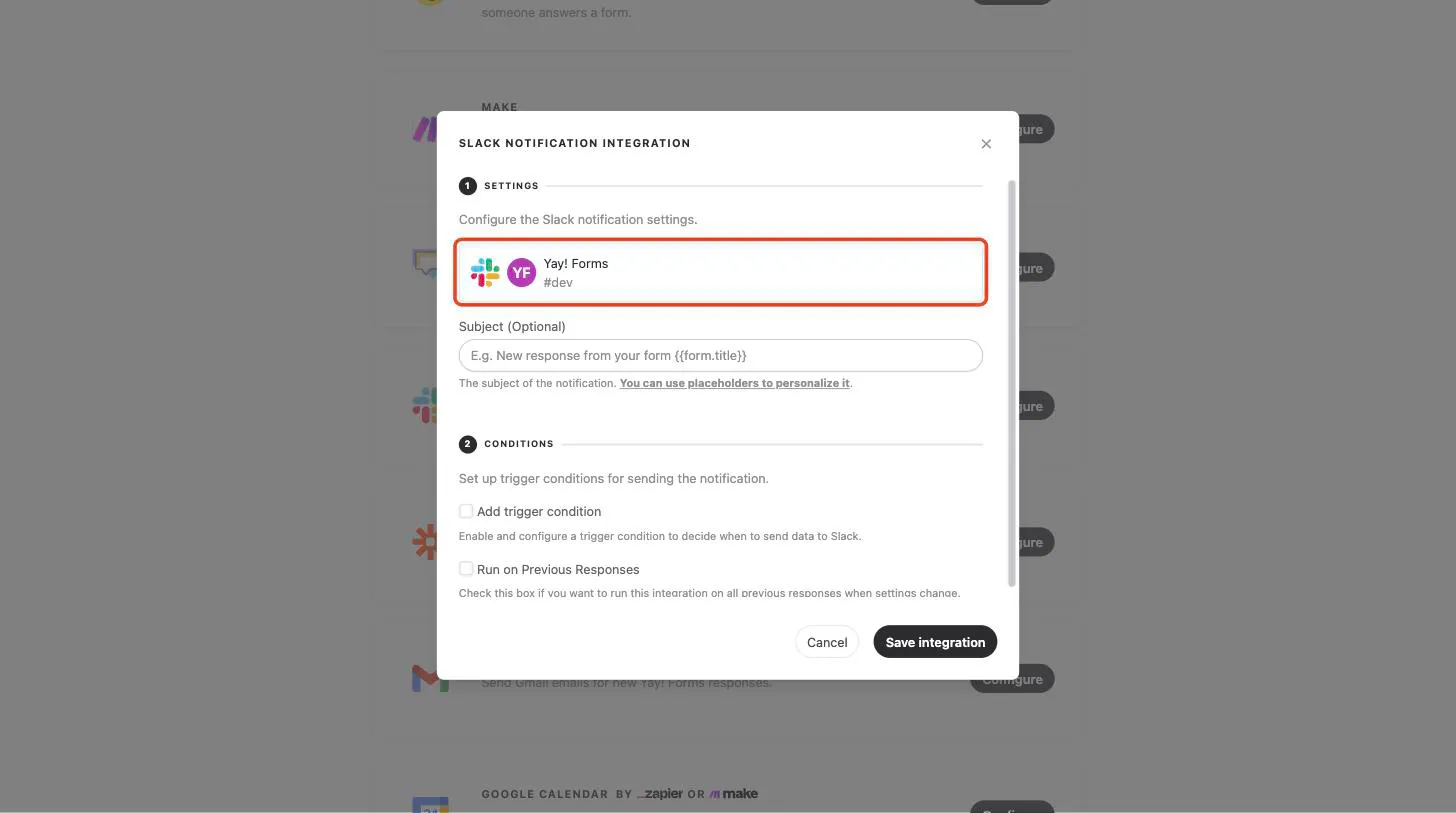
The window closes and the account shows up selected in the modal, identified by the workspace name and the channel.
3. Set the subject and the conditions
Subject (Optional) is the title of the message. Left blank, Yay! Forms uses “New response from your form” followed by the form name. You can use placeholders to include data from the response, as shown in the Placeholder Guide for Personalizing Notification Content.
On the Conditions step, check Add trigger condition to notify the channel only when the response meets a rule, such as a minimum score. The syntax is in How to create expressions for conditional integration execution.
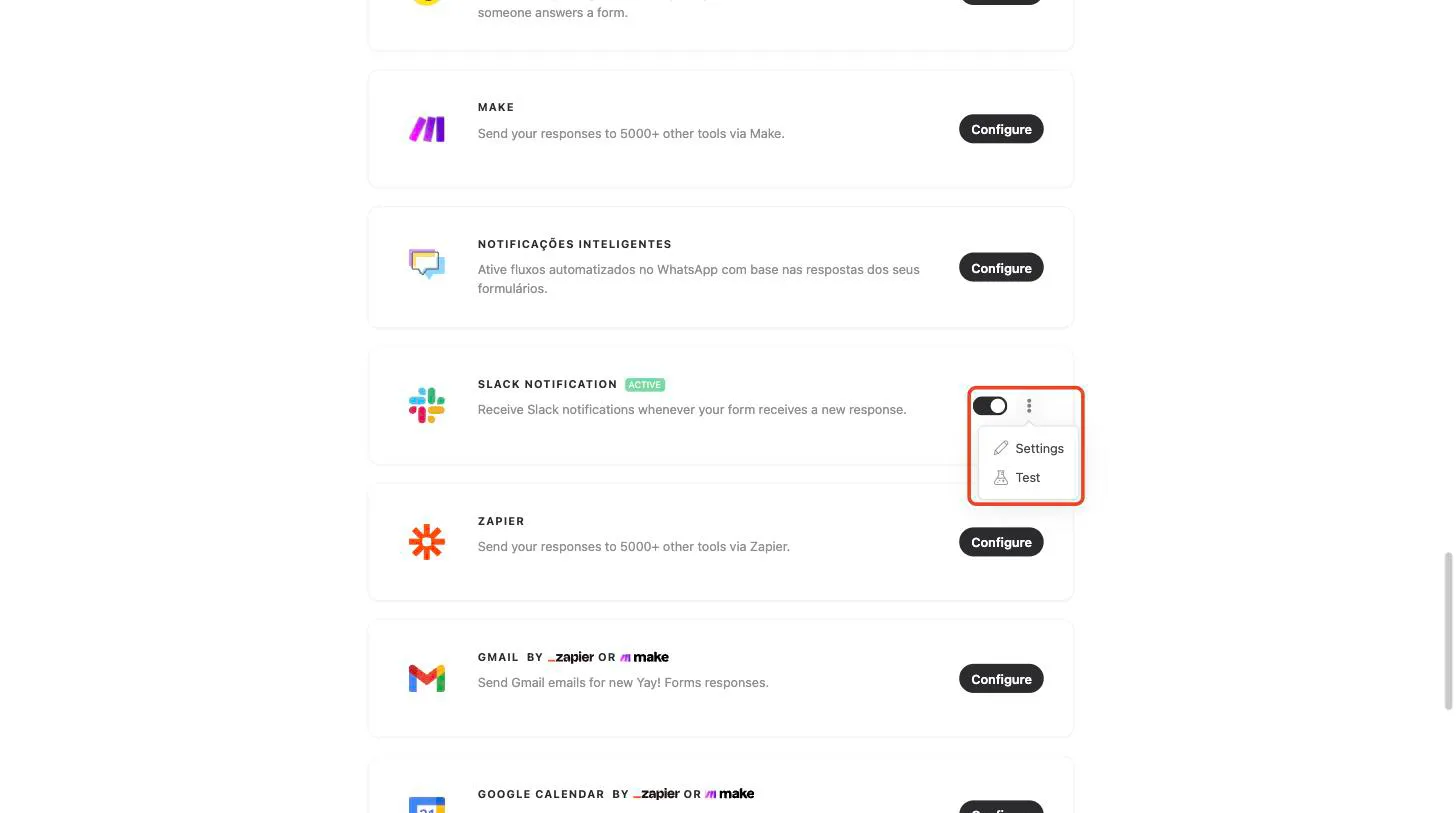
Click Save integration. A new integration starts turned off: back on the list, turn on the switch on the Slack card, which then shows Active. Until you do, no message is sent.
4. See the message in Slack
For every new response, the channel gets a message from the Yay Forms app with:
- the subject as the headline;
- each question and its answer, followed by the hidden fields, variables, and UTM parameters that came with the response;
- the View response button, which opens that response in the form’s inbox.
Slack messages have a size limit. When a response is long, Yay! Forms shares the room among the questions, shortens the longest answers, and, if it still does not fit, ends the list with “+N more”. The full response is always one click away, on the button. Links typed by the respondent show as [****], so nobody clicks an unknown address straight from the channel.
5. Turn it on, off, and test it
On the Slack card, the switch turns the integration on and off. In the three-dot menu, Settings reopens the modal and Test sends a test message.
About the test:
- The form needs at least one valid response.
- The test sends the data from the last valid response.
- The test does not mark the response as sent for this integration. It only checks the message.
Every delivery is recorded on the Logs tab, with time and status. Details in How to view your integration logs.
If you were already using a webhook URL
Integrations created before this version, with a pasted webhook URL, keep working with no action on your side, and already send the message in the new format.
The difference shows on the button: because the webhook belongs to an app you created, Slack shows a warning (⚠️) next to View response after the click. The link opens normally. To make the warning go away, open Settings on the Slack card, connect your account as in step 2, and save. From then on the messages go out through the Yay Forms app, and the old URL is no longer used.
Good to know
- One connection, many forms: the connected account belongs to your Yay! Forms workspace. Set up Slack on another form by picking the saved account from the menu, with no new authorization.
- Removing the app in Slack stops the notifications: if the Yay Forms app is removed from the Slack workspace, deliveries start failing and show as errors on the Logs tab. Connect the account again to resume.
Conclusion
You connected your Slack account, picked the channel, and set the subject and conditions. From here on, every response that meets your rules reaches the channel with its answers and a button to open it in Yay! Forms.
Support
If you have any questions or suggestions, send an email to help@yayforms.com.
Related articles: