By default, Yay! Forms shows one question per screen. The Group field lets you break that rule when it makes sense: it bundles several questions together so respondents answer them on the same screen. It’s perfect for things like contact details, an address block, or any set of short fields that belong together.
How the Group field works
A Group is a container (“parent”) that holds other questions (“children”). The children are shown stacked on a single screen, one after another, and respondents move past the whole screen with a single button.
Your existing forms are untouched — fields that aren’t inside a group keep their usual one-question-per-screen flow.
Adding a Group field
- In the editor, click + Add question.
- Under FORM STRUCTURE, choose Group.
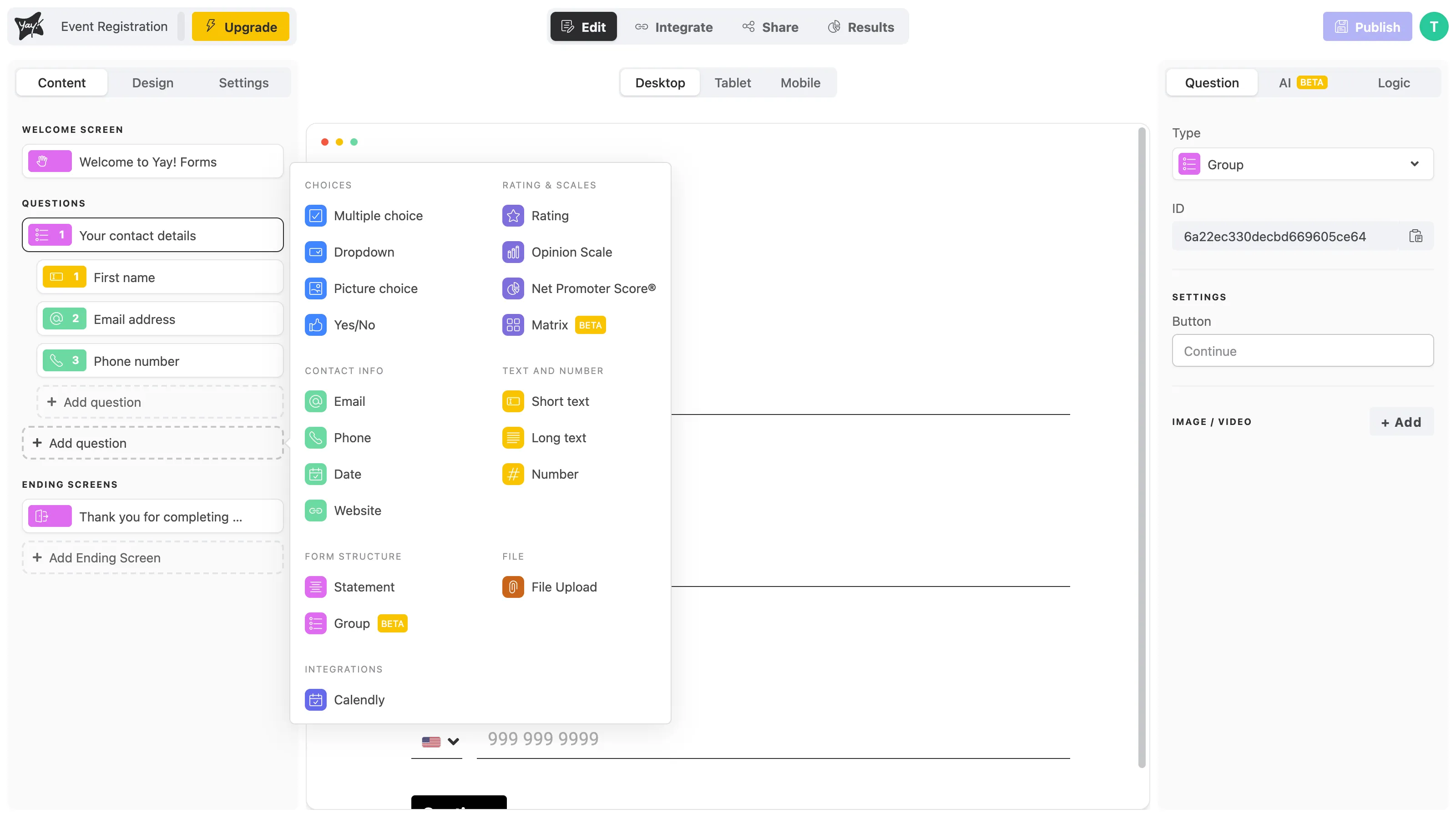
A new group is added to your form. In the left sidebar it appears as a parent row with its own indented + Add question button right below it.
Adding questions inside the group
Use the + Add question button nested under the group to add a child question. You can add any question type except another Group or a Calendly field — groups can’t be nested, and the Calendly widget takes over the full screen with its own submit flow, which would conflict with the group’s stacked layout.
In the example below, the group “Your contact details” holds three children — First name, Email address, and Phone number — and the canvas previews all three stacked on the same screen.
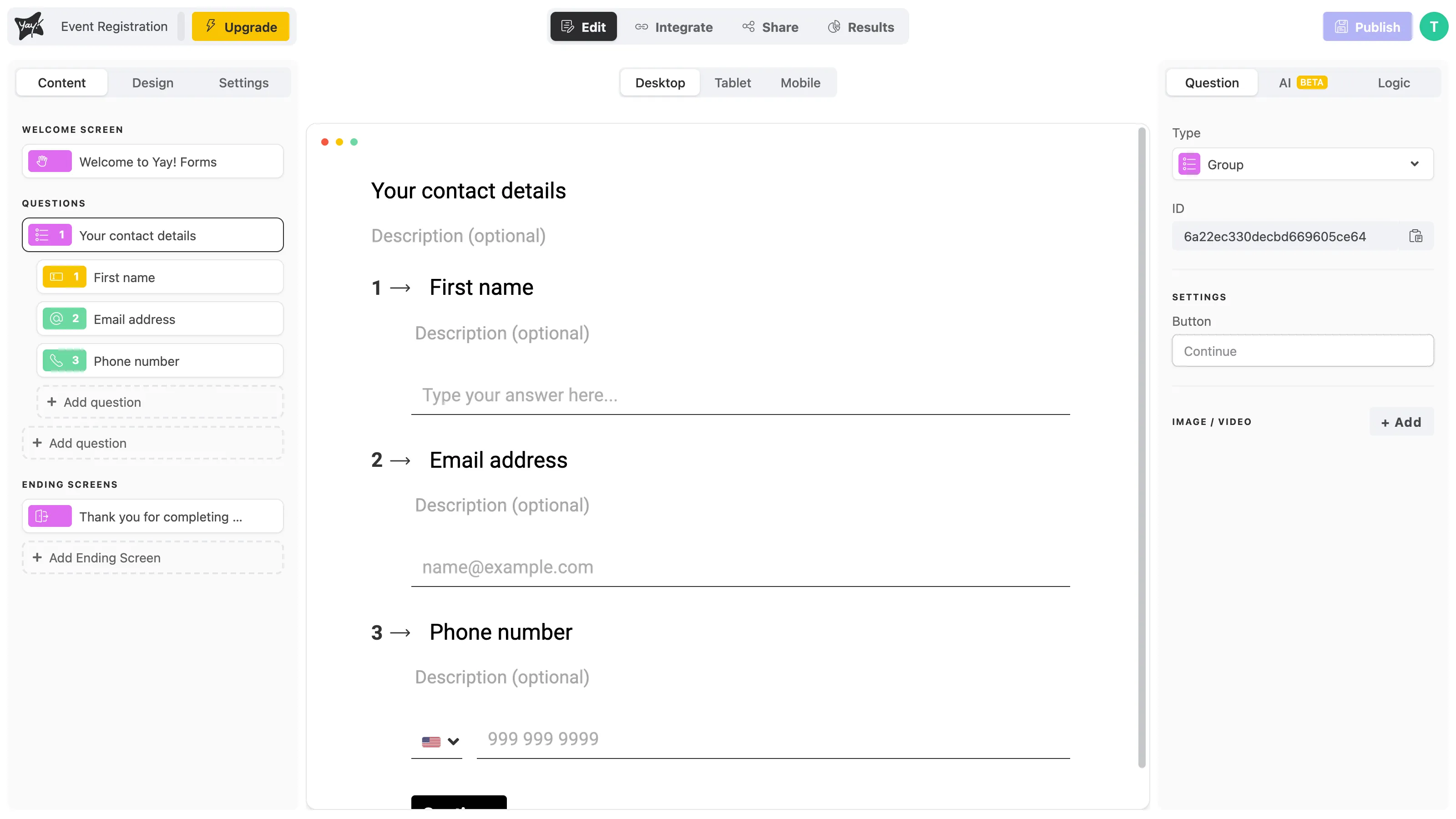
The children are indented in the sidebar so you can always tell which questions belong to the group.
Reordering and moving questions
You can drag questions to organize them:
- Reorder children within the group by dragging them up or down.
- Move a question into a group by dragging a top-level question onto the group.
- Move a question out of a group by dragging it back to the top level, or into a different group.
Customizing the group
Select the group row to edit it in the right panel:
- Title and description — edit them directly on the canvas (for example, “Your contact details”).
- Button — under SETTINGS, set the text of the button respondents click to continue past the screen.
What respondents see
Respondents see the group’s title followed by every question in the group on one screen. They fill them in, then continue with a single button.
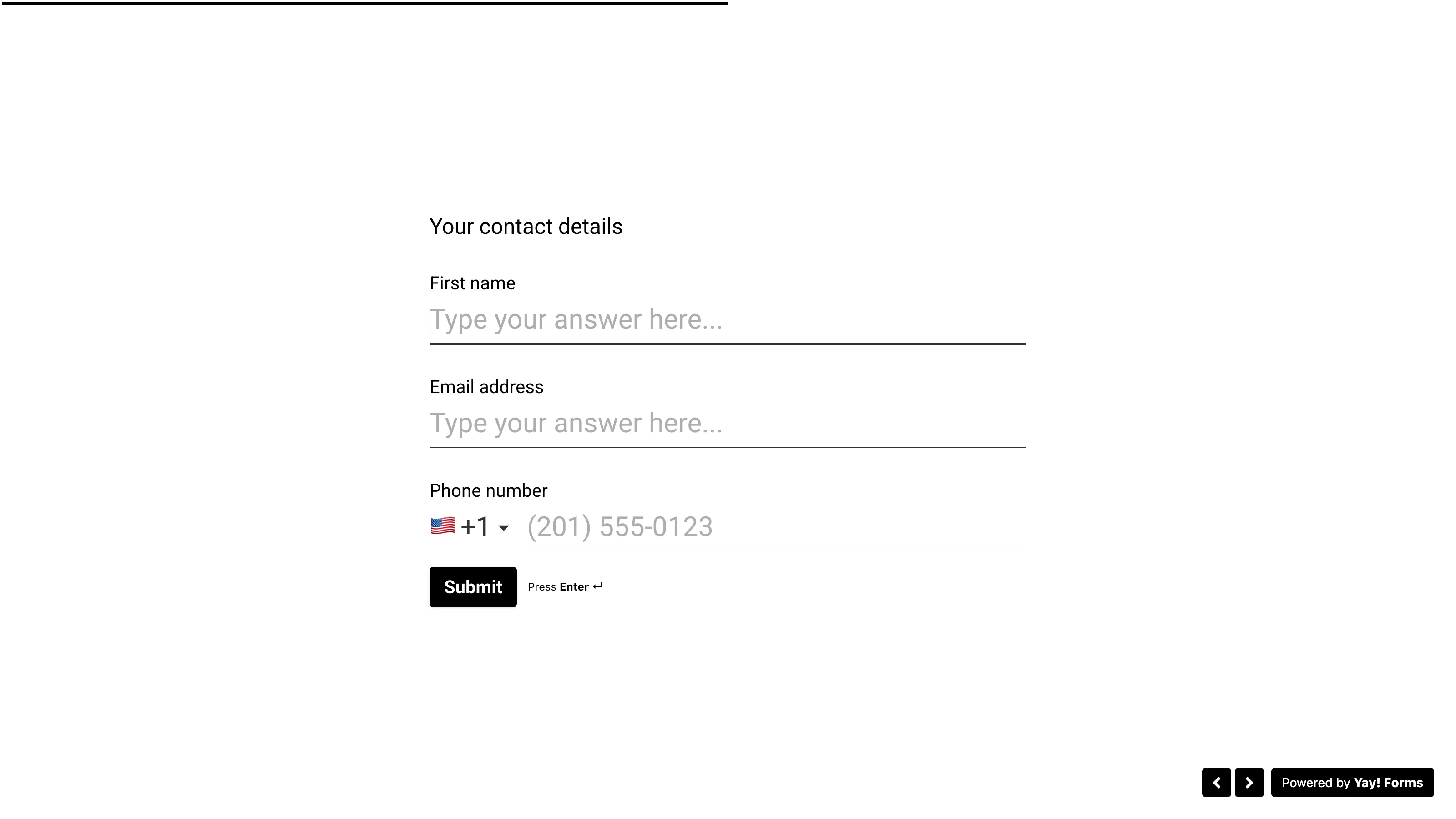
Each answer is validated and saved individually, so if a respondent leaves an invalid value (like a malformed email), the error appears right under that question and the screen won’t advance until it’s fixed.
Using logic with a group
You can apply logic at the group level. Open the Logic tab with the group selected to add rules that run after the screen is submitted — for example, jumping to a specific ending based on the answers.
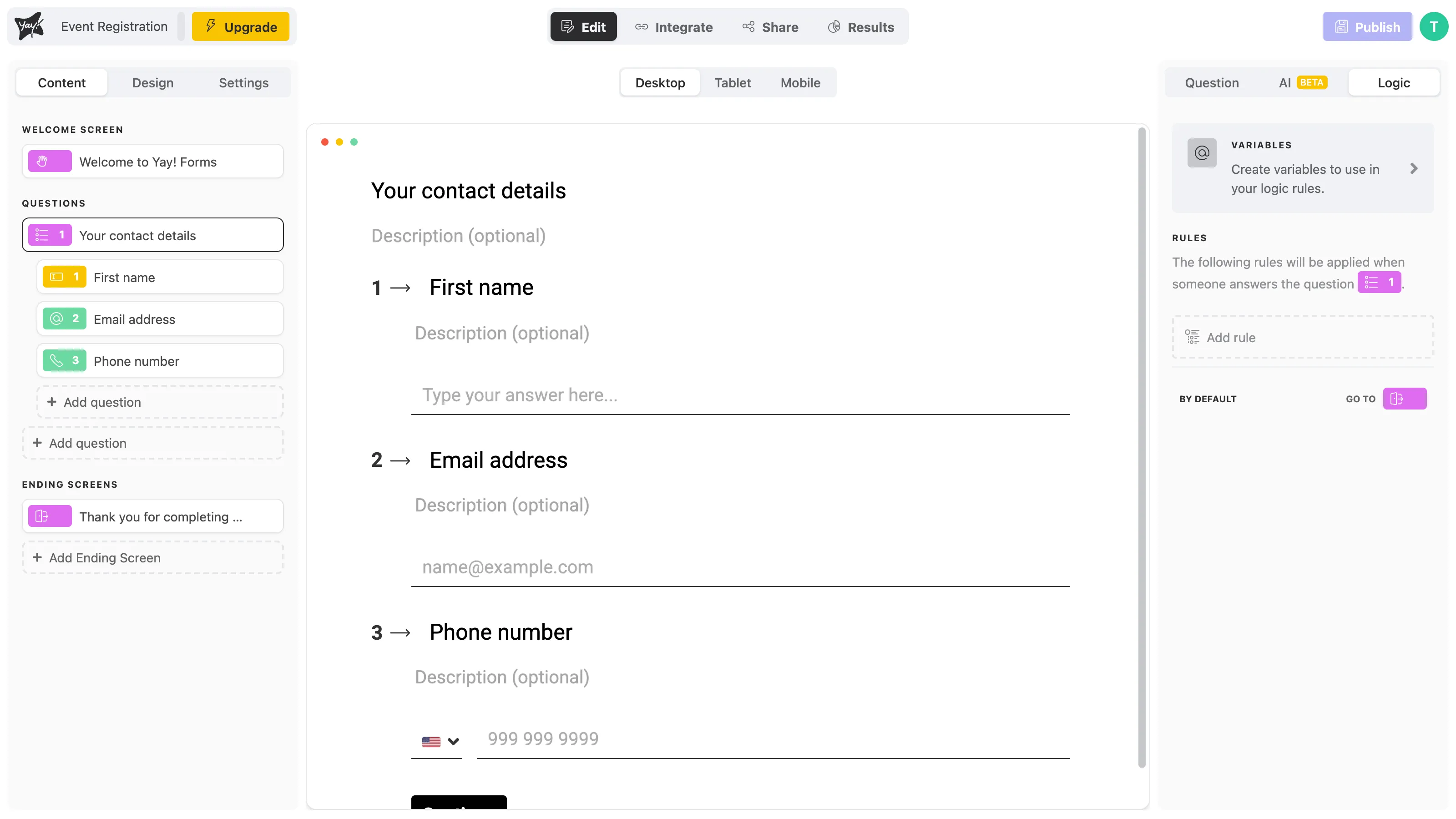
Logic and jumps are set on the group, not on its children — a mid-screen jump wouldn’t make sense, so individual child questions don’t have their own logic.
Good to know
- No nesting — a group can’t contain another group.
- Children may not mention other children — because the questions appear together, you can’t use the
@mention feature to reference one child’s answer in another question on the same screen. Mentions still work for answers captured on earlier screens. - Duplicating a group also duplicates all of its child questions in a single action.
- Deleting a group opens a dialog with three options: Delete the group and its questions (removes the group and every child), Keep the questions (removes only the group, and the children become top-level questions), or Cancel.
Support
If you have any questions or suggestions, send an email to help@yayforms.com
Conclusion
The Group field gives you a clean way to put related questions together on a single screen without leaving the smooth one-question-at-a-time feel for the rest of your form. Add a group, drop a few questions inside it, set the button text, and your respondents get a faster, more natural way to fill in fields that belong together.